
USB flash drives are convenient, but they don’t last forever. When a drive stops opening, gives error messages, or refuses to show up on your computer, it’s easy to panic.
The good news: A broken drive doesn’t always mean your data is gone.
This guide walks you step-by-step through checking your drive, saving a safe backup copy, and recover data files back on Linux.
1. What Wrong with the Drive?
Before recover data or trying to fix anything, you need to figure out what type of damage your drive has:
- Software Damage (Logical Failure): The drive’s hardware works fine, but the “index” or table of contents that organizes your files was damaged (often from unplugging the drive while it was in use). This is usually fixable at home.
- Hardware Damage (Physical Failure): The internal memory chips are worn out or damaged by heat/water. This often causes non-stop read/write error messages.
Warning: If your drive has hardware damage, stop using it immediately. The more a damaged drive stays plugged in, the closer it gets to dying permanently.
2. Check if Your Computer Sees the Drive
First, let’s see if your computer can detect the USB stick at all.
Step 1: Check the USB Connection
Open your terminal and type:
lsusb
- What to look for: A line showing your drive’s brand name (like Kingston, SanDisk, or Samsung).
- If nothing shows up: Your computer isn’t sending power to the drive, or the connector is dead. Try plugging it into a different USB port directly on your computer (avoid USB hubs).
Step 2: Check System Logs
Next, check if Linux recognizes the drive as a storage device:
sudo dmesg | tail -n 25
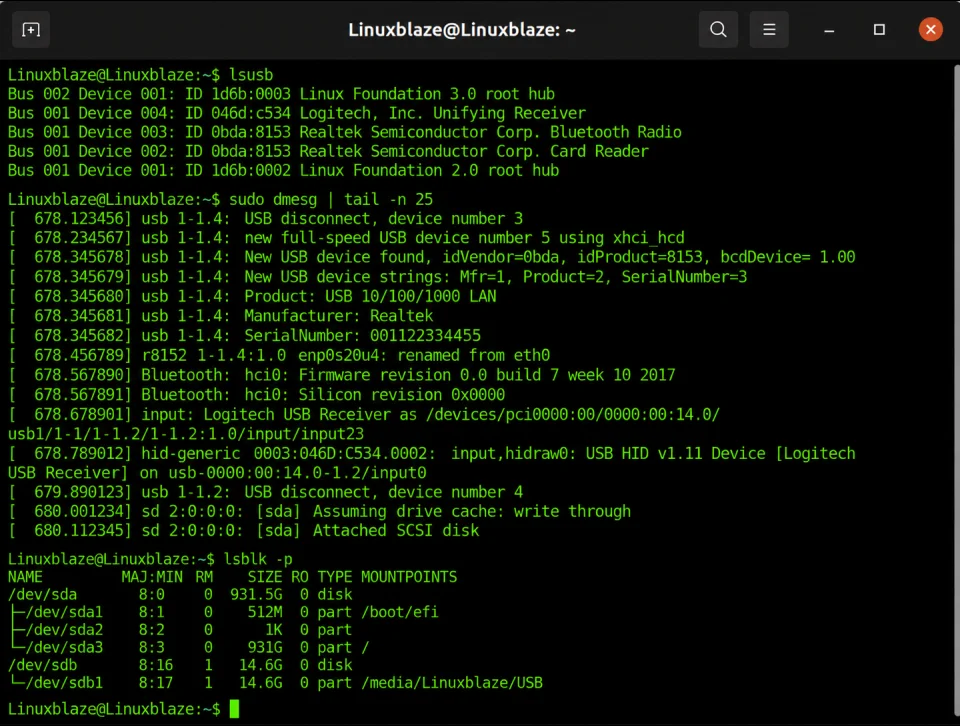
Look for a message near the bottom saying something like Attached SCSI removable disk.
Finally, list your storage drives:
lsblk -p
Find your USB drive in the list by looking at its size (for example, /dev/sdb). If you see the main drive (/dev/sdb) but no sub-parts listed under it (like /dev/sdb1), the index that holds your files is damaged.
3. Rule #1: Make a Safe Copy First
Never try to repair a failing USB drive directly. Fixing a drive puts heavy strain on the memory chips. If the drive dies halfway through a repair, your files are gone forever.
Instead, make a exact digital clone (an .img file) of the drive on your computer, then unplug the USB drive for good.
Important: Your computer must have more free space than the total size of the USB drive (for example, to clone a 64 GB USB drive, you need at least 64 GB of free space on your PC).
How to Clone Your Drive with ddrescue
ddrescue is a smart tool that copies all the healthy parts of your drive first, then goes back to retry damaged spots.
- Install the tool:
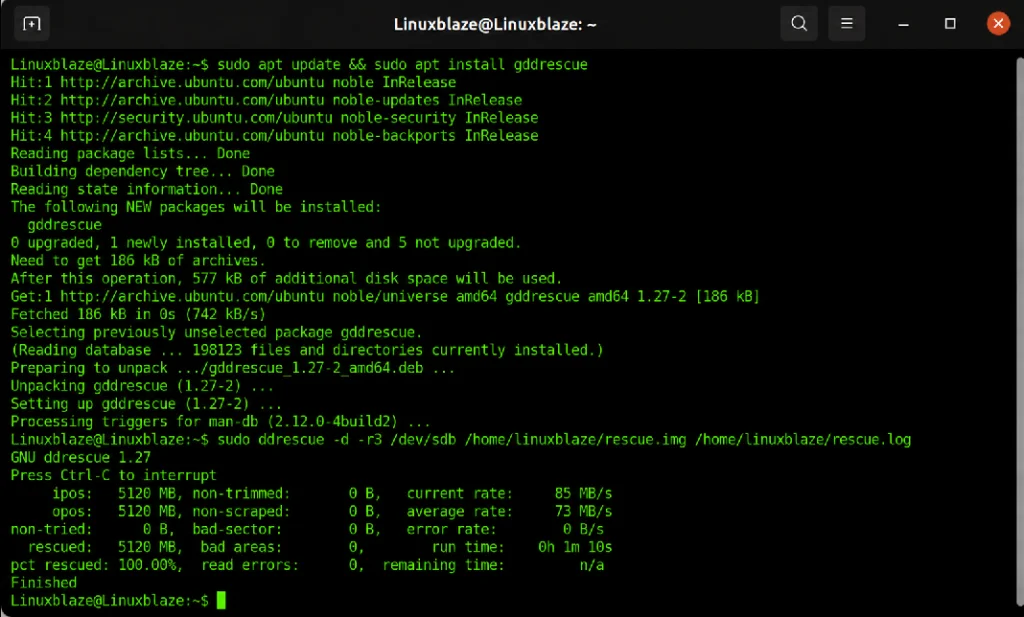
sudo apt update && sudo apt install gddrescue2. Start the clone process:
(Replace /dev/sdb with your USB drive name, and /home/user/ with your computer’s folder path)
sudo ddrescue -d -r3 /dev/sdb /home/user/rescue.img /home/user/rescue.log-d: Direct copy mode (bypasses system memory for safer reading).
-r3: Retries hard-to-read spots 3 times.
rescue.log: Saves your progress. If the copy gets interrupted, running the command again picks up right where it stopped.
Once finished, unplug your USB stick. You will do all remaining steps on the rescue.img file stored safely on your computer.
4. Method 1: Restore Lost Folders with TestDisk
Before running deep repair commands, try using TestDisk. To recover data, this tool rebuilds the drive’s original structure—recovering your files with their original names and folders intact.
- Install TestDisk:
sudo apt install testdisk2. Open your cloned image file:
testdisk /home/user/rescue.img3. Follow these steps inside TestDisk:
- Choose Create to make a simple log.
- Select Intel/PC (for standard USB drives).
- Go to Analyse $\rightarrow$ Quick Search.
- If TestDisk finds your lost files, press
Pto preview them.
- Press
Cto copy the selected files onto your computer.
If TestDisk finds your files, congratulations! If it doesn’t, move on to Method 2.
5. Method 2: Repair File Errors
If you know how your drive was formatted (Windows or Linux), you can run built-in diagnostic tools on your clone file.
Step 1: Connect the Clone as a Virtual Drive
Run this command to make Linux treat your rescue.img file like a real drive:
sudo losetup -fP /home/user/rescue.img
Find out what virtual drive name was assigned:
lsblk | grep loop
(Usually, this creates a virtual drive named /dev/loop0p1)
Step 2: Run a Repair Tool
- For Linux Drives (ext3/ext4):Bash
sudo fsck.ext4 -v -y /dev/loop0p1(The-yflag automatically answers “yes” to fix any minor errors it finds.) - For Windows Drives (NTFS):Bash
sudo ntfsfix /dev/loop0p1
Step 3: Open and View the Repaired Files
Create a temporary folder and mount your repaired clone:
sudo mkdir -p /mnt/recovery
sudo mount -o ro /dev/loop0p1 /mnt/recovery
Open your computer’s file manager and check /mnt/recovery for your files. Copy any recovered data to a safe folder.
When you’re done, disconnect the virtual drive:
sudo umount /mnt/recovery
sudo losetup -d /dev/loop0
6. Method 3: Deep Scan for Files (PhotoRec)
If the folder structure is completely broken, use PhotoRec. Instead of looking at folder names, PhotoRec scans the raw data to spot recognizable file patterns (like pictures, PDFs, or Word documents).
Note: PhotoRec will not keep original filenames or folder structures. Your files will be saved with generic names (e.g.,
f01234.jpg), so you will need to sort through them afterward.
- Start PhotoRec:
photorec /home/user/rescue.img2. Select settings:
- Choose No partition to scan the entire file.
- Choose Other for standard Windows/Mac USB drives (FAT/NTFS/exFAT).
- Pick a folder on your computer where PhotoRec should dump the recovered files.
PhotoRec will create folders named recup_dir.1, recup_dir.2, etc., containing all your rescued files.
7. Fixing “Permission Denied” Errors
Because recovery tools run with administrative rights (sudo), the recovered files might be locked so only the system administrator can open them.
To make these files readable and editable by your standard computer account, run:
sudo chown -R $USER:$USER /home/user/rescue.img
(Replace /home/user/rescue.img with the path to the folder where your recovered files are stored.)
8. When a Drive Cannot Be Saved
Software tools cannot fix physical damage. It may be time to let the drive go if:
- Your computer’s hardware list (lsusb) never detects the drive.
- The drive size shows as
- ddrescue reports 100% of the drive is unreadable.
If this happens, your remaining choices are:
- Specialist Recovery Labs: Professional labs can remove the memory chips inside the drive and read them with specialized hardware. This usually costs between $500 and $2,000+, so it is only worth it for extremely valuable files.
- Replacement: Flash drives wear out over time. If a drive starts failing, replace it immediately.
9. Quick Rules to Protect Your Files
- The 3-2-1 Rule: Keep 3 copies of important files, across 2 different devices, with 1 copy stored online or in the cloud.
- Always Eject Safely: Always right-click and “Eject” or “Unmount” a USB drive before pulling it out. This ensures all active background writes finish cleanly.
- Don’t Use Thumb Drives for Long-Term Backups: Standard USB thumb drives are designed for quick file transfers, not permanent storage. Use external hard drives or SSDs for backups.
Summary Checklist
| Step | Goal | Simple Tool | What It Does |
| 1. Diagnose | Detect hardware | lsusb, lsblk | Sees if the computer recognizes the drive |
| 2. Clone | Save a safe backup | ddrescue | Copies all readable data into a safe image file |
| 3. Restore | Rebuild folder tree | testdisk | Recovers files with their original names intact |
| 4. Repair | Fix system errors | fsck, ntfsfix | Repairs broken drive pointers |
| 5. Extract | Raw file scan | photorec | Pulls out raw pictures, documents, and videos |
| 6. Permissions | Fix file access | chown | Gives your standard user account ownership of files |
