Effective user management is the cornerstone of a secure and stable Linux system. Whether you are setting up a new machine, onboarding a team member, or cleaning up old accounts, following a disciplined process ensures you maintain security without accidentally locking yourself out or leaving “zombie” files behind.
The Linux User Architecture
Before managing users, it helps to understand how Linux actually tracks them. The system doesn’t just look at names; it relies on a few critical text files:
- /etc/passwd: Stores the core account information, including the username, User ID (UID), Group ID (GID), home directory, and default shell.
- /etc/shadow: Stores encrypted password hashes. For security, this file is accessible only by the root user.
- /etc/group: Defines user groups, which dictate permissions for multiple users at once.
Every file and running process in Linux is “owned” by a numerical UID. When you delete a user but fail to clean up their files, those files remain on the system labeled with that old UID. This creates leftover files, wastes disk spaces and can create potential security vulnerabilities.
Part 1: Creating and Configuring Users
Creating a user involves defining their environment and assigning the correct permissions.
1. Create the Account
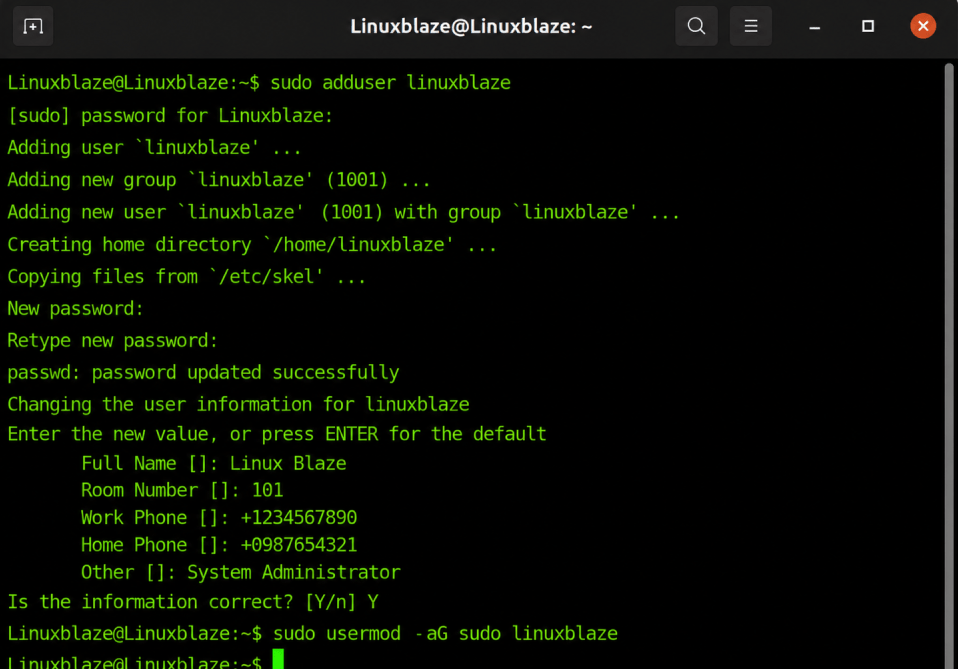
While useradd is the standard low-level utility, most Debian/Ubuntu-based distributions provide adduser. This higher-level tool automatically handles creating the home directory and setting up default configurations.
sudo adduser newusername
Note: If you are using RHEL, CentOS, or Fedora, you will typically use sudo useradd newusername instead.
2. Grant Administrative Privileges
By default, new users have standard permissions and cannot run system-level commands. To grant them administrative access, add them to the sudo group:
sudo usermod -aG sudo newusername
Crucial tip: The -aG flag stands for append to group. If you forget the -a and just use -G, you will overwrite the user’s group list, stripping them of all other permissions (like access to audio or docker groups).
(For advanced users modifying specific privileges, always use sudo visudo to edit the sudoers file. Never use a standard text editor, as a syntax error can permanently lock you out of admin access.)
Part 2: Safe Deletion
Deleting a user is a permanent operation. Simply running a delete command can fail if the user is currently running background processes. Follow this strict order to remove an account safely.
1.Backup and Archive:
Before deleting anything, secure the user’s data. If you skip this, the data is gone forever once the home directory is removed.
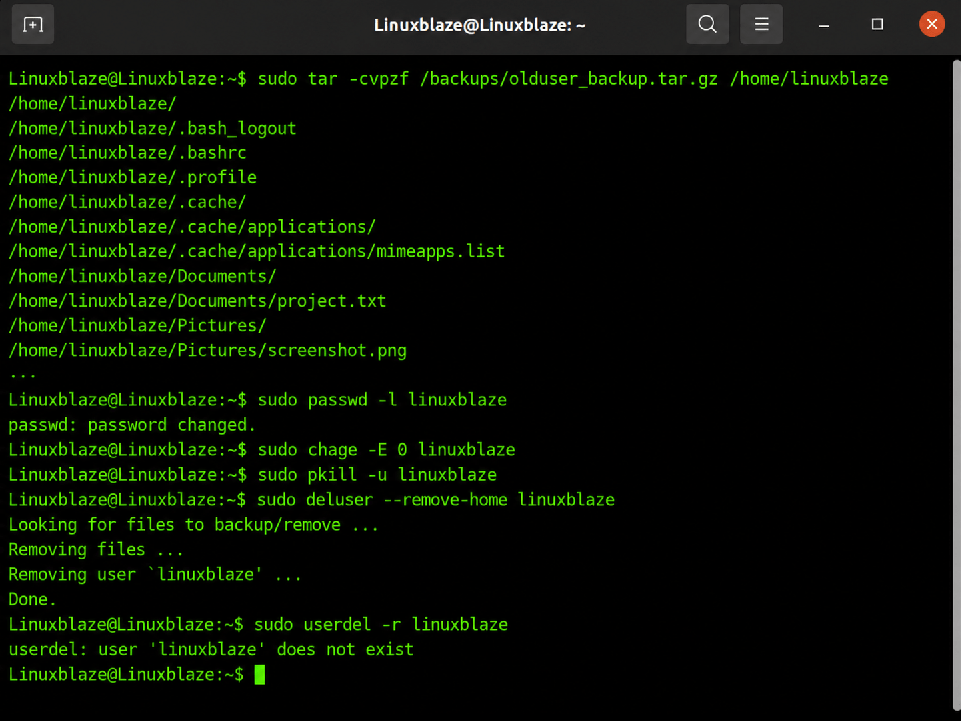
sudo tar -cvpzf /backups/olduser_backup.tar.gz /home/oldusername
2.Lock the Account:
Prevent the user from logging in or using their password immediately.
sudo passwd -l oldusername
3.Expire the Account:
Force the system to treat the account as expired. This ensures that alternative login methods, like SSH public keys, are also disabled.
sudo chage -E 0 oldusername
4.Terminate Running Processes:
If the user has background processes running, the system will block the deletion. Force these processes to stop. (Note: If the user runs critical web or database services, safely stop those services first).
sudo pkill -u oldusername
5.Final Account Removal:
Now that the account is locked, idle, and backed up, permanently remove the user and their home directory.
sudo deluser --remove-home oldusername
(Note: On RHEL/CentOS/Fedora, use sudo userdel -r oldusername instead).
if you also want to delete cron/spool related stuff or if UID/home conflict exist:
sudo userdel -r usernamePart 3: Deep Cleanup and Verification
Standard deletion commands don’t always catch everything. Run this quick audit to ensure the deleted user is completely scrubbed from the system.
1. Hunt for leftover Files
Search for files the deleted user left behind. The command below scans your whole computer for files that no longer have an owner:
sudo find / -nouser
Review the output. Ignore system-generated files in directories like /proc or /sys. If you spot leftover files in /var or /opt, delete them manually.
2. Clear Mail and Cron Spools
System queues often hold leftover data. Find and delete any leftover emails or tasks set to run automatically:
# Check and remove remaining mail
sudo rm -f /var/mail/oldusername

# Check and remove remaining cron jobs
sudo rm -f /var/spool/cron/crontabs/oldusername
3. Remove Leftover Primary Groups
When you create a user, Linux often creates a unique “primary group” matching their username. Deleting the user doesn’t always delete this group. Check if it still exists:
grep oldusername /etc/group
If the group appears in the output and has no other users assigned to it, remove it:
sudo groupdel oldusername
Part 4: Lock vs delete (safer than immediate removal)
If you’re unsure, you can disable access without removing data:
sudo usermod -L USERNAME    # lock password
sudo usermod -U USERNAME # unlock laterPart 5: Change hostname(delete the default ones)
When you first install Linux or a distro on a cloud server or a local machine, your system usually gets a default hostname (like ubuntu, fedora, or raspberrypi). It is always a best practice to change the default hostname to a clean, personal, and unique name. This helps you easily recognize it, keeps your network organized and secure, and prevents confusion.
Follow these simple steps to completely change your hostname and clear out the old default one.
1. Check Your Current Name
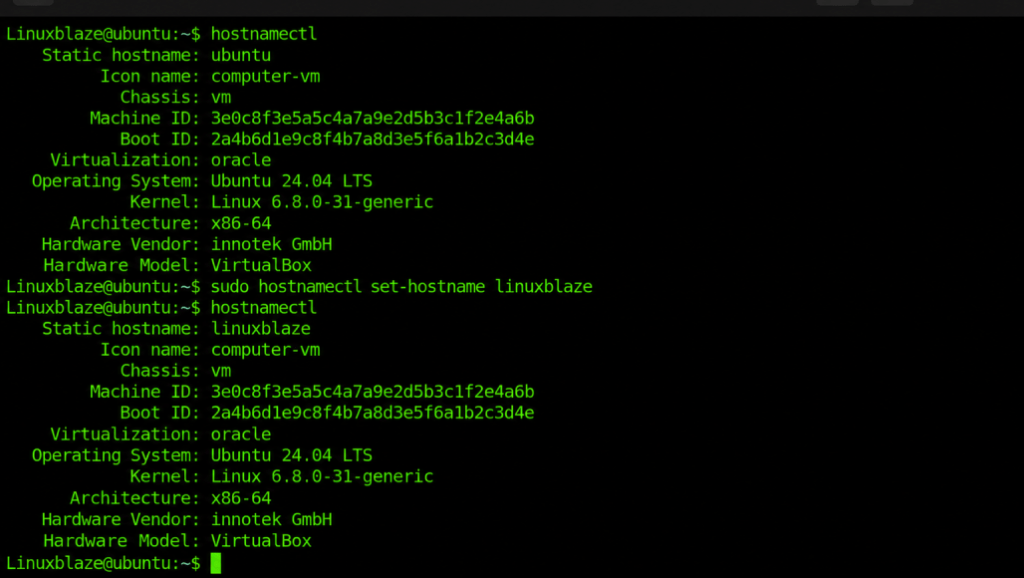
First, let’s see what your computer is currently called. Open your terminal and type this command to see the hostname:
hostnamectlLook for the line that says Static hostname to see your current name.
2. Set Your New Name
To change the name, use the command below. Replace “linuxblaze” with whatever name you want to use (keep it all lowercase, with no spaces or special symbols, though you can use hyphens like linuxblaze-pi):
sudo hostnamectl set-hostname linuxblaze(You will need to type your password when using sudo).
3. Update the Local Connection File
To make sure your computer and its apps always recognize the new name without errors, you need to update one small system file.
Open this file in a simple text editor using this command:
sudo nano /etc/hostsScroll through the text and look for your old or default hostname (usually found near lines starting with 127.0.0.1 or 127.0.1.1). Delete the old name and type your new name in its place.
It should look something like this:
127.0.0.1   localhost
127.0.1.1   linuxblaze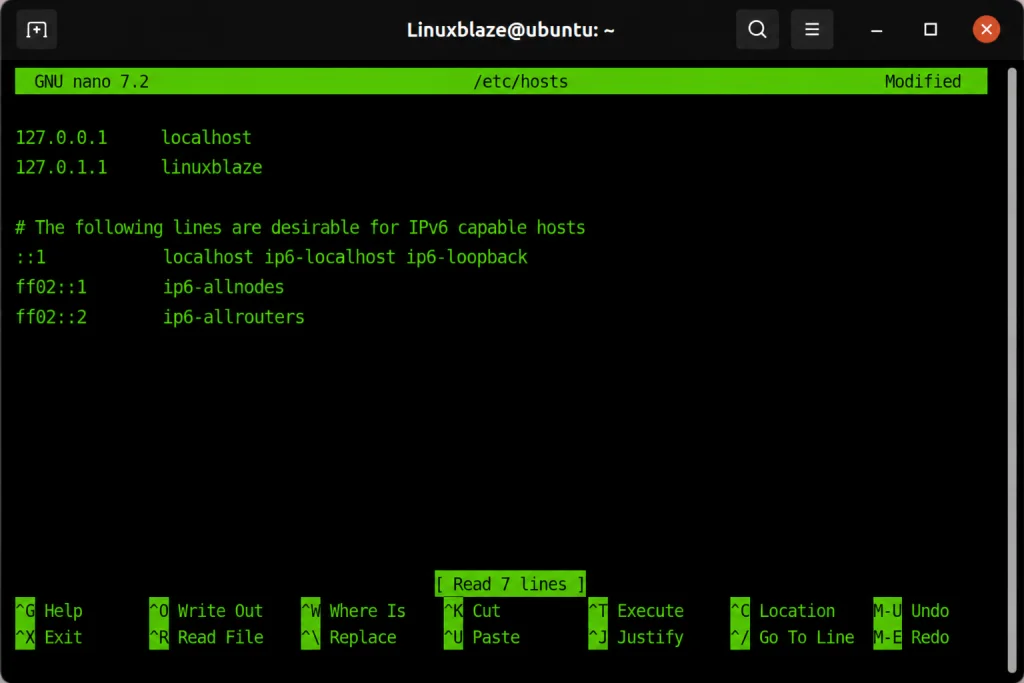
Save and close the file. (If you are using Nano, press Ctrl + O, hit Enter to save, and then press Ctrl + X to exit).
4. Restart Your Terminal or Log Out
To make sure everything is fully updated, close your terminal window and open a new one (or log out and log back into your desktop/server). It’s better to reboot your computer once.
After reboot when you open the terminal, you will see your new hostname right there in your command prompt!
Summary Best Practices
- Never delete the root user: Ensure you always have at least one active, fully privileged administrative account before removing others.
- Apply the Principle of Least Privilege: Only give
sudoaccess to accounts that absolutely need it to perform their jobs. - Change default credentials: Always change default username, hostname and password with unique and strong one
- Use descriptive usernames: Avoid generic names like
user1ortemp. Clear names make auditing easier months or years down the line.