Booting up a new Raspberry Pi for the first time usually needs one immediate action: launching a web browser. Whether your goal is streaming video tutorials, managing your inbox, or researching DIY electronics or working with multiple tabs, a capable browser is your primary gateway. However, because a Raspberry Pi isn’t a standard high-end desktop pc, its processing architecture and available memory operate under strict limits.
The web browser is your front door to the internet. It is the tool you use to read the news, watch videos, check your email, and learn new things.
But a Raspberry Pi is not a thousand-dollar laptop. It is a tiny, affordable machine. If you try to treat it exactly like a massive, expensive computer, you might run into a frustrating experience. Web pages might take forever to load, videos might stutter like a broken flipbook, and the whole system might freeze.
The good news? The problem usually is not the tiny computer itself. The problem is the web browser. If you pick the right tool for the job, your little Raspberry Pi will feel incredibly fast, smooth, and capable.
Understanding Your Tiny Computer’s Limits
Before we pick a browser, it helps to understand why this choice matters so much. To do this without using any confusing technical words, let’s use a few simple real-world comparisons.
The Desk Space Analogy (Understanding Memory)
Think of your Raspberry Pi as an office worker. This worker has a filing cabinet and a physical desk.
The filing cabinet is your long-term storage (your SD card or hard drive). This is where all your photos, documents, and programs are kept safely when the computer is turned off. You can have a massive filing cabinet, but it does not make the worker any faster.
The physical desk is your short-term memory. In the computer world, this is called RAM. When you open a web browser, the worker takes a file out of the cabinet and puts it on the desk to look at it. When you open a second tab to look at a new website, the worker puts another file on the desk.
Modern websites are massive. They are full of moving pictures, hidden background programs, and high-quality images. Every time you open a tab, it takes up a lot of space on that desk. If you have a thousand-dollar computer, your desk is the size of a football field. You can open fifty tabs, and you still have room.
A Raspberry Pi has a much smaller desk. If you pick a “heavy” web browser that takes up a lot of room just to turn on, and then you open three or four heavy websites, the desk fills up completely. When a computer’s desk gets completely full, the worker panics. Everything slows down to a crawl, the screen freezes, and the computer might even force itself to restart. Therefore, we need a browser that is “lightweight”—one that takes up very little desk space.
The Artist and the Math Teacher (Understanding Video)
The second biggest problem people face on a Raspberry Pi is watching videos on sites like YouTube. Sometimes, the video looks incredibly choppy, like a slow slideshow.
Inside your Raspberry Pi, there are two important workers. One is the main brain (let’s call him the Math Teacher). He is great at calculating numbers, opening files, and running the computer. The other is a special chip designed only for pictures (let’s call her the Artist).
Playing a high-definition video is basically drawing sixty pictures on your screen every single second. If your web browser forces the Math Teacher to draw all those pictures, he gets overwhelmed and the video stutters. But a smart web browser knows how to hand the video over to the Artist, who can draw those pictures effortlessly while the Math Teacher goes back to running the computer. In the computer world, handing the video to the Artist is called “hardware acceleration.” We want a browser that does this automatically.
The Best Browsers for Each Raspberry Pi Family
Not all Raspberry Pi computers are the same. Over the years, they have released faster and stronger versions. The browser that works perfectly on a brand-new model might crush an older model. Here is exactly what you should use based on the board sitting on your desk.
The Newest Premium Models: Raspberry Pi 5 and Pi 500
These are the newest, most powerful versions available. And the newest most trendy models amongst the pi families. Because these models are so fast and strong, you do not have to worry very much about limitations. You can run top-tier, heavy-duty browsers just like you would on a regular laptop but with compatible ones.
For these models, your best choices are Brave or Firefox or vivaldi. They offer the absolute best privacy, the most features, and the smoothest experience. Because the computer is so strong, it can handle the extra weight of these premium programs without slowing down.
The Everyday Hero: Raspberry Pi 4
This is still a popular model in the world. It is a fantastic little machine, but it is not quite as strong as the newest version. You have to be a little bit more careful with your desk space here.
For the Pi 4, the absolute best choice is Chromium. The people who invented the Raspberry Pi spent years writing special instructions specifically for Chromium and the Pi 4. They created a secret recipe that perfectly connects Chromium to the “Artist” we talked about earlier. Because of this special attention, Chromium plays videos smoother and loads pages faster on a Pi 4 than any other browser in the world.
The Tiny and Older Models: Pi 3, Pi 2, and Pi Zero
Some Raspberry Pi models are meant to be incredibly cheap and incredibly small. The Pi Zero, for example, is the size of a stick of gum and costs almost nothing. The trade-off is that its “desk” is tiny. Opening a modern, heavy website on a Pi Zero feels like trying to pull a heavy wagon through thick mud.
For these tiny computers, you need a magic trick. That trick is a browser called Puffin. We will explain exactly how Puffin performs its magic in the next section, but just know that if your computer is struggling to keep up, Puffin is the answer.
Meet the Browsers: Which One Fits Your Life?
Now that you know which browsers match your hardware, let’s look at the personalities of these different web browsers. Each one has a specific strength depending on what matters most to you.
Brave: The Digital Bodyguard
Imagine you are walking through a shopping mall. But every time you walk into a store, a person in a grey suit follows you. They hold a clipboard and write down exactly what shirts you look at, how long you stare at a pair of shoes, and what you decide to buy. When you go home, you suddenly start seeing advertisements in your mailbox for the exact shoes you were just looking at.
On the internet, these people in grey suits are called “trackers.” Almost every website you visit has invisible trackers running in the background, trying to figure out what you like so they can show you advertisements.
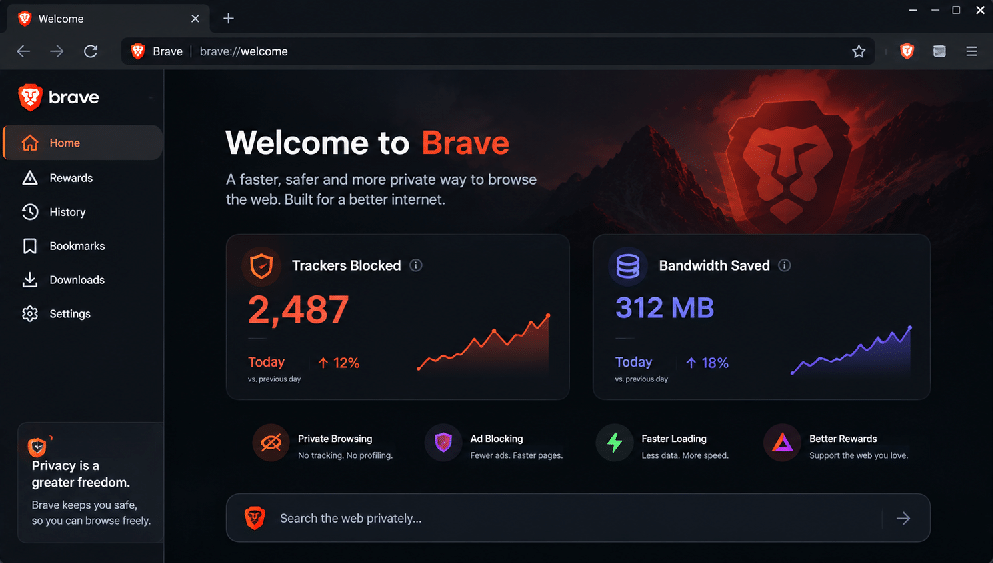
The Brave browser is like a giant digital bodyguard. Before those trackers can even look at you, Brave kicks them out of the mall. It automatically blocks invisible trackers, and it hides annoying popup advertisements.
Here is the best part: because your Raspberry Pi doesn’t have to waste its energy loading those heavy advertisements and background trackers, the web pages load much, much faster. For people using the newest Pi 5 or Pi 500, Brave offers an incredibly fast, private, and secure experience without you having to change any complicated settings.
Vivaldi: The Swiss Army Knife
If you love organizing things and want your web browser to look exactly the way you want it, Vivaldi is incredible. It shares the exact same fast DNA as Chromium, but it adds a million tools on top.
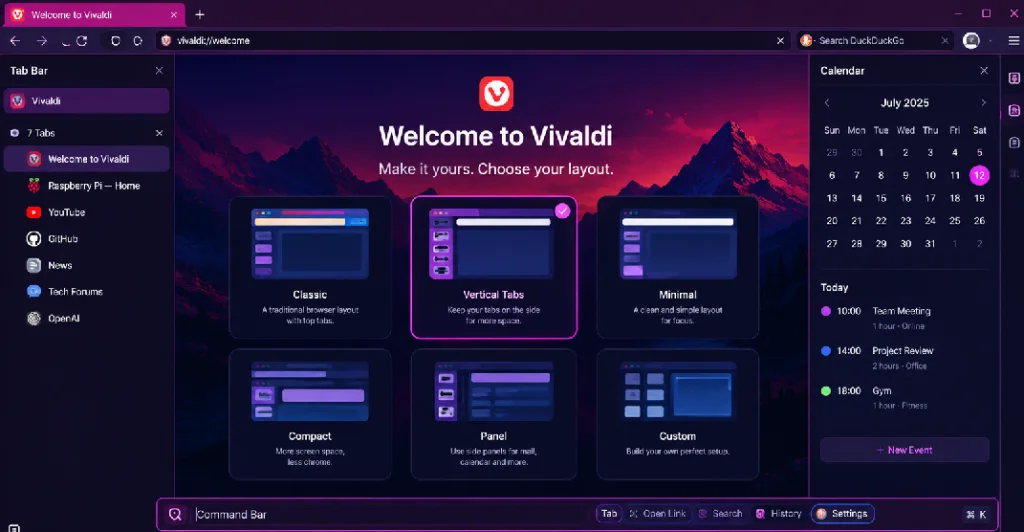
You can move your tabs to the side of the screen, stack them together like folders, or change the colors of the entire browser to match your mood. It even has a built-in calendar and email reader. However, because it has so many tools built into it, it takes up a lot of “desk space.” It is a beautiful browser, but you should only use it on the stronger Raspberry Pi 4, Pi 5, or Pi 500 models, otherwise, it will feel too heavy.
Firefox: The Friendly Organizer
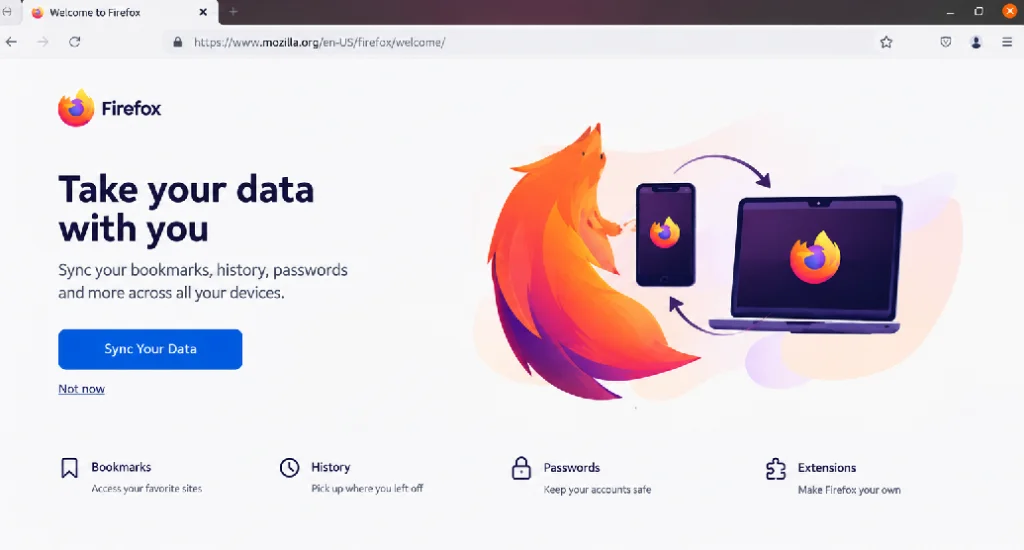
Firefox is built by a non-profit group that believes the internet should be open and free for everyone. If you already use Firefox on your big computer at home or on your smartphone, bringing it to your Raspberry Pi is a wonderful idea.
Firefox is brilliant because it remembers everything for you. If you log into Firefox on your Raspberry Pi, it will instantly securely copy over all your saved passwords, your favorite bookmarked websites, and your browsing history from your other computers. It feels like moving into a new house, but all your furniture is already perfectly arranged exactly how you like it.
It is a very complete, comfortable browser, though it does take up a little more “desk space” than the others.
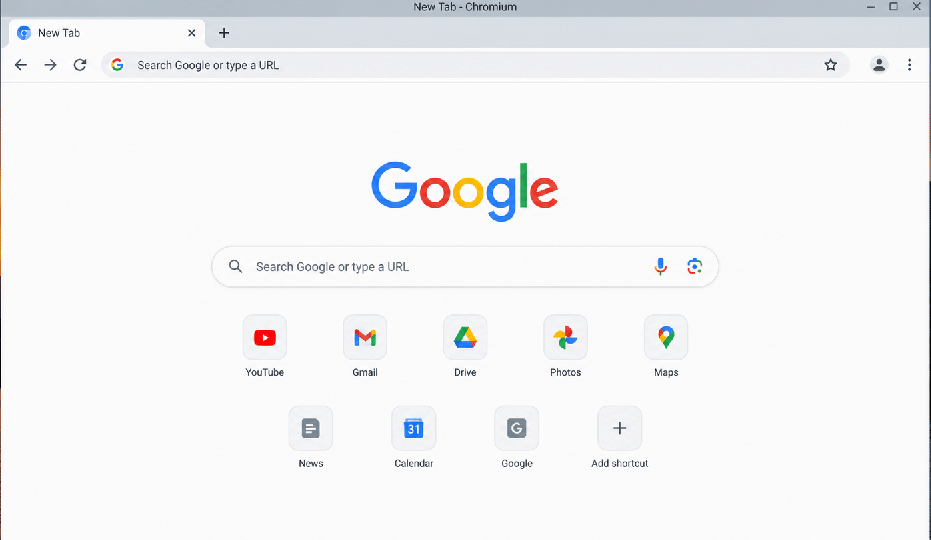
Chromium: The Reliable Twin
You have probably heard of Google Chrome. It is the most popular web browser in the world. Chromium is basically Google Chrome’s twin brother. They share the exact same DNA, but Chromium doesn’t have all the flashy Google logos painted on it.
Because it shares that DNA, it is incredibly fast and works perfectly with almost every website on the internet. As we mentioned earlier, it is the absolute champion for the Raspberry Pi 4 because the creators of the Pi have polished it to perfection. If you want a browser that looks familiar, acts fast, and doesn’t require any special setup, Chromium is the most reliable choice.
Puffin: The Ultimate Magic Trick
So, how do you load a massive, heavy website on a tiny, weak computer like a Pi Zero? You cheat.
The Puffin browser works differently than any other browser on this list. Let’s say you want to visit a heavy news website. If you use a normal browser, your tiny Pi has to download all the pictures, arrange all the text, and do all the heavy lifting itself.
If you use Puffin, your Pi doesn’t do any of that work. Instead, Puffin sends a message to a gigantic, million-dollar supercomputer sitting in a giant warehouse somewhere in the world. That supercomputer loads the heavy news website in a fraction of a second. Then, it takes a picture of the website and beams it down to your tiny Raspberry Pi like a video stream.
Your little Pi doesn’t have to work hard at all. It is just showing you a video of the website that the giant supercomputer is holding for you. This makes a tiny, fifteen-dollar computer feel like a massive gaming machine.
There is one warning, though. Because that giant supercomputer is acting as a middleman between you and the website, you should not use Puffin to log into your personal bank account or enter very sensitive passwords. But for reading articles, checking the weather, and watching videos on a tiny computer, it is pure magic.
Bonus: The Command Line (For Terminal Geeks)
Running a “headless” Pi server with no graphical interface? You can still browse the web. Text-only browsers like Lynx, Links, and w3m strip away all media and styling, leaving only navigable raw text. Modern alternatives like Browsh even attempt to render images using color-coded text blocks, creating the ultimate retro-hacker aesthetic.
The Ultimate Comparison Matrix
| Browser | Speed Rating | Privacy Level | RAM Footprint | Best Use Case | Ideal Hardware |
| Brave | ⭐⭐⭐⭐ | 🛡️ Maximum | Medium-High | Ad-blocking, strict out-of-the-box privacy. | Pi 500, Pi 5, Pi 4 |
| Vivaldi | ⭐⭐⭐⭐ | 🛡️ High | High | Extreme customization and tab management. | Pi 500, Pi 5 |
| Chromium | ⭐⭐⭐⭐⭐ | ⚠️ Moderate/Low | Medium | Flawless local video playback and daily speed. | Pi 5, Pi 4, Pi 3 |
| Firefox | ⭐⭐⭐ | 🛡️ High | Medium | Cross-device syncing and interface customization. | Pi 500, Pi 5 |
| Puffin | ⭐⭐⭐⭐⭐ (Cloud) | ⚠️ Proxy / Mixed | Extremely Low | Bypassing hardware limits to load heavy sites. | Pi Zero 2 W, Pi 3 |
| Midori | ⭐⭐ | ⚠️ Moderate | Very Low | Minimalist text reading with zero distractions. | Pi Zero, Pi 2, Pi 3 |
Step-by-Step Installation Guides
If you are new to the Raspberry Pi, you might be a little nervous about how to install these programs. On a normal computer, you go to a website, click “download,” and double-click a file.
On a Raspberry Pi, we usually use something called the “Command Line” or the “Terminal.” It looks like a little black box on your screen where you type in words. A lot of beginners find this black box terrifying because it looks like something from a hacker movie.
Do not be afraid! The black box is just a way to send text messages to your computer. Instead of using a mouse to click a button that says “Please fetch the browser,” you are just typing a sentence that says, “Please fetch the browser.” Your computer is a very obedient robot, and if you type the exact right sentence, it will do all the work for you.
Here is exactly what to type to install your chosen browser. First, find the little black box icon on your screen (usually at the top) and click it.
To Install Chromium:
Most of the time, Chromium is already waiting for you when you turn the computer on! But if it is missing, just type these two sentences into the black box. Press the “Enter” key on your keyboard after the first sentence, wait a moment for the computer to think, and then type the second sentence and press “Enter” again.
sudo apt update && sudo apt install chromium-browser(Note: “sudo” is simply a magic word that tells the computer you are the boss and you have permission to make changes. “apt” is the computer’s personal shopper. You are just saying: “Boss says, shopper, go get Chromium.”)
To Install Firefox:
Type these one-line code, pressing “Enter” button:
sudo apt update && sudo apt install firefoxTo Install Vivaldi:
You can easily install Vivaldi directly from snap store or official website. but for pi users i suggest to install it from pi-apps store
To Install Brave:
Brave is a little trickier. You can directly install it from the pi-apps store but i will suggest installing it from the official website and paste commands into your terminal for a one step installation.
First, tell the computer to get ready to download:
sudo apt install curlNext, hand the computer the secure key to the store:
sudo curl -fsSLo /usr/share/keyrings/brave-browser-archive-keyring.gpg <a href="https://brave-browser-apt-release.s3.brave.com/brave-browser-archive-keyring.gpg">https://brave-browser-apt-release.s3.brave.com/brave-browser-archive-keyring.gpg</a>Then, hand the computer the map to the store:
sudo curl -fsSLo /etc/apt/sources.list.d/brave-browser-release.sources <a href="https://brave-browser-apt-release.s3.brave.com/brave-browser.sources">https://brave-browser-apt-release.s3.brave.com/brave-browser.sources</a>Finally, tell the shopper to go get it:
sudo apt update && sudo apt install brave-browserTo Install Puffin:
The easiest way to get Puffin is to install it from pi-apps store; A free “App Store” made by fans of the Raspberry Pi.
Type this long sentence into the black box and press enter:
wget -qO- https://raw.githubusercontent.com/Botspot/pi-apps/master/install | bashWhen it is done, you will see a colorful new icon on your screen called Pi-Apps. Click on it with your mouse, just like a normal computer! Go to the “Internet” section, find “Browsers,” click on Puffin, and click the install button. The app will do all the hard typing for you.
Your tiny pi is capable of amazing things. By taking the time to understand its power, how it thinks, and furthermore picking a right web browser that meets your needs with its limits, you can explore the entire internet without ever feeling slowed down or gets bored.