The Raspberry Pi is a powerful, credit-card-sized computer renowned for its versatility and low cost. From home automation projects and media centers, servers to advanced IoT projects or either as retro gaming consoles, nowadays, Raspberry Pi’s is the foundational tool for countless innovative endeavors. However, transitioning from a new device to a fully operational, secure system requires guidance to configuring steps which are often overlooked by beginners.
Whether there’re many articles, documents on raspberry pi, guides, commands…etc. But this article gives you step by step guidance whether you’re a complete newbie or already an pi user. and if you newbie to linux then learn basics linux commands with full step by step guide. in this article, you’ll get a complete, A-to-Z walkthrough to ensure you successfully configure, optimize, and secure your new Raspberry Pi. By the end, you will have a secure,complete & customized Pi setup, while remembering the essential command-line tools of the Linux environment.
1. Initial Setup: From Zero to Desktop/CLI
The first step is getting a Raspberry Pi into your home(best to buy Raspberry pi 5) and need that Pi to be powered on and running on an operating system, allowing you initial access either through a graphical desktop or a command-line interface (CLI) via a network connection.
1.1 Hardware Prerequisites:
Before starting, ensure you have the following components:
- Raspberry Pi Board: (e.g., Pi 4, Pi 5, Pi400).
- Power Supply: A high-quality compatible adapter(officially recommended(e.g., 5V/3A or higher).
- MicroSD Card: A fast & high quality sd card (32GB or more recommended)
- Case (Recommended): For protection and passive/active cooling.
- Accessories (for Desktop Setup): Monitor, HDMI cable (mostly micro-HDMI), keyboard, and mouse.
- Networking: Ethernet cable or built-in/dongle Wi-Fi.
1.2 Choosing and Flashing the OS:
The official and recommended operating system is Raspberry Pi OS, a Debian-based Linux distribution optimized for the raspberry Pi models
- Raspberry Pi OS Desktop: Recommended for beginners or projects requiring a graphical user interface (GUI).
- Raspberry Pi OS Lite: Recommended for headless setups (no monitor/keyboard) and recommended for lite setup or projects, as it consumes fewer resources and is faster.
The simplest method for installing the operating system is using the official Raspberry Pi Imager tool.
Step-by-Step Installation with Pi-Imager:
- Download and run Raspberry Pi Imager software on your computer.
- Click “CHOOSE OS” and select your desired version of Raspberry Pi OS (e.g., Raspberry Pi OS (64-bit)(recommanded).You can choose and install another preferable os
- Click “CHOOSE STORAGE” and select your microSD card.
- Crucial Tip: Advanced Pre-configuration
Before clicking “WRITE”, click the gear icon (or Ctrl+Shift+X on Windows/Linux) to access advanced settings. This step is essential for a secure and headless setup.
- Set hostname: (e.g., my-lover-pi).
- Set username and password: DO NOT use the old default pi/raspberry credentials. Create a strong, unique password.
- Configure Wi-Fi: Enter your correct SSID and password of your wifi hotspot
- Enable SSH: Toggle this on to allow remote access (essential for headless operation).
Click “SAVE” and then “WRITE”. The Imager will download the OS and write it to the card.
1.3 First Boot and Initial Access:
After the Imager installation process completes, insert the microSD card into the Pi and switch on power supply.
- Desktop Setup (GUI): The Pi will boot, and if you skipped Imager’s customisation, it will launch the setup wizard. Follow the prompts to set your country, locale, password, and Wi-Fi.
- Headless Setup (CLI via SSH): Since you enabled SSH in the Imager:
- Wait a few minutes for the Pi to boot and connect to your network.
- Use a network scanning tool (like Angry IP Scanner) or check your router’s DHCP list to find your Pi’s IP address (or use the hostname you set, e.g., my-lover-pi.local).
- From your host computer’s terminal (Mac/Linux) or a tool like PuTTY (Windows), connect via SSH:
<!– end list –>
ssh <username>@<IP_ADDRESS_OR_HOSTNAME>
# Example:
# or
- Enter the password you set. You are now logged in!
2. Essential Configuration & System Updates:
Once you have initial access, the next steps are critical for system stability, performance, and keeping your software updated
2.1 The raspi-config Utility:
The raspi-config tool is the foundational utility for configuring your Raspberry Pi firmware and system settings from the command line.
Access the tool by running:
sudo raspi-config
Important Settings Walkthrough:
- Go to System Options > S3 Password > Change Default Password(Change the password for your current user)
- Localisation Options > L2 Timezone > Set your local Time Zone (e.g., America/New_York).
- L5 localisation options > L3 Keyboard > Set your Keyboard Layout (e.g., us for US layout). |
- Interface Options > I1 SSH( If you didn’t enable SSH in Imager, enable it here.)
- Interface Options > I3 VNC (Enable/disable VNC for remote desktop access.)
- Interface Options > I2 Rpi connect (Enable/disable rpi connect for remote desktop access for pi .)
- Performance Options > P2 overlay file system ( to enable read only file system from here)
- Advanced Options > A1 Expand Filesystem. Ensures your OS uses the entire capacity of your SD card/storage device. Usually runs on first boot, but verifies it’s done.
- Update > to update the os into latest version
After making changes, navigate to <Finish> and reboot if prompted.
2.2 core system update:
Linux package management relies on the apt utility. Regular updates are essential for security patches, bug fixes, and stability.
Commands:
- sudo apt update (Updates the list of available packages from the repositories with the available newest version information)
- sudo apt full-upgrade -y to upgrade all installed packages to their newest versions. The full-upgrade function is preferred over upgrade as it handles dependency changes (like removing obsolete packages) more intelligently. And the “-y” flag answers ‘yes’ to the prompts.
- sudo apt autoremove -y (Removes packages that were automatically installed to satisfy dependencies for other packages but which’re no longer needed. This frees up the disk space.
The fundamental system update process is:
sudo apt update
sudo apt full-upgrade -y
sudo apt autoremove -y

2.3 Setting up Static IP (Optional but Recommended)
In a server environment, a static IP address is crucial because it ensures your Pi’s network address never changes, guaranteeing reliable access for SSH, web services, or network shares.
The modern method involves configuring the dhcpcd.conf file.
- Open the configuration file using the nano text editor (Ctrl+O to save, Ctrl+X to exit):
sudo nano /etc/dhcpcd.conf
- Scroll to the bottom and add a block of settings, replacing the example values with your network’s details.
- interface: Your network adapter (eth0 for wired, wlan0 for wireless).
- static_routers: The IP address of your router (Gateway).
- static_domain_name_servers: Your preferred DNS server (e.g., your router’s IP or public DNS like Google’s 8.8.8.8).
- static_ip_address: The fixed IP you want your Pi to use (choose one outside your router’s DHCP range).
Example for a wired connection (eth0):
# Example static IP configuration for eth0 (wired)
interface eth0
static ip_address=192.168.1.150/24
static routers=192.168.1.1
static domain_name_servers=192.168.1.1 8.8.8.8
The /24 denotes the CIDR subnet mask (255.255.255.0).
- Save the file, exit nano, and reboot to apply the new setting via run:
- sudo reboot
3. The Command-Line Toolkit (Essential Commands):
Mastering the command line is fundamental for any serious Raspberry Pi user. This section covers essential commands for day-to-day management and troubleshooting.
3.1 File & Directory Management
These commands are used to navigate and manipulate filesystems.
- ls | List directory contents. Flags: -l (long format), -a (all, including hidden files). For example; ls -la
- cd | Change Directory. | cd /etc/network (Absolute path) or cd .. (Parent directory) |
- pwd | Print Working Directory (shows your current location). | pwd
- mkdir | To make or create Directory. | mkdir my_pi_project
- cp | Copy files or directories. Flags: -r (recursive for directories). | cp my_file.txt /home/myuser/backup |
- mv | Move (rename) files or directories. | mv old_name.txt new_name.txt |
- rm | Remove (delete) files. Flags: -r (recursive for directories), -f (force removal without confirmation).
3.2 System Monitoring & Information:
Knowing how to check your Pi’s status is needed for diagnosing issues.
- top / htop | Real-time process monitoring. htop is an enhanced, colorized version (install with sudo apt install htop). Shows CPU, memory, and process usage. |
- df -h | Disk Free: Shows available and used disk space (partitions). The -h flag makes output Human-readable (e.g., 5.0G). |
- du -sh | Disk Usage: Summarizes the size of all files/directories in the current location. The -s flag summarizes, and -h is human-readable. |
- free -h | Shows Memory (RAM) usage, including used, free, and cached memory.
- vcgencmd measure_temp | A Pi-specific command to check the CPU Temperature (e.g., temp=45.2’C). Crucial for checking overheating. |
3.3 Networking & Troubleshooting:
Some basics commands to troubleshooting network related issues:
- ip a | IP Address: Shows interface configuration, including local IP addresses (inet …) for all connected adapters (eth0, wlan0, etc.). |
- ping <address> | Test connectivity to a host. (e.g., ping google.com or ping 192.168.1.1). |
- netstat -tuln | Net Status: Shows open ports and listening sockets. Useful for verifying if a service (like a web server) is running and accessible. (Install if needed: sudo apt install net-tools). |
3.4 User & Service Management
- sudo reboot | To safely reboot the system. |
- sudo shutdown now | Safely shut down the system immediately. Or sudo shutdown
- systemctl status <service> | To check the status of a system service (e.g., ssh, apache2).
- systemctl enable <service> | Ensures a service starts automatically at boot.
- systemctl start <service> | To start a service immediately.
- passwd <username> | Change the password for a specific user.
- whoami | Shows the current username you are currently logged in as.
4. Hardening Raspberry Pi Security:
Nowadays, Security is not only just an option; it’s a necessity. A connected device, especially one running a server, is a target for attacks(especially IOT devices). These steps are crucial for hardening your Pi.
4.1 Mandatory Security Steps:
Change Default Credentials
If you did not do this in the Imager, do it now. The default username/password pair of pi/raspberry is a massive security risk
- Method 1: Change the pi user’s password:
passwd pi
Follow the prompts to enter a new, strong password.
- Method 2: Create a new user and delete pi (Recommended):
- Create a new administrative user:
sudo adduser newadmin
sudo usermod -aG sudo newadmin
- Test the new user by logging in via SSH with the new credentials.
- Once verified, delete the old, vulnerable default pi user:
sudo deluser pi
sudo delgroup pi
- Keep Software Updated
Another always priority to regularly to update the system to patch vulnerabilities:
sudo apt update && sudo apt full-upgrade -y
4.2 SSH Security:
SSH is the primary remote access method, making it the primary vector for attack.
Some key points to consider for pi:
- Disable Password Authentication for SSH (Highly Recommended)
- Instead of passwords (which can be brute-forced), you should use SSH Key Pairs. This involves a private key (on your client machine, kept secret) and a public key (placed on the Pi).
- Generate a Key Pair (on your client computer, if you haven’t already):
ssh-keygen -t rsa -b 4096
Follow the prompts, and consider setting a strong passphrase for your private key.
Copy the Public Key to the Pi: Use the ssh-copy-id utility (simplest method).
ssh-copy-id -i ~/.ssh/id_rsa.pub newadmin@<PI_IP_ADDRESS>
It will ask for your password one last time and install the public key on the Pi.
- Disable Password Login (on the Pi):
Open the SSH daemon configuration file:
sudo nano /etc/ssh/sshd_config
Find and change the following lines to enforce key-only access:
# Change ‘yes’ to ‘no’
PasswordAuthentication no
# Ensure this is set to ‘yes’
PubkeyAuthentication yes
Save, exit, and restart the SSH service. Do not log out until you have tested logging in with your key!
sudo systemctl restart sshd
- Change default SSH Port:
changing the default SSH port (22) to a non-standard one(which is not used) to reduce exposure to automated attacks and scanners
sudo ufw allow 40022/tcp
- Open the SSH daemon configuration file again:
sudo nano /etc/ssh/sshd_config
Find the line #Port 22 and change it to a high, non-standard number (e.g., 2222 or 40022) or whatsoever new port is chosen. Crucially, uncomment the line (remove the #).
Port 40022
- Save, exit, and restart the SSH service:
sudo systemctl restart sshd
You will now connect using the new port (e.g., ssh newadmin@<IP_ADDRESS> -p 40022).
4.3 Firewall Implementation (UFW)
A firewall is essential to control network traffic and block unauthorized connections. And UFW (Uncomplicated Firewall) is the easiest to use and set up. (You can use iptables for more advanced configurations setup and options)
- Installation:
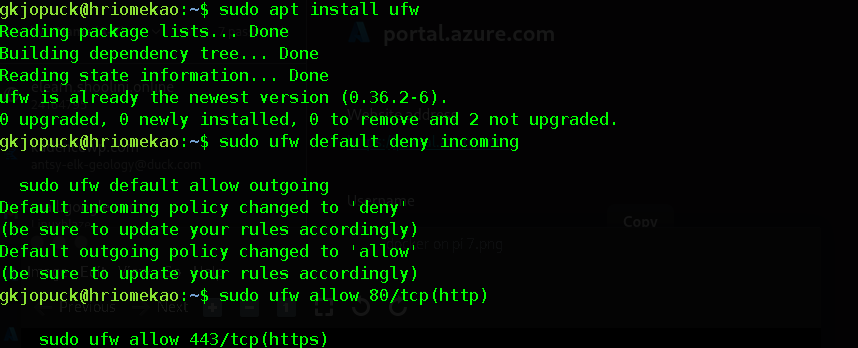
sudo apt install ufw
- Set Default Policy to Deny: This blocks all incoming connections by default.
sudo ufw default deny incoming
sudo ufw default allow outgoing
- If running a web server on the standard port:
sudo ufw allow 80/tcp(http)
sudo ufw allow 443/tcp(https)
- Enable the Firewall:
sudo ufw enable
You will be warned that this may disrupt existing SSH connections. Type y to proceed.
- Check Status: to Verify the rules are correct and the firewall is active, run the command:
sudo ufw status verbose

4.4 Antivirus implementation:
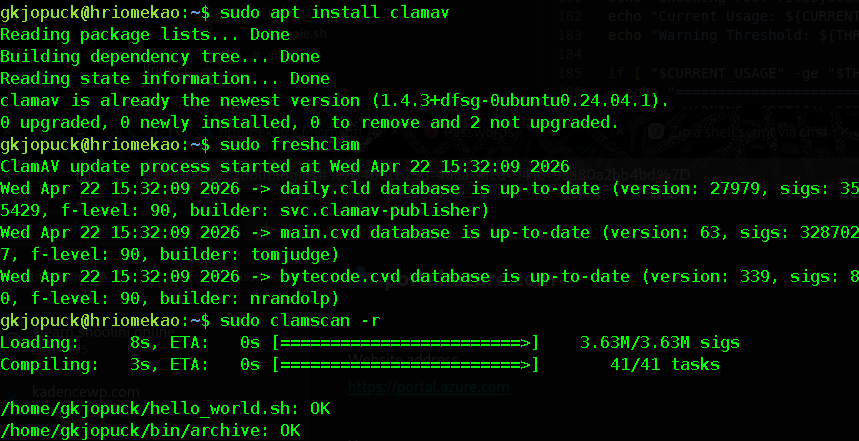
In this era, it’s really essential to install and set up an antivirus on your raspberry pi. A most widely and easy to use antivirus “CLAMAV”. To install it;
Sudo apt install clamav
After successfully installed clamav, its essential to to update its databases;
Sudo freshclam
Now it’s time to scan the system, by simply run this command:
Sudo clamscan
Or, sudo clamscan -r(for recursive scan)
5. Conclusion
Congratulations! You have completed the configuration journey for your Raspberry Pi. You successfully moved from a blank SD card to a machine running a stable, updated OS, customized the critical system settings via raspi-config, with the core Linux commands, and, most importantly, implemented essential security measures to protect your device.
Your Raspberry Pi is now a secure, stable, and highly reliable platform. You are no longer just a beginner; you are now a proficient user ready to use your pi customisely. Now, it’s time to take the next step: start coding on your pi, or use it to setting up as server or whatever your choices say. and if you stuck between configurations, then drop your problems here
Would you like me to provide a proper guide for installing and configuring antivirus or firewall in details or more details on raspberry pi?