Install Docker on Raspberry Pi: Step-by-Step Setup Guide
The Raspberry Pi is an incredible piece of hardware for home labs, automation, and lightweight web hosting. But as you start installing more software—a media server here, an ad-blocker there, maybe a smart home hub—things can get messy. Dependencies clash, updates break your system, and suddenly your perfectly tuned Raspberry Pi is a chaotic web of conflicting packages. This is where Docker comes in.
When you combine Docker’s brilliant containerization technology with the compact, energy-efficient, and affordable Raspberry Pi, you create a remarkably powerful setup perfect for developers, hobbyists, and system administrators alike. and if you’re already not familiar with raspeberry pi, then a detailed raspberry pi configuration guide helps you makes you a power pi user.
In this comprehensive, step-by-step guide, we are going to dive deep into everything you need to know about installing and configuring Docker on your Raspberry Pi. We won’t just throw commands at you; we will explore the why behind them, cover different installation methods, optimize your hardware for container workloads, and set you up with a graphical interface to manage it all.
1. Understanding the Magic: What is Docker?
Before we start typing commands into a terminal, it is really crucial to understand what Docker actually is.
In the past or just before reading this article, if you wanted to isolate applications, you would use Virtual Machines (VMs). A VM virtualizes the hardware, meaning you have to install a complete, heavy operating system (Guest OS) for every single application environment. This consumes massive amounts of RAM and CPU overhead—resources that are really limited on Raspberry Pi.
Docker takes another approach called Containerization. Instead of virtualizing the hardware, Docker virtualizes the operating system. It allows you to package an application along with all its required libraries, configuration files, and dependencies into a single, standardized unit called a container.
All containers share the host’s underlying Linux kernel, making them incredibly lightweight. You can run dozens of containers on a Raspberry Pi 4 or 5 without heavy lifting the system
Why Use Docker on a Raspberry Pi?
- Ease of Deployment: If a developer has shared their application as a Docker image, you can download and run it with a single command. No more spending hours compiling code or tracking down obscure Python libraries.
- Isolation and Security: Apps live in their bubbles. If your media server crashes, it doesn’t take down your smart home hub. Furthermore, applications only have access to what you explicitly grant them.
- Portability: A container running on your Raspberry Pi will behave exactly the same as it does on a massive cloud server.
- Clean System: Because dependencies are locked inside the container, your host Raspberry Pi OS remains unaltered. If you want to delete an app, you simply delete the container. No leftover junk files!
2. Prerequisites and Hardware Selection
Docker is optimized for convenience, but it still requires specific hardware to run smoothly.
The Ideal Hardware Setup
- The Board or Hardware: While Docker can run on older models like the Raspberry Pi 3, a Raspberry Pi 4 (with at least 4GB RAM) or the Raspberry Pi 5 is strongly recommended. Containers use memory, and having a buffer ensures your system remains responsive.
- Storage (Crucial!): Docker writes a lot of data, particularly logs. Standard MicroSD cards are highly prone to failure under heavy read/write loads (a phenomenon known as wear leveling exhaustion). For a reliable 24/7 server, ditch the SD card and boot your Pi from a USB 3.0 Solid State Drive (SSD) with good storage.
- Power Supply: Ensure you are using the official Raspberry Pi power supply. Heavy I/O workloads combined with CPU spikes from starting containers can cause under-voltage warnings and system crashes on cheap phone chargers.
The Operating System
We highly recommend using Raspberry Pi OS (64-bit). Specifically, the “Lite” version (which has no desktop GUI) is perfect if you want a headless server that saves all its RAM for Docker.
Why 64-bit? The Docker ecosystem has largely moved to 64-bit ARM architectures (arm64/aarch64). If you install a 32-bit OS, you will frequently encounter the exec format error when trying to pull modern images from Docker Hub.
3. Phase 1: System Preparation
Whether you are SSH-ing into your Pi from your main computer (recommended) or typing directly with an attached keyboard and monitor, the very first step of any Linux project is updating the host environment.
Open your terminal and run the following command:
sudo apt update && sudo apt upgrade -y- apt update: This extends to software repositories and downloads the latest lists of available packages.
- apt upgrade -y: This safely upgrades all installed software to their newest versions. The -y flag automatically answers “yes” to any prompts.
Once the upgrades are finished, it is highly recommended to reboot the system, especially if kernel updates were applied:
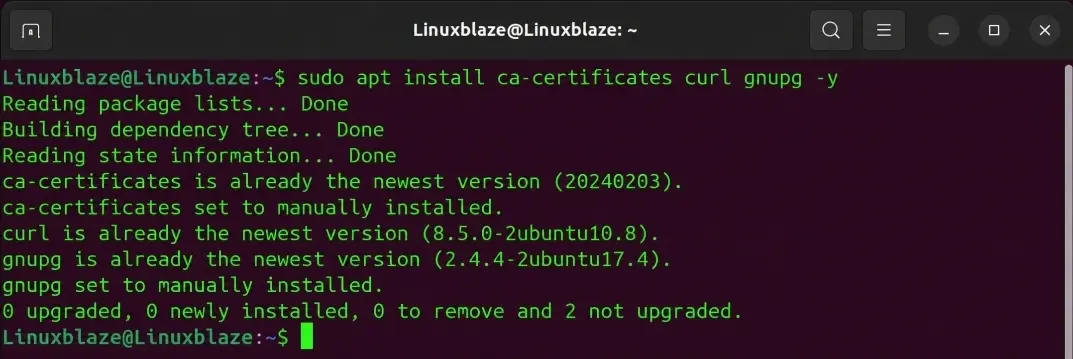
sudo rebootWait a minute, log back in, and install a few prerequisite packages that will allow apt to use packages over secure HTTPS connections:
Bash
sudo apt install ca-certificates curl gnupg -y- ca-certificates: Ensures your system can verify SSL/TLS certificates securely.
- curl: A command-line tool for transferring data over the network.
- gnupg: Required for handling the secure encryption keys we will use shortly.
4. Phase 2: Installing Docker Engine
There are two primary ways to install Docker on a Raspberry Pi. We will cover both. Method A is the best way for beginners who want to get up and running in 60 seconds. Method B is the “Debian/Ubuntu” way, which is slightly complex but preferred by system administrators for long-term repository management.
Method A: The Officially recommended Script (Recommended for Beginners)
Docker provides a remarkably simple bash script that automatically detects your Raspberry Pi’s specific architecture (e.g., ARM64), adds the necessary repositories, and installs the correct Docker Engine.
Run this command to download the script and pipe it directly into your shell:
curl -fsSL https://get.docker.com | sudo sh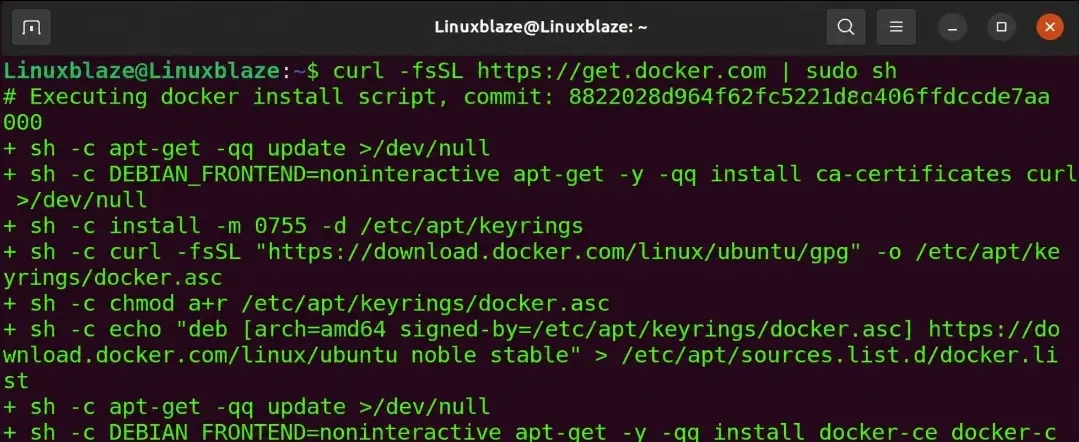
The script will run for minutes. You will see various installation messages scrolling by. When it finishes, Docker is installed!
Method B: The Manual Repository Setup (For Advanced Users)
If you prefer to know exactly what is being added to your system, use this method. It is the standard way Docker is installed on enterprise Ubuntu and Debian servers.
1. Set up Docker’s Official GPG Key:
This step ensures the software you are downloading genuinely comes from Docker and hasn’t been tampered with.
sudo install -m 0755 -d /etc/apt/keyringscurl -fsSL https://download.docker.com/linux/debian/gpg | sudo gpg --dearmor -o /etc/apt/keyrings/docker.ascsudo chmod a+r /etc/apt/keyrings/docker.asc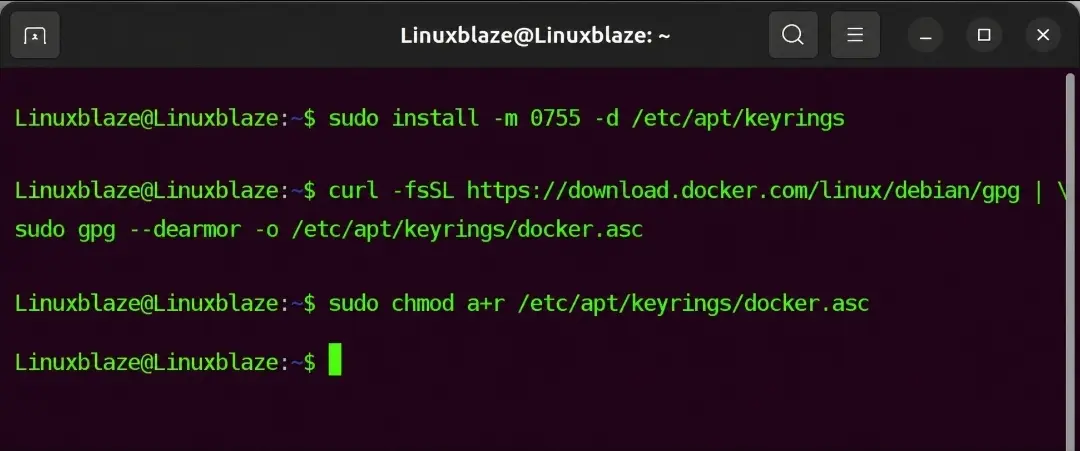
2. Add the Docker Repository to APT Sources:
This command programmatically detects your OS version and adds the correct Docker server to your package manager.
echo \ "deb [arch=$(dpkg --print-architecture) signed-by=/etc/apt/keyrings/docker.asc] https://download.docker.com/linux/debian \ $(. /etc/os-release && echo "$VERSION_CODENAME") stable" | \ sudo tee /etc/apt/sources.list.d/docker.list > /dev/null3. Update and Install:
Now that your Pi knows where the Docker repository is, update your package list and install the engine, the CLI, and the container runtime:
sudo apt update
sudo apt install docker-ce docker-ce-cli containerd.io docker-buildx-plugin docker-compose-plugin -y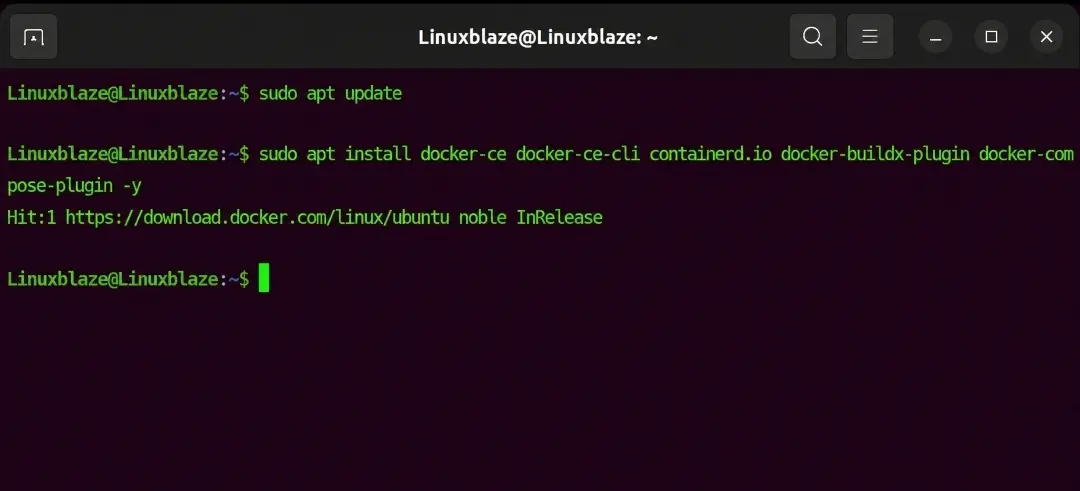
Whichever method you chose, Docker is now installed on your system. You can verify the service is running with:
sudo systemctl status dockerif docker not running or inactive, then run:
sudo systemctl enable --now docker
(Press q to exit the status screen).
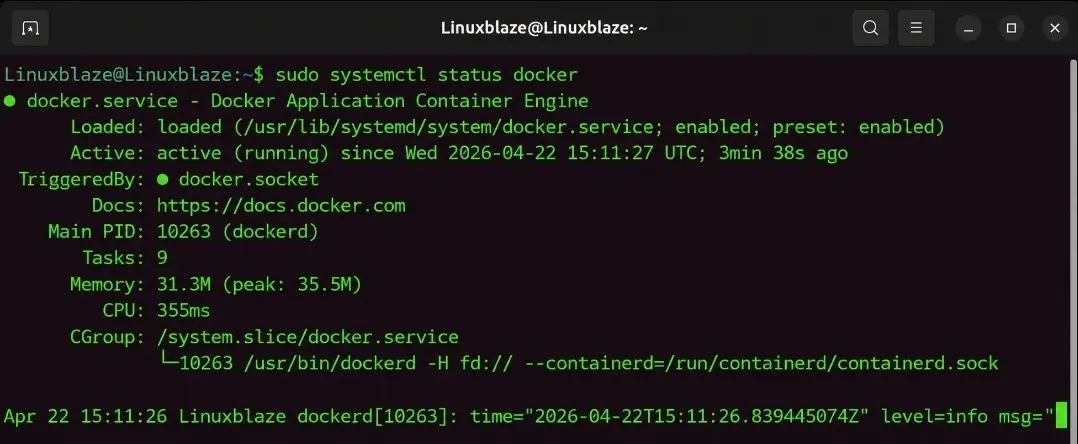
To check installed docker version;
docker --version
docker compose version
5. Phase 3: Post-Installation Configurations (The Sudo Fix)
If you try to type a Docker command right now, like docker ps, you will likely get a glaring error:
Cannot connect to the Docker daemon. Is the docker daemon running on this host?
By default, the Docker daemon binds to a Unix socket rather than a TCP port. The root user owns that Unix socket, meaning other users can only access it by typing sudo before every single command (e.g., sudo docker run…).
Typing sudo constantly is tedious, but more important, running everything as root is a poor security practice. To fix this, we need to add your standard user account to the newly created docker group.
Run the following command (assuming your username is the default, or whichever user you are currently logged in as):
Bash
sudo usermod -aG docker $USER
- usermod: The command to modify a user account.
- -aG: Stands for “append to Group”. It adds you to the Docker group without removing you from your other groups (like the sudo group).
- $USER: A system variable that automatically inputs your current username.
Crucial Step: For Linux to recognize this new group membership, you must log out and log back in.
If you are using SSH, simply type exit and reconnect. If you want to force the group to activate immediately without disconnecting, you can type:
sudo newgrp docker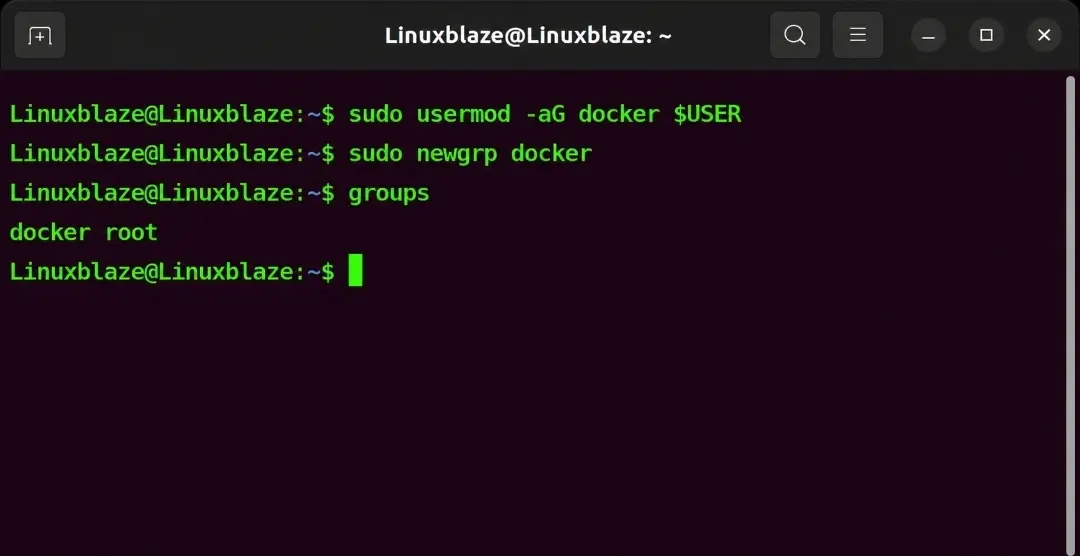
To verify it worked, list your current groups:
groupsIf you see docker in the output list, you are ready to roll.
6. Phase 4: Verification and Your First Containers
Let’s spin Docker. The traditional way to test any Docker installation is by running the hello-world image.
docker run hello-worldIf everything is configured perfectly, you will see an output that looks like this:
Unable to find image 'hello-world:latest' locally
latest: Pulling from library/hello-world
Status: Downloaded newer image for hello-world:latest
Hello from Docker!
This message shows that your installation appears to be working correctly.
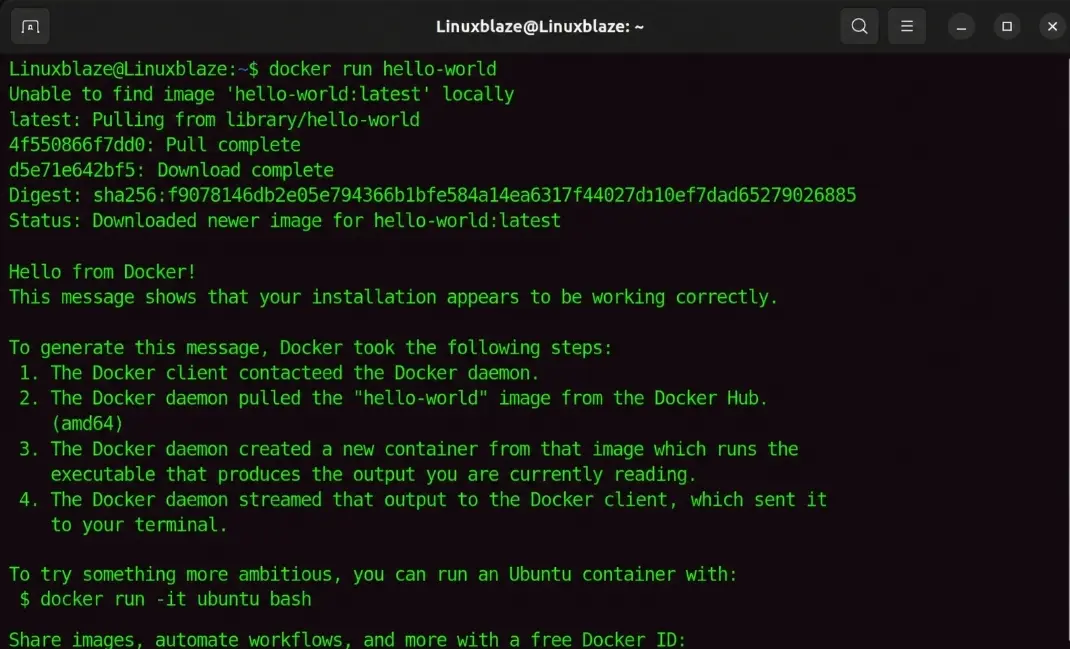
What just happened behind the scenes?
- The Docker client contacted the Docker daemon.
- The daemon looked for the hello-world image on your Raspberry Pi. It wasn’t there.
- The daemon automatically reached out to Docker Hub (the global repository for containers) and pulled (downloaded) the image.
- The daemon created a new container from that image.
- The container ran its embedded code (which simply prints the welcome message) and then immediately exited.
Let’s Try Something Interactive
The hello-world container is a bit boring because it exits immediately. Let’s spin up an entire Ubuntu environment inside your Raspberry Pi OS.
docker run -it ubuntu:latest bash- -i: Keeps STDIN open even if not attached (Interactive mode).
- -t: Allocates a pseudo-TTY (simulates a terminal).
- bash: The command we want to run inside the container.
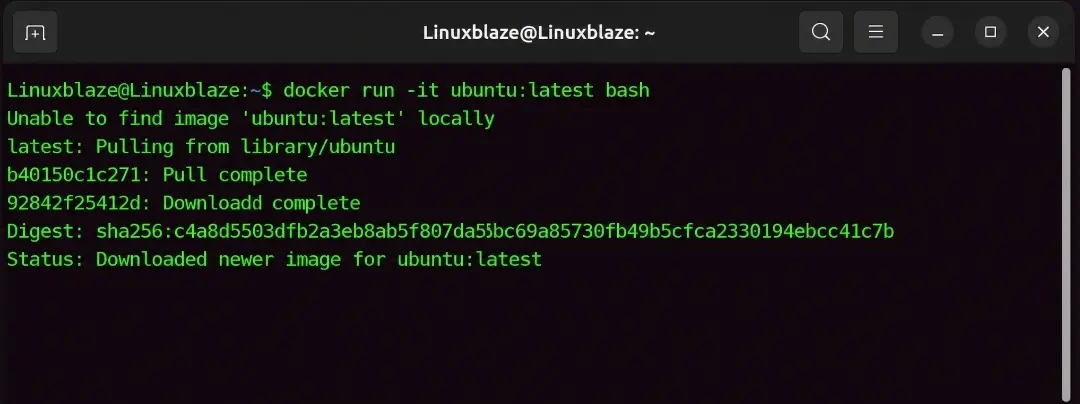
Notice how your command prompt changed? It will look something like root@1c08a7a0d0e4:/#. You are now inside an isolated Ubuntu container. You can run apt update, install Python, delete files—nothing you do here will break your host Raspberry Pi.
Type exit to kill the container and return to your Pi.
Basic Docker Commands Cheat Sheet
- docker ps: Lists currently running containers.
- docker ps -a: Lists all containers, including stopped ones.
- docker images: Lists all the downloaded images taking up space on your drive.
- docker stop <container_id>: Gracefully shuts down a running container.
- docker rm <container_id>: Deletes a stopped container.
- docker rm <image_id>: Deletes a downloaded image.
7. Phase 5: Setting up Docker Compose
While the docker run command is great for spinning up a quick test, it becomes a nightmare when you want to deploy a complex application like a Nextcloud server, which requires a web server container, a database container, and a caching container to all talk to each other.
This is where Docker Compose shines. It allows you to define multi-container applications using a single, easily readable YAML file.
If you used Method B above, the Compose plugin is already installed. If you used the convenience script, verify it is installed by running:
docker compose versionA Quick Docker Compose Example
Let’s deploy a lightweight Nginx web server using Compose. Create a new directory and navigate into it:
mkdir my-website && cd my-websiteCreate a file named compose.yaml:
nano compose.yamlPaste the following text into the file:
services:
webserver:
image: nginx:alpine
ports:
- "8080:80"
restart: unless-stopped

portainer:
image: portainer/portainer-ce:latest
ports:
- "9000:9000"
- "8000:8000"
volumes:
- /var/run/docker.sock:/var/run/docker.sock
- portainer_data:/data
restart: unless-stopped
(Press Ctrl+X, then Y, then Enter to save and exit).
Now, bring the application online in detached mode (running in the background):
docker compose up -dOpen a web browser on your computer and navigate to your Raspberry Pi’s IP address on port 8080 (e.g., http://192.168.1.50:8080). You will see the default Nginx welcome page!
To take the whole stack down, simply run:
docker compose down8. Phase 6: Installing Portainer (The Web GUI)
The command line(cmd) is powerful, but sometimes you just want to click buttons. Portainer is an incredibly popular web-based graphical user interface (GUI) for managing Docker.
The beautiful thing about Docker is that we can install Portainer as a Docker container.
First, create a persistent volume where Portainer can save its own database:
docker volume create portainer_data
Next, deploy the Portainer container:
docker run -d -p 8000:8000 -p 9443:9443 --name portainer --restart=always -v /var/run/docker.sock:/var/run/docker.sock -v portainer_data:/data portainer/portainer-ce:latestLet’s break down that massive command:
- -d: Detached mode (runs in the background).
- -p 9443:9443: Maps port 9443 on your Pi to port 9443 in the container (where the web UI lives).
- –name portainer: Gives the container a friendly name so we don’t have to memorize a random ID.
- –restart=always: Tells Docker to automatically start Portainer if the Pi reboots.
- -v /var/run/docker.sock:/var/run/docker.sock: This is the magic. It mounts the host’s Docker socket into the Portainer container, allowing Portainer to manage the very Docker daemon that is hosting it.
- -v portainer_data:/data: Attaches the persistent volume we created earlier.
Once it’s running, open your web browser and go to https://<YOUR_PI_IP_ADDRESS>:9443. Ignore the SSL security warning (since it’s a self-signed certificate), create an admin username and password, and you now have a gorgeous dashboard to deploy, monitor, and delete containers!
9. Phase 7: Advanced Optimization for Raspberry Pi
If you plan on using your Pi as a serious home lab, there are a few tweaks you should make to ensure stability.
Moving the Docker Data Root to an External SSD
As mentioned in the hardware section, Docker will shred a MicroSD card over time. Even if you boot from an SD card, you can configure Docker to store all its containers, images, and heavy logs on an external USB SSD.
- Stop the Docker service:
sudo systemctl stop docker2. Open (or create) the Docker daemon configuration file:
sudo nano /etc/docker/daemon.json3. Add the following JSON, pointing to the mount path of your external SSD:
{
  "data-root": "/mnt/external_ssd/docker"
}
4. Create an target directory(if needed):
sudo mkdir -p /mnt/external_ssd/docker5. Move existing Docker data:
sudo rsync -aP /var/lib/docker/ /mnt/external_ssd/docker/6. Save the file, move your existing Docker data to the new location (using rsync), and restart Docker:
sudo systemctl start docker7. To verify:
docker info | grep -i "data root"Limiting Container Resources
A rogue container can consume all your Raspberry Pi’s RAM, causing the system to crash. You can cap memory limits on containers. For example, to run an app with a hard limit of 512MB of RAM:
docker run -d --memory="512m" --name my-app -p 8080:80 nginxor docker run -d --memory="512m" --name my-app nginx
If you are using Docker Compose, you can define limits under a deploy and resources block in the YAML file.
10. Practical Project Ideas: What to build next?
Now that you have a fully functional Docker infrastructure on your Raspberry Pi, the possibilities are virtually endless. Here are some of the most popular self-hosted container projects:
- Pi-hole: A network-wide ad blocker that sinks malicious domains before they even reach your devices.
- Home Assistant: The ultimate, privacy-focused smart home automation hub.
- Plex or Jellyfin: Turn your Pi into a personal Netflix by streaming your own movie and TV show library.
- Nextcloud: A self-hosted alternative to Google Drive and Dropbox for file syncing and sharing.
- Vaultwarden: A lightweight, self-hosted version of the Bitwarden password manager.
- Uptime Kuma: A beautiful, self-hosted monitoring tool to keep track of whether your favorite websites (or other containers) are online.
11. Common Troubleshooting and FAQs
Even with the perfect setup, you might run into a few hurdles. Here are the most common issues and how to solve them.
Error: “exec format error”
- The Cause: You are trying to run an image compiled for a standard PC (x86/AMD64) on your Raspberry Pi’s ARM processor.
- The Fix: Always look for arm64, armv7, or multi-architecture tags on Docker Hub. Many developers maintain specific ARM versions of their software for Raspberry Pi users.
Error: “Got permission denied while trying to connect to the Docker daemon socket”
- The Cause: You skipped Phase 3. Your user account does not have permission to talk to the Docker engine.
- The Fix: Run sudo usermod -aG docker $USER, and then critically, log out and log back in (or reboot the Pi) to apply the group changes.
How do I update a Docker container?
Unlike traditional software, you don’t run an “update” command inside the container. Instead, you throw the old container away and build a new one!
- Pull the newest image: docker pull <image_name>
- Stop the old container: docker stop <container_name>
- Delete the old container: docker rm <container_name>
- Run the container again with your original docker run command (or docker compose up -d). Note: Ensure your container’s data is mapped to external volumes, otherwise you will lose your data when you delete the container!
How do I completely uninstall Docker from my Raspberry Pi?
If you want to start fresh or remove Docker entirely, you can purge it using APT.
sudo apt-get purge -y docker-ce docker-ce-cli containerd.io docker-buildx-plugin docker-compose-plugin docker-ce-rootless-extras
sudo apt-get autoremove -y
sudo apt-get autoclean -y
To permanently remove Docker Config/Directories (Warning: This deletes all your container data!):
sudo rm -rf /var/lib/docker /var/lib/containerd
sudo rm -rf /etc/docker
sudo rm -rf /run/docker
If present, remove Docker apt repo files
sudo rm -f /etc/apt/sources.list.d/docker.list
sudo rm -f /etc/apt/keyrings/docker.asc
Delete remaining any Docker-related packages(optional):
dpkg -l | grep -i docker
sudo reboot
Conclusion
By installing Docker on your Raspberry Pi, you have fundamentally transformed how you can manage, deploy, and scale applications. You are no longer restricted by messy dependencies or the fear of breaking your host operating system. Containers offer a beautifully clean, highly portable, and consistent way to run services without overhead headaches.
Your Raspberry Pi is now a blank canvas. Whether you use it to learn DevOps principles, automate your living room, or host a personal blog, Docker provides the flexible foundation you need. Keep building, start exploring Docker Hub, and enjoy the limitless potential of containerization!
Time to practice
Enter your email to save your progress and receive your results.