If you have recently installed Raspberry Pi OS 6.2 (based on the Debian Trixie development branch released in April 2026), you might have noticed a sudden change to your workflow: your Raspberry Pi is now asking for a password when you run administrator commands.
For years, Raspberry Pi OS stood out among Linux distributions by allowing the primary user to execute administrative commands (using the sudo prefix) completely password-free. It was an intentional design choice aimed at lowering the barrier to entry for tinkerers, hobbyists, and students. However, as the platform has matured and the threats have evolved, that convenience became a recognized security risk.
In this article, we are going to dive deep into the April 2026 sudo security changes. We will explore why this happened, how it impacts your projects, how to manage headless SSH setups under the new rules, and how to safely restore the old behavior if your projects rely on it.
The End of Passwordless Sudo: What Actually Changed?
Starting with the April 2026 release of Raspberry Pi OS, passwordless sudo is disabled by default on all new installations. Short for “superuser do,” sudo is a command prefix that tells your Raspberry Pi to perform an action with top-level administrator (root) privileges. Previously, typing sudo apt update or sudo reboot would execute immediately. Now, the system acts like a traditional Linux environment:
- In the Terminal: The moment you issue a sudo command, a prompt will appear asking for the current user’s password.
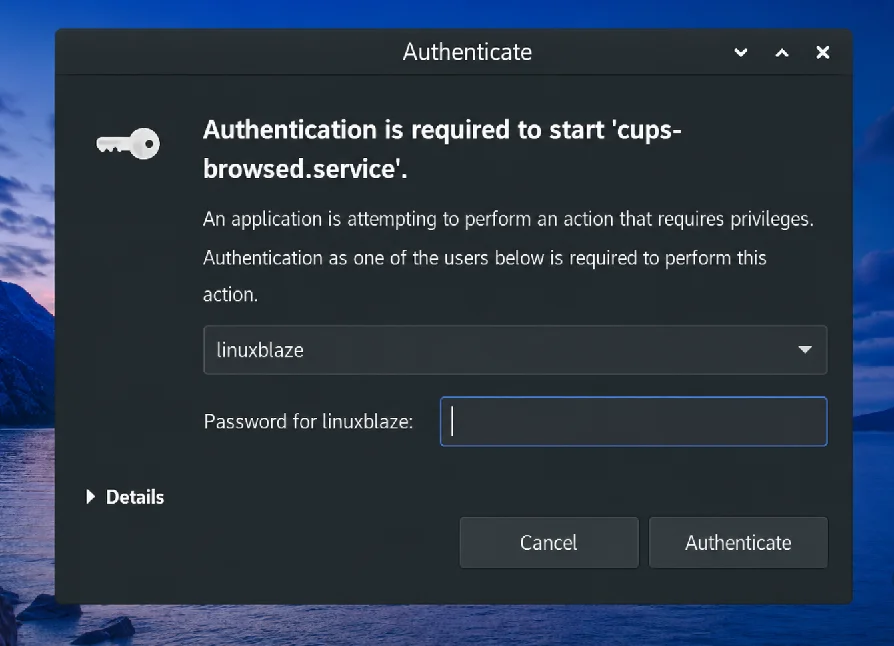
- In the Desktop GUI: Certain actions in the Control Centre (like changing system configurations) will trigger a graphical dialog box requesting your password.
- The 5-Minute Cache: To prevent this from becoming tedious, your password is cached for five minutes after successful authentication. You can run as many sudo commands as you want during that window without being prompted again.
Why Was This Change Necessary?
The official shift away from passwordless sudo is fundamentally about access control. In the older configuration, anyone who gained physical access to your Raspberry Pi—or anyone who managed to remotely access your user session—could instantly gain full root privileges without proving who they were. This presented a clear vector for malicious activity, ranging from accidental system-breaking commands to intentional malware deployment.
Does This Affect Existing Installations?
No. This is a crucial point of clarification. If you are updating an existing, older installation of Raspberry Pi OS to the latest software, your passwordless sudo configuration will remain intact. The new security measure only applies by default to fresh, brand-new installations of Raspberry Pi OS 6.12 Trixie and beyond.
How to Restore Passwordless Sudo
If you are running a single-user system in a secure offline environment, or if the new password prompt is breaking your existing workflow, you can easily revert to the legacy behavior.
Method 1: Using the Desktop Interface
If you use your Raspberry Pi with a monitor, keyboard, and mouse:
- Click the Raspberry Pi icon in the top-left corner of your desktop.
- Navigate to Preferences > Control Centre.
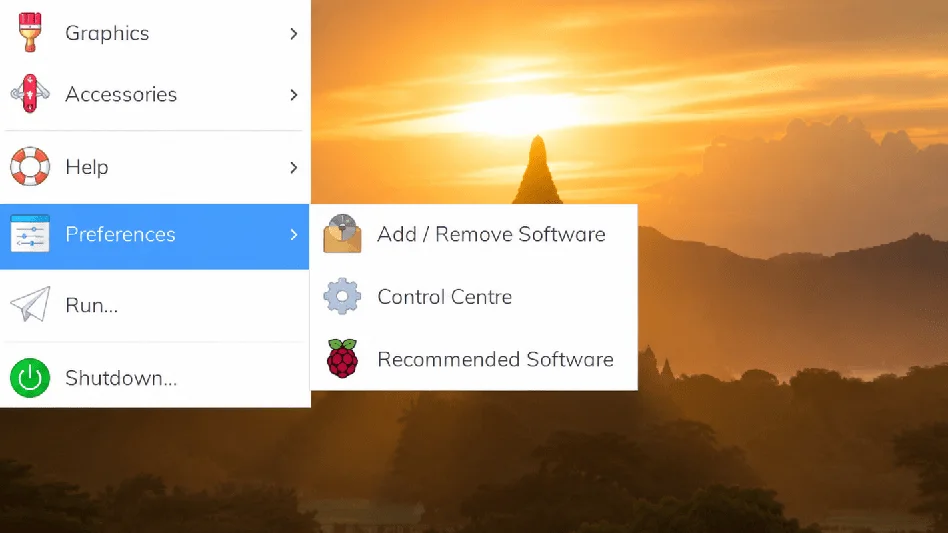
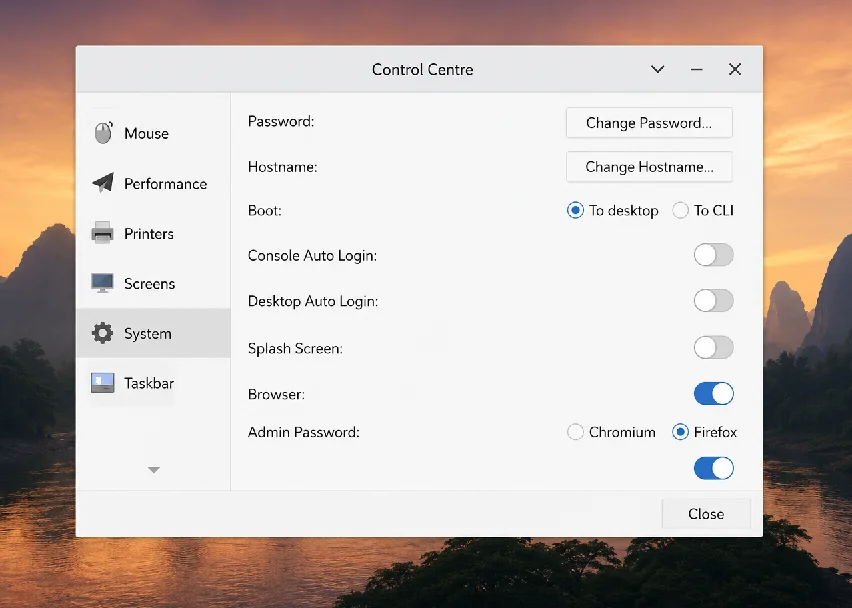
- Open the System tab in the left-side menu.
- Locate the Admin Password switch and toggle it Off.
- Click Close to save your changes.
Method 2: Using the Command Line (Headless/Lite Users)
If you are using Raspberry Pi OS Lite or accessing your Pi remotely without a desktop:
- Open your terminal.
- Run the configuration tool by typing: sudo raspi-config
- Navigate to System Options.
- Select Admin Password.
- Follow the prompts to disable the password requirement for sudo.
- Select Finish and reboot your device.
Mastering Headless SSH Setups Under the New Rules
A “headless” setup means running your Raspberry Pi without a monitor, keyboard, or mouse attached, controlling it entirely over your network. This is usually done via SSH (Secure Shell).
The new sudo rules have a massive impact on headless users, particularly those who rely on automated scripts.
Enabling SSH Securely
To access your Pi remotely, you first need to enable SSH. If you did not enable it during the imaging process using the Raspberry Pi Imager, you can enable it manually:
- Run the configuration tool: sudo raspi-config
- Navigate to Interfaces.
- Select SSH and choose Yes to enable it.
- Reboot your Raspberry Pi.
You can now connect to your Pi from another computer on the same network using the command ssh username@ip-address (e.g., ssh [email protected]).
Troubleshooting Broken Startup Scripts
The biggest hurdle beginners face with the Trixie update is discovering that their Python scripts, Node.js servers, or home automation programs no longer start automatically at boot. If your script requires hardware access (like interacting with GPIO pins) or system-level changes, it requires sudo. Because the system now stops and waits for a password that an automated script cannot type, the script fails and crashes in the background. To fix this;
Run the Script as a Systemd Service Instead of relying on basic boot scripts, wrap your program in a systemd service file. You can configure systemd to run the service as the root user directly, bypassing the need for sudo entirely. This is the modern, Linux-standard way to handle background services.
Lost Passwords and User Management
The forum troubleshooting boards are filled with users who relied on automatic login, forgot their password, and are now locked out of sudo because of the update.
Can I recover a lost password? No. It is not possible to recover a lost password. It is also impossible to change a password if you do not know the old one without having root privileges.
If you are locked out, you have two options:
- The easiest path: Re-flash your SD card with a fresh installation of Raspberry Pi OS, making sure to write down your new password.
- The advanced path: Mount your SD card on a completely different Linux machine, manually edit the cmdline.txt file by appending init= /bin/sh, after that remount the root file system as read-write and change the password using “paswd pi” commands.
Changing Your Password (If you know the current one)
If you know your password but want to update it to something more secure:
- Open the terminal.
- Type passwd (Do not use sudo for this).
- Enter your current password when prompted.
- Enter your new password and confirm it
Official Links and Resources
To ensure you are downloading the correct, proper authorised os and to accessing the most up-to-date documentation, always rely on the official Raspberry Pi foundation resources.
Official OS Downloads: Download latest Raspberry Pi OS from here.
Official update Documentation: Read the official Raspberry Pi security update from here
Conclusion
The shift away from passwordless sudo in Raspberry Pi OS 6.12 Trixie marks a significant step forward in securing the entire raspberry Pi ecosystem. While it may introduce a slight lesson curve—especially for those managing headless servers or automated scripts—understanding how to securely manage user permissions is a foundational skill in Linux. By embracing these changes and utilizing tools like visudo and raspi-config, you can keep your projects both functional and safe from external threats.