Setting up an antivirus on a Raspberry Pi is essential if it handles cross-platform files (like NAS or email). The Pi can easily become a carrier for malware targeting other operating systems. This guide helps to setup ClamAV, an open-source, command-line antivirus, optimized for the Pi’s limited resources
Setting up clamav completely on a Raspberry Pi might seem confusing at first time, given that Linux systems generally face fewer direct threats than their Windows counterparts. However, if your Raspberry Pi serves as a Network Attached Storage (NAS) device, a file server, or a mail gateway, it can inadvertently become a carrier for cross-platform malware. A file saved to your Pi’s share could easily infect a Windows PC on your network. Implementing a security layer, therefore, is a vital part of responsible system administration.
This comprehensive guide will take you through the A-to-Z process of installing, configuring, and optimizing ClamAV (Clam AntiVirus) on your Raspberry Pi. ClamAV is the open-source, cross-platform, command-line antivirus engine perfectly suited for server environments and the resource constraints of a single-board computer. We’ll focus on balancing robust security with the Pi’s hardware limitations, primarily by leveraging intelligent scheduling over continuous background processes.
2: Prerequisites and System Preparation
Before diving into the installation, let’s ensure your Raspberry Pi system is ready.
Hardware and OS Recommendations
* Hardware: While ClamAV will run on older models, a Raspberry Pi 3, 4, or 5 with at least 2GB of RAM is highly recommended. The process of scanning and, more critically, updating the virus database is CPU and RAM-intensive. More memory and a faster processor will significantly reduce scan times and prevent the system from becoming unresponsive.
* Operating System: This guide assumes you are using Raspberry Pi OS (a Debian-based distribution).
* System Update: Always start with a fully updated system to ensure all dependencies are current and any known security vulnerabilities in the OS are patched.
Run the following commands to update your package lists and upgrade all installed software:
sudo apt update
sudo apt upgrade -y
3: ClamAV Installation on Raspberry Pi
ClamAV is available directly in the Raspberry Pi OS package repositories, making the installation process simple.
Step-by-Step Installation:
We will install the core ClamAV package along with its primary background component, the daemon.
* Install the Packages: Use the apt package manager to install both the core utility and the daemon service.
sudo apt install clamav clamav-daemon -y
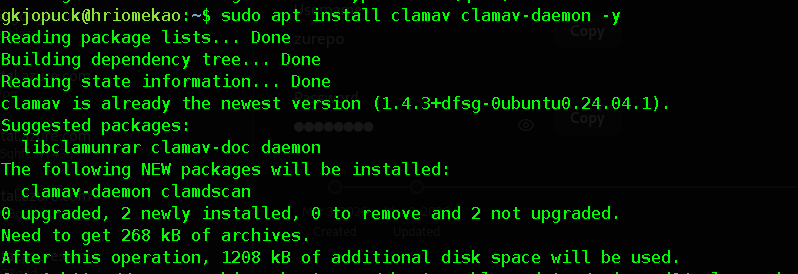
* Verify Installation: Once the installation is complete, you can check the version of the clamscan utility to verify it was installed correctly.
clamscan –version

Understanding the Components
It’s crucial to understand the two main components we just installed, as their interaction is key to efficient operation:
* clamscan: This is the on-demand command-line scanning utility. Every time you run clamscan, it loads the entire virus signature database into memory, performs the scan, and then unloads it. This makes the initial scan run slow because of the loading time.
* clamd (ClamAV Daemon): This is the background service (daemon) that runs continuously. Its job is to load the virus signature database once when it starts up and keep it in memory. This is resource-heavy on startup, but subsequent scans run via clamd scan (which connects to the running daemon) are significantly faster.
4: Initial Database Configuration and Updates
The ClamAV engine is useless without an up-to-date malware signature database. This initial update is the most crucial step and is often the one that causes the most issues.
The Crucial First Step: Database Update
The utility responsible for fetching the latest virus definition files is freshclam. By default, the installer automatically enables the clamav-freshclam service to run in the background and check for updates hourly.
For the initial, full database download, we must intervene manually to ensure a clean start.
* Stop the freshclam Daemon: The daemon service can conflict with a manual run, or it might be running with a temporary/placeholder database. Stop the automatic update service.
sudo systemctl stop clamav-freshclam

* Run freshclam Manually (Initial Download): Execute freshclam to download the entire database. This can take several minutes depending on your Pi model and internet connection. This step downloads the main.cvd and daily.cvd signature files.
sudo freshclam
> Troubleshooting: If you see an error about being “running under a disabled configuration” or “ClamAV update process started but not finished,” it usually means another instance is running or the service stop command didn’t work. Verify the service is truly stopped before trying again.
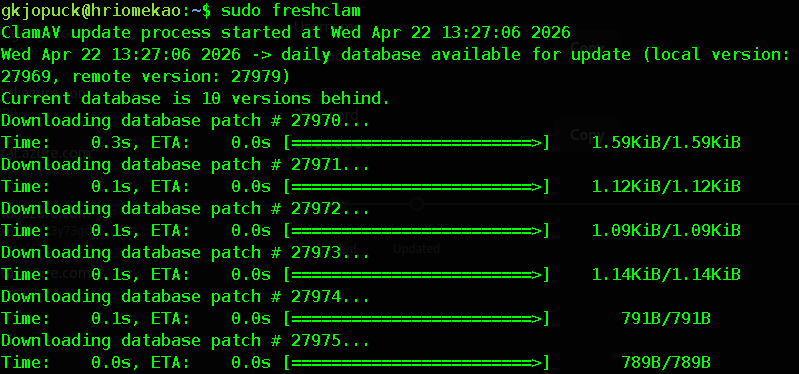
* Restart the Daemon: Once the manual update completes successfully, you can restart the main scanning daemon (clamav-daemon). This service will load the newly downloaded, complete database into memory, preparing it for fast scans.
sudo systemctl start clamav-daemon
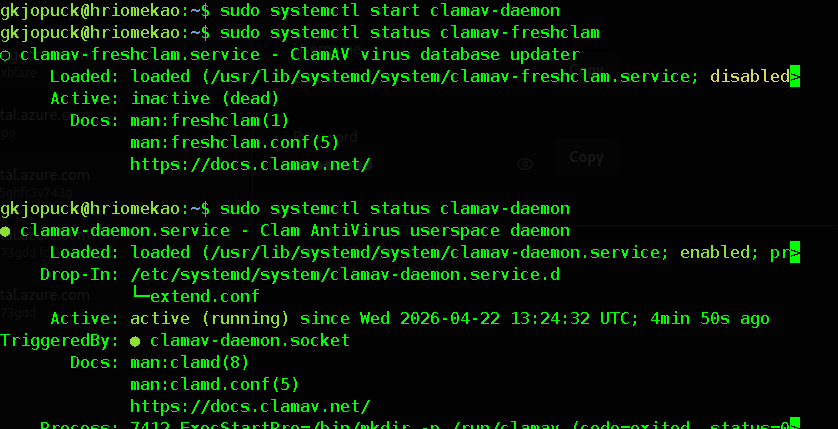
You can verify the status of both services:
sudo systemctl status clamav-freshclam
sudo systemctl status clamav-daemon
5: Optimizing freshclam for Raspberry Pi (Scheduled Updates)
The continuous running of the clamav-freshclam daemon, which wakes up to check for new updates, can be a constant, low-level drain on the Raspberry Pi’s limited resources. For a system not acting as a high-traffic email gateway, a scheduled update is far more efficient than a continuously running daemon.
Solution: Disabling the Daemon and Using a Cron Job
We will disable the automatic service and instead use a Cron job to run the update utility a few times a day at set intervals.
* Disable the freshclam Daemon: Permanently disable the automatic service
sudo systemctl disable clamav-freshclam
* Edit Crontab: We’ll schedule the update to run as the root user to ensure it has the necessary permissions to write to the /var/lib/clamav/ directory.
sudo crontab -e
* The Cron Entry: Add the following line to the root user’s crontab file. This entry runs freshclam every 6 hours (0 */6 * * *). The –quiet option prevents it from generating unnecessary output unless an error occurs.
# Run freshclam every 6 hours silently
0 */6 * * * /usr/bin/freshclam –quiet
Save and exit the crontab editor. Your virus definitions will now be updated automatically four times a day without the need for a continuously running background service.
6: In-Depth Scanning and Usage
The clamscan utility is your primary tool for manual, on-demand scanning. It offers numerous options for controlling how the scan is executed and how infected files are handled.
Basic Scan and Key Options
The most common way to run a scan is to check a specific directory recursively.
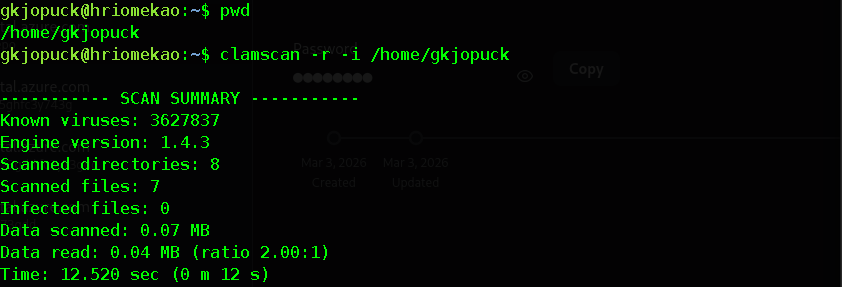
* Scan a Specific Directory Recursively and Only Show Infected Files:
The -r flag enables recursive scanning (checking subdirectories), and the -i flag ensures it only prints out the names of infected files, keeping the output clean.
clamscan -r -i /home/pi or clamscan -r -i /home/user
To find usernames run;
pwd
* Scanning with the Daemon (Faster): Once the clamav-daemon is running and has loaded the database, use clamdscan instead of clamscan. This is significantly faster, as it delegates the job to the memory-resident daemon.
clamdscan -r -i /home/pi or clamdscan -r -i /home/user
Handling Infected Files: Safety First!
Never use the –remove option casually. It will permanently delete files without a trash bin, and could potentially delete necessary system files if ClamAV has a false positive. Always use the –move option to a secure quarantine directory.
* Create a Quarantine Directory: This directory should be outside the path you are scanning and have restricted permissions.
sudo mkdir -p /var/lib/clamav/quarantine
* Scan and Move Infected Files: The following command scans the /mnt/nas_share directory recursively and moves any infected files to the quarantine location.
clamscan -r –move=/var/lib/clamav/quarantine /mnt/nas_share
⚠️Safety Warning: The –move option is the safest method. After a scan, you can review the contents of /var/lib/clamav/quarantine before manually deciding to permanently delete or restore any files.
7: Automating Full System Scans with Cron
While on-demand scans are useful, a weekly, deep scan of your entire system is the backbone of your security posture. To minimize impact, this should be scheduled during an off-peak time.
The Goal: Weekly Deep Scan
We’ll create a simple shell script to handle the scanning, logging, and moving of infected files, and then schedule it to run once a week (e.g., Sunday at 3:00 AM) using a cron job.
* Create the Scan Script: Use nano to create a new script in the root user’s home directory.
sudo nano /root/clamscan_weekly.sh
* Insert Script Content: This script is designed to:
* Define the log file path, including the date, for easy tracking.

* Define the scan and quarantine directories.
* Use –exclude-dir to skip known volatile system directories (/sys and /proc) that don’t contain real files and can cause errors or unnecessary overhead.
* Scan the root directory (/) but exclude common non-file system mounts.
#!/bin/bash
set -euo pipefail
LOG_DIR=”/var/log/clamav”
QUARANTINE_DIR=”/var/lib/clamav/quarantine”
SCAN_DIR=”/”
LOGFILE=”$LOG_DIR/clamav-weekly-$(date +%Y-%m-%d).log”
mkdir -p “$LOG_DIR” “$QUARANTINE_DIR”
echo “— Starting ClamAV System Scan on $(date) —” > “$LOGFILE”
clamscan -r -i \
–move=”$QUARANTINE_DIR” \
–exclude-dir=”^/sys” \
–exclude-dir=”^/proc” \
–exclude-dir=”^/dev” \
–exclude-dir=”^/run” \
“$SCAN_DIR” >> “$LOGFILE” 2>&1
echo “— Scan Finished on $(date) —” >> “$LOGFILE”
# Optional: Add an email command here to send the log file to an administrator
# For example: mail -s “ClamAV Weekly Scan Report” [email protected] < $LOGFILE
Save the file (CTRL + X, then Y, then press Enter):
* Make the Script Executable: Give the script execution permission.
sudo chmod +x /root/clamscan_weekly.sh
* Schedule the Script (Root Crontab): Open the root user’s crontab again to schedule the weekly run.
sudo crontab -e
* Add the Cron Entry: Add the following line. 0 3 * * 0 means run at 3:00 AM every Sunday (0).
# Weekly full system scan at 3:00 AM every Sunday
0 3 * * 0 /root/clamscan_weekly.sh
Save and exit. Your Raspberry Pi now has a fully automated, weekly security scan with robust logging. You can check the logs in /var/log/clamav/ after the first scheduled run.
8: Conclusion and Performance Notes
You have successfully set up a robust, scheduled antivirus solution on your Raspberry Pi. This guide covered the installation of ClamAV and clamav-daemon, proper initial database setup via freshclam, resource-friendly scheduling for updates, and automated weekly deep scans using a custom script and cron.
Performance Caveats
The main limitation of the Raspberry Pi is its lower CPU power and potentially slower SD card/eMMC read speeds.
* Full System Scans are CPU-Intensive: Be aware that a full system scan will cause significant CPU load, which will slow down any other processes running on the Pi (like a media server, Pi-hole, or NAS service). Scheduling these scans during off-peak hours (like 3:00 AM) is essential.
* Daemon Performance: Always use clamdscan over clamscan for on-demand checks. The overhead of loading the massive virus database into memory for every clamscan run is what drastically slows the Pi down. Using clamdscan leverages the clamav-daemon and provides near-instantaneous scanning once the daemon is running.
Next Steps
For a more advanced setup, consider integrating ClamAV with other services:
* Samba/NAS Integration: Configure the Samba file server to automatically scan any files uploaded to network shares.
* Mail Gateway: If your Pi acts as a mail relay, integrate ClamAV into the email pipeline to scan attachments before delivery.
Your Raspberry Pi is now a significantly more secure network citizen, protecting not only itself but the entire network of devices it interacts with.