Welcome to Linuxblaze. If you have followed our previous guides on Linux navigation and Bash scripting, you know how to move around the file system, execute commands, and automate basic tasks. But what happens when you need to parse a million-line web server log to find a hacker’s IP address? Or when you need to reformat a massive CSV file, redacting sensitive information on the fly, without opening Excel?
Opening these files in a traditional graphical text editor will freeze your computer. In the Linux terminal, however, we use the text ninjas: **grep**, **sed**, and **awk**, all powered by the ancient magic of **Regular Expressions (Regex)**.
Each tool has a specific sweet spot:
- grep: answers the question: *”Which lines match?”
- sed: answers the question: *”How do I change this text stream on the fly?”
- awk: answers the question: *”What is in column 3, and what is its mathematical average?”
This comprehensive, step-by-step masterclass will take you from a text-processing novice to a true Linux Text Ninja.
The Training Grounds: Setting Up Our Sample Data
Before we draw our swords, we need target practice. Open your terminal and create these two sample files. We will use them throughout this guide.
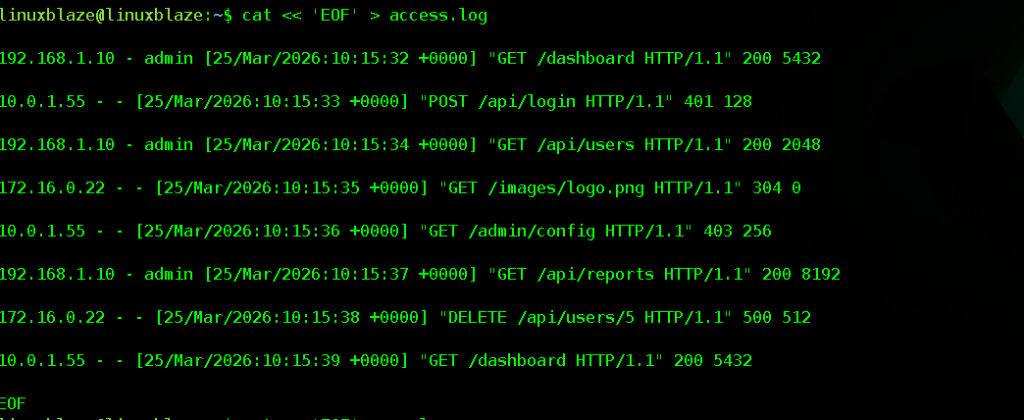
1. The Web Server Access Log (access.log)
Run this block of code in your terminal to create a simulated Apache web server log:
“`bash
cat << ‘EOF’ > access.log
192.168.1.10 – admin [25/Mar/2026:10:15:32 +0000] “GET /dashboard HTTP/1.1” 200 5432
10.0.1.55 – – [25/Mar/2026:10:15:33 +0000] “POST /api/login HTTP/1.1” 401 128
192.168.1.10 – admin [25/Mar/2026:10:15:34 +0000] “GET /api/users HTTP/1.1” 200 2048
172.16.0.22 – – [25/Mar/2026:10:15:35 +0000] “GET /images/logo.png HTTP/1.1” 304 0
10.0.1.55 – – [25/Mar/2026:10:15:36 +0000] “GET /admin/config HTTP/1.1” 403 256
192.168.1.10 – admin [25/Mar/2026:10:15:37 +0000] “GET /api/reports HTTP/1.1” 200 8192
172.16.0.22 – – [25/Mar/2026:10:15:38 +0000] “DELETE /api/users/5 HTTP/1.1” 500 512
10.0.1.55 – – [25/Mar/2026:10:15:39 +0000] “GET /dashboard HTTP/1.1” 200 5432
EOF
“`
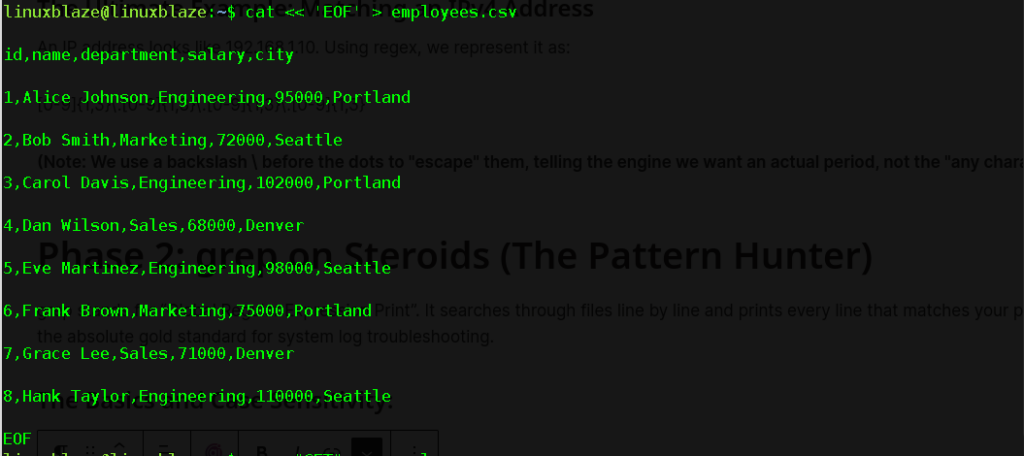
2. The Corporate Database (employees.csv)
Run this block to create a simulated employee database:
“`bash
cat << ‘EOF’ > employees.csv
id,name,department,salary,city
1,Alice Johnson,Engineering,95000,Portland
2,Bob Smith,Marketing,72000,Seattle
3,Carol Davis,Engineering,102000,Portland
4,Dan Wilson,Sales,68000,Denver
5,Eve Martinez,Engineering,98000,Seattle
6,Frank Brown,Marketing,75000,Portland
7,Grace Lee,Sales,71000,Denver
8,Hank Taylor,Engineering,110000,Seattle
EOF
“`
Phase 1: Demystifying Regex (The Search Pattern)
Before learning the tools, you must learn their language. Regular Expressions (Regex) are a sequence of characters that define a search pattern. It is not a command itself; it is the engine that powers grep, sed, awk, and nearly every modern programming language.
If you search for the word “cat”, you are doing a literal search. But what if you want to find “cat”, “bat”, and “rat”? Or any 10-digit phone number? That requires meta characters.
Core Regex Meta characters:
‘ . ‘ (Dot): Matches any ‘single’ character except a newline. c.t matches “cat”, “cot”, and “cut”.
- ^ (Caret): Anchors the match to the *beginning* of a line. ^error matches lines starting with “error”.
- $ (Dollar): Anchors the match to the *end* of a line. success$ matches lines ending with “success”.
- [] (Character Class):** Matches any single character inside the brackets. [cbr] matches “cat”, “bat”, and “rat”.
- [^] (Negated Class):** Matches any single character *not* in the brackets. [^c]matches “bat” and “rat”, but NOT “cat”.
Quantifiers (How Many Times?)
If you are using Extended Regex (which we will trigger with the -E flag in grep), you can specify how many times a character should appear.
- * (Asterisk): Matches the preceding character **zero or more** times. go*gle matches “ggle”, “gogle”, “google”, “goooogle”.
- + (Plus): Matches the preceding character **one or more** times. go+gle matches “gogle”, “google”, but NOT “ggle”.
- ? (Question Mark): Matches the preceding character **zero or one** time (makes it optional). colou?r matches “color” and “colour”.
- {n,m} (Braces): Matches the preceding character between *n* and *m* times. [0-9]{3} matches exactly three numbers (e.g., “123”).
The Ultimate Example: Matching an IPv4 Address
An IP address looks like 192.168.1.10. Using regex, we represent it as:
[0-9]{1,3}\.[0-9]{1,3}\.[0-9]{1,3}\.[0-9]{1,3}
(Note: We use a backslash \ before the dots to “escape” them, telling the engine we want an actual period, not the “any character” wildcard).
Phase 2: grep on Steroids (The Pattern Hunter)
grep stands for “Global Regular Expression Print”. It searches through files line by line and prints every line that matches your pattern. It is incredibly fast and is the absolute gold standard for system log troubleshooting.
The Basics and Case Sensitivity:
To find every GET request in our access log:
grep "GET" access.log

But what if a developer typed “get” or “Get”? Use the ‘ -i (ignore case)’ flag:
grep -i "get" access.logThe Invert Match (Finding What Is NOT There):
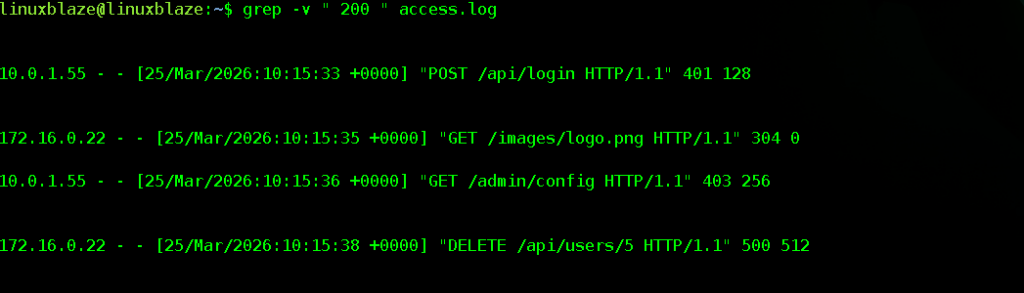
Sometimes, logs are incredibly noisy. You might want to filter out the noise to see the anomalies. The ‘-v (invert)’ flag prints everything that does ‘not’ match. Let’s hide all the successful (status 200) web requests to find our errors:
grep -v " 200 " access.logOutput:
Viewing Context (The Forensic Investigator’s Best Friend):
When you find an error, you rarely just need the error line. You need to know what happened right before it to trigger it. grep provides context flags:
- -B (Before): Show lines before the match.
- -A (After): Show lines after the match.
- -C (Context): Show lines both before and after.
Let’s find the catastrophic 500 Server Error and the 1 line before and after it:
grep -C 1 "500" access.logOutput:

Advanced Regex Hunting with grep:
To use our advanced quantifiers (+, ?, |), we must use the ‘ -E (Extended)’ flag. Let’s find all POST or DELETE requests. The pipe | acts as an “OR” operator.
grep -E "POST|DELETE" access.logIf we only want the exact text that matched (not the whole line), we use the ‘ -o (only matching)’ flag. Let’s extract *just* the IP addresses from the log using our regex knowledge:
grep -oE "^[0-9]{1,3}\.[0-9]{1,3}\.[0-9]{1,3}\.[0-9]{1,3}" access.log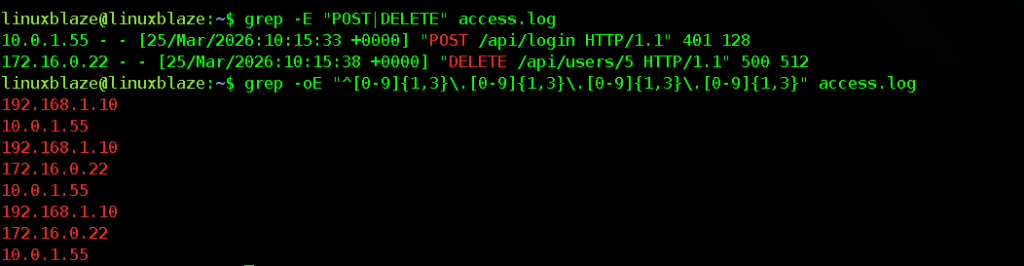
Phase 3: Stream Editing with sed (The Transformer)
While grep finds data, sed (Stream Editor) modifies it as it flows through the terminal. sed acts on a text stream line by line, allowing you to delete, insert, or replace text on the fly without ever opening a text editor like nano or vim.
The Mighty Find and Replace:
The most common use of sed is the substitution command, which follows this syntax:
sed 's/search_pattern/replacement_text/flags' filenameLet’s say our company was acquired, and the Engineering department is now called “R&D”. Let’s change it in our CSV:
sed 's/Engineering/R&D/' employees.csv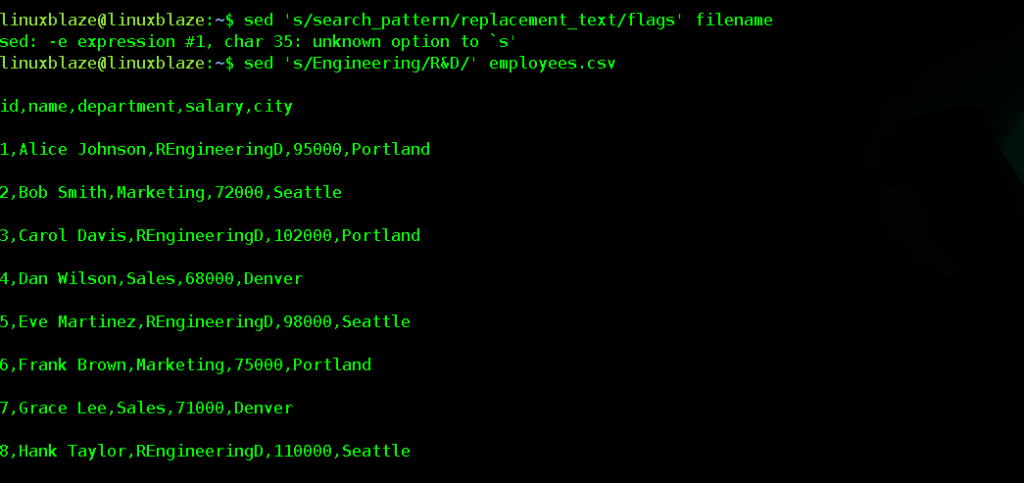
However, if “Engineering” appeared twice on the *same line*, the command above would only change the first instance. To replace every instance across the entire line, we add the **g (global)** flag at the end:
sed 's/Engineering/R&D/g' employees.csvDeleting Lines:
sed can easily remove unwanted data. The syntax /pattern/d deletes any line containing the pattern. Let’s remove the header row from our CSV:
sed '/^id,name/d' employees.csv(Notice the ^ anchor ensures we only delete the line if it starts with “id,name”).

Cybersecurity Use Case: Log Redaction
In the era of GDPR and strict data privacy, you often need to share logs with third-party vendors, but you cannot expose user IP addresses. sed can find the IPs using regex and replace them instantly.
sed -E 's/[0-9]{1,3}(\.[0-9]{1,3}){3}/[REDACTED_IP]/g' access.logOutput snippet:
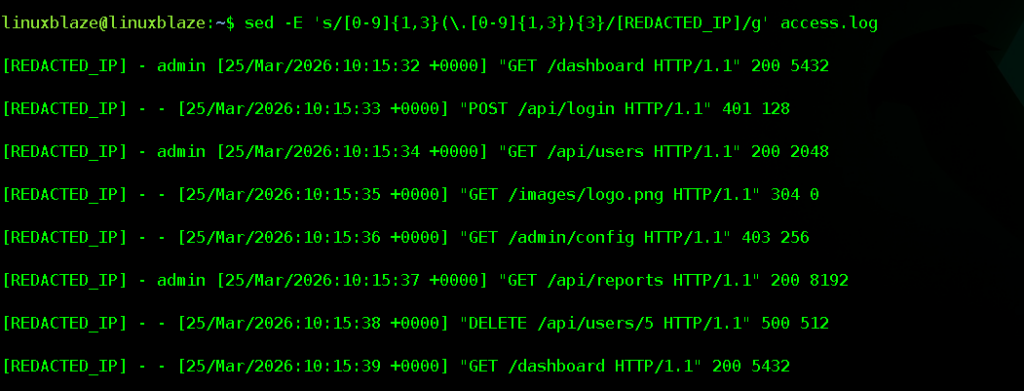
In-Place Editing (Warning!):
By default, sed only prints the modified text to your screen. The original file remains untouched. If you want to permanently save the changes to the file, use the ‘-i (in-place)’ flag.
Pro-tip: Always test your sed command without -i first to ensure you don’t destroy your file!
# This permanently changes the file!
sed -i 's/Marketing/Sales/g' employees.csvPhase 4: Data Extraction with awk (The Data Analyzer)
If you are dealing with structured, columnar data (like CSVs, space-separated logs, or the output of the ls -l command), awk is the undisputed champion. awk is not just a command; it is an entire programming language dedicated to text processing.
Unlike grep and sed which view text as raw strings, awk views text as a database. It splits every line (record) into columns (fields).
By default, awk assumes columns are separated by spaces or tabs.
- $0 represents the entire line.
- $1 represents the 1st column.
- $2 stands for 2nd column, etc.
- $NF represents the very Last column (Number of Fields).
Basic Extraction:
Let’s pull just the IP addresses (Column 1) and the requested URLs (Column 7) from our Apache log:
awk '{print $1, $7}' access.logOutput snippet:

Changing the Delimiter:
Our employees.csv file isn’t separated by spaces; it is separated by commas. We tell awk to change its Field Separator using the ‘-F’ flag.
Let’s print just the names (Column 2) and the cities (Column 5):
awk -F ',' '{print $2 " lives in " $5}' employees.csvOutput snippet:
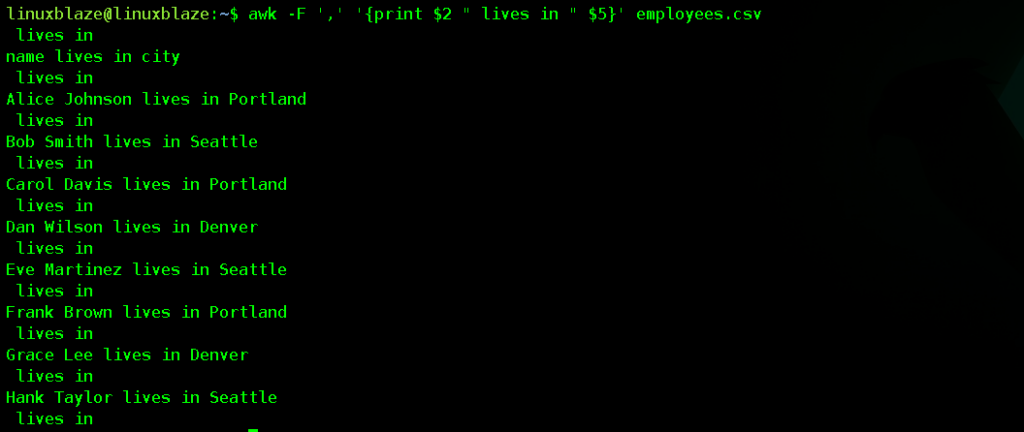
Adding Logic and Conditionals:
awk allows you to apply logic before printing. Let’s find out which employees make more than $90,000. (Salary is Column 4). We also want to skip the header row, which is Line 1. awk tracks the current line number using the NR (Number of Records) variable.
awk -F ',' 'NR > 1 && $4 > 90000 {print $2 " makes $" $4}' employees.csvOutput:

Math and Aggregation:
Because awk is a programming language, it can do math. Let’s calculate the total payroll for our company by summing up the Salary column. We use a variable sum, and when we reach the END of the file, we print it.
awk -F ',' 'NR > 1 {sum += $4} END {print "Total Payroll: $" sum}' employees.csvOutput:

Phase 5: Putting it Together (The Ninja Pipeline)
A true Linux Text Ninja rarely uses just one tool. The core philosophy of Linux is: *Write programs that do one thing and do it well. Write programs to work together.*
We combine these tools using the ‘Pipe (|)’. The pipe takes the Standard Output (stdout) of the command on the left, and pushes it into the Standard Input (stdin) of the command on the right.
The Ultimate Scenario: Threat Hunting:
Imagine you are a system administrator, and your web server is running slowly. You suspect a bot is spamming your server. You need to parse the access.log, find out which IP addresses are hitting the server the most, and sort them to find the top offender.
We will use awk to extract the IPs, sort to group them, uniq -c to count the duplicates, sort -nr to order them numerically descending, and head to show the top 3.
awk '{print $1}' access.log | sort | uniq -c | sort -nr | head -n 3Output:

Scenario 2: Formatting an Error Report
Let’s say the developers need a report of all failed web requests (status codes 400 and above). They want it formatted nicely: just the IP, the URL that failed, and the status code.
1. Filter for errors using grep and a regex looking for 4xx or 5xx codes.
2. Extract the relevant columns using awk.
3. Format the output with awk’s printf for clean spacing.
grep -E " (4[0-9]{2}|5[0-9]{2}) " access.log | awk '{printf "IP: %-15s | URL: %-20s | Error: %s\n", $1, $7, $9}'Output:

Conclusion: The Ultimate Quick Reference Cheat Sheet
You now possess the foundational skills to manipulate massive amounts of data directly from the command line. When approaching a problem, remember the Golden Rule of text processing: **Select lines with grep, edit streams with sed, and extract columns with awk.
Bookmark this cheat sheet for your daily server administration:
| Task | Command |
| Search for a string | grep “pattern” filename |
| Search case-insensitive | grep -i “pattern” filename |
| Show lines that DO NOT match | grep -v “pattern” filename |
| Count matching lines | grep -c “pattern” filename |
| Search recursively in folders | grep -r “pattern” /path/to/folder/ |
| Find and Replace (Stream) | sed ‘s/old/new/g’ filename |
| Find and Replace (Save to file) | sed -i ‘s/old/new/g’ filename |
| Delete lines matching pattern | sed ‘/pattern/d’ filename |
| Print specific column | awk ‘{print $2}’ filename |
| Print column with custom delimiter | awk -F ‘,’ ‘{print $1}’ filename |
| Filter by column value | awk ‘$3 > 100 {print $0}’ filename |
The learning process is an essential part of your linux journey. Challenge yourself to use awk and sed for data tasks you currently perform in Excel or Google Sheets. While it will initially feel unfamiliar, consistent practice over a few weeks will dramatically increase your text manipulation speed. Keep honing your skills, and let the command line be your powerful assistant!