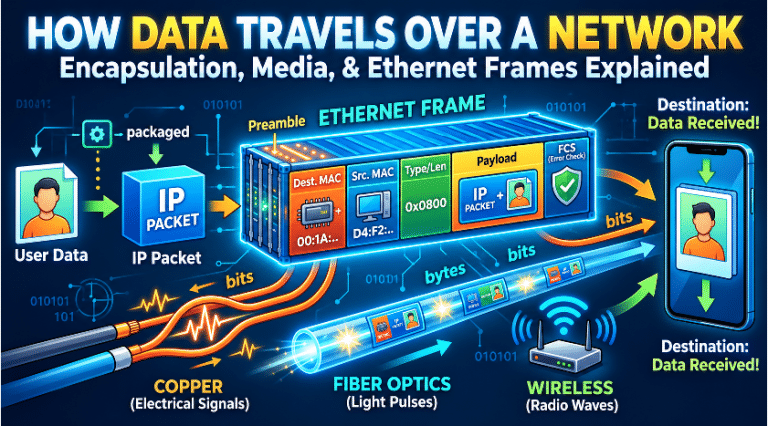
Whether you are studying for your networking exam, setting up a home lab, or starting a career in IT or cybersecurity, understanding how computers communicate is essential. This guide breaks down complex networking concepts into digestible, jargon free pieces using real-world analogies.
Step 1: Understand the Network Frameworks (OSI vs. TCP/IP)
Network models break global communication down into manageable layers, isolating specific functions so hardware and software can seamlessly interact.
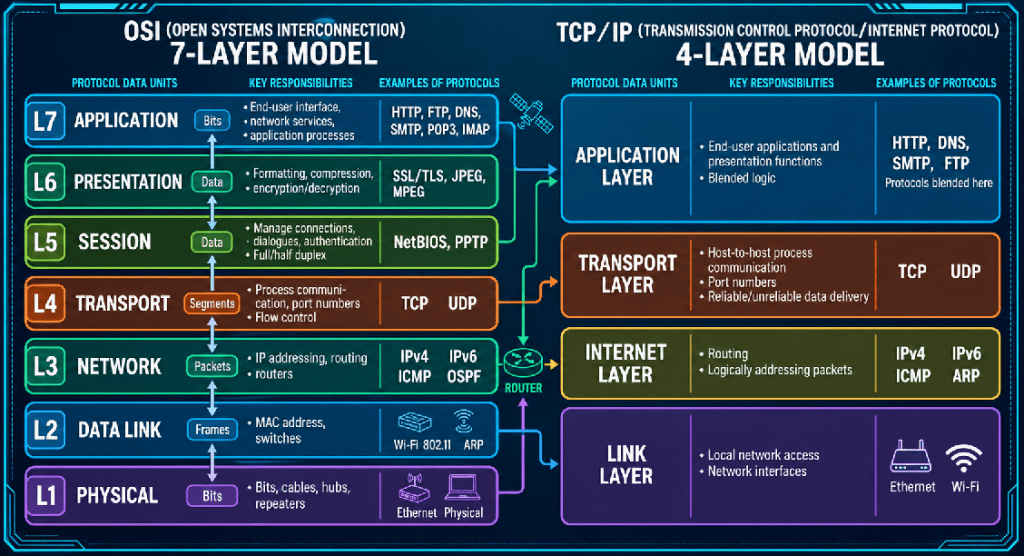
The OSI Model (7 Layers)
The OSI Model(Open Systems Interconnection) Developed by the ISO (International Organization for Standardization), is a theoretical framework used primarily as a universal standard for teaching and troubleshooting network issues.
- Mnemonic: Please Do Not Throw Sausage Pizza Away or All People Seem To Need Data Processing
- Layer 7 – Application: The software interface users interact with (e.g., web browsers, email clients).
- Layer 6 – Presentation: Translates, encrypts, and compresses data so the application layer can read it.
- Layer 5 – Session: Manages and maintains sessions or dialogue between different computers.
- Layer 4 – Transport: Ensures reliable data delivery and handles error recovery (using protocols like TCP and UDP).
- Layer 3 – Network: Handles logical addressing and finds the best path across different networks (using IP addresses).
- Layer 2 – Data Link: Manages node-to-node data transfer and physical hardware addressing (MAC addresses).
- Layer 1 – Physical: The actual physical media—cables, electrical pulses, or radio waves transmitting raw bits.
The TCP/IP Model (4 Layers)
Developed by the US Department of Defense (DoD), the TCP/IP model is the practical, streamlined model that the modern internet is built on.
- Mnemonic: All Traffic Is Normal
- Layer 4 – Application: Combines the OSI model’s Application, Presentation, and Session layers into a single user-facing layer.
- Layer 3 – Transport: Direct counterpart to the OSI Transport layer, ensuring end-to-end communication.
- Layer 2 – Internet: Equivalent to the OSI Network layer, focusing on routing packets across networks.
- Layer 1 – Network Access (or Link): Combines the OSI Data Link and Physical layers to handle local network hardware communication.
Comparing OSI and TCP/IP
While both models organize how data moves, they serve different purposes:
| Feature | OSI Model | TCP/IP Model |
| Type | Theoretical framework & reference guide | Practical standard actually used on the internet |
| Layer Count | 7 Layers | 4 Layers |
| Development | Built before protocols were finalized | Built around existing protocols (like TCP and IP) |
| Primary Use | Teaching, designing, and troubleshooting networks | Real-world internet communication and routing |
Step 2: Choose How Data is Transported (Layer 4)
The Transport Layer ensures data transfers successfully between applications. It manages flow control (preventing a fast sender from overwhelming a slow receiver) and congestion control.
- TCP (Transmission Control Protocol): Connection-oriented and highly reliable. It establishes a connection via a 3-way handshake (SYN → SYN-ACK → ACK)) before sending data. If a packet drops, TCP automatically retransmits it.
- Use Cases: Web browsing, file transfers, and emails (anywhere data loss is unacceptable).
- Use Cases: Web browsing, file transfers, and emails (anywhere data loss is unacceptable).
- UDP (User Datagram Protocol): Connectionless and blazing fast. It sends data immediately (“fire and forget”) without a handshake and does not retransmit lost packets.
- Use Cases: Video streaming, VoIP calls, and online gaming (anywhere speed trumps perfect accuracy).
- Use Cases: Video streaming, VoIP calls, and online gaming (anywhere speed trumps perfect accuracy).
Step 3: Learn the Application Layer Protocols (Layer 7)
These protocols provide network services directly to the software you use every day:
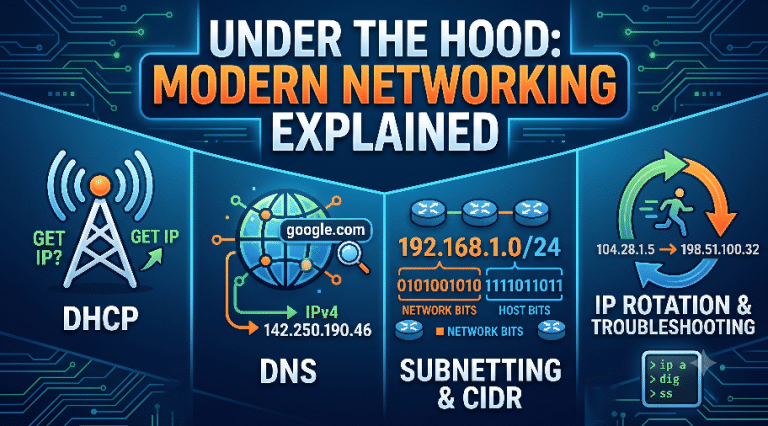
- DNS (Port 53): The internet’s phonebook. It translates human-readable domain names (like google.com) into machine-readable IP addresses.
- HTTP/HTTPS (Port 80/443): Transmits web pages over the internet. HTTPS ensures the traffic is securely encrypted.
- FTP (Ports 20 & 21): Used for transferring files between a client and a server.
- SMTP (Port 25): Sends emails from an email client to a mail server.
Step 4: Grasp IP Protocols & Network Addressing (Layer 3)
The Network Layer handles logical addressing and routing across multiple networks. Devices are identified using IPv4 (32-bit addresses) and organized using CIDR notation (e.g., 192.168.1.0/24) for flexible allocation.
Supporting protocols keep this layer running smoothly:
- DHCP: Automatically assigns IP addresses, subnet masks, and gateways to devices joining a network.
- ARP: Translates a logical IP address into a physical MAC address (bridging Layer 3 to Layer 2).
- ICM: Used for diagnostics and error reporting (this is what runs when you type ping in your command line).
- NAT: Translates private, internal IP addresses into a single public IP address for internet access, saving the world from running out of IPv4 addresses.
Step 5: Understand How Data is Routed
Routers use algorithms to calculate the absolute best path for your data across multiple networks.
Real-Life Analogy: Imagine driving from New York to Washington D.C.
- Distance Vector (The “Ask a Local” Method): Routers only know what their immediate neighbors tell them and count the “hops” to the destination. Analogy: You ask a gas station attendant in Philadelphia for the way to D.C. They don’t have a full map, but they point you down a specific highway because it’s “two towns away.” (Example: RIP)
- Link State (The “GPS Map” Method): Routers share direct connections with every router, building a complete network map to calculate the absolute shortest path. Analogy: A traffic app maps every road and traffic jam in real-time. You build a complete map in your head and take the fastest route. (Example: OSPF)
Step 6: Master Layer 2 Switching and Hardware
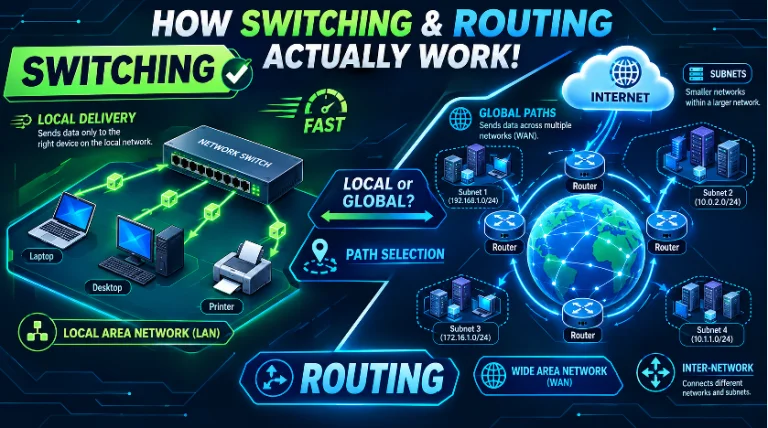
The Data Link Layer (Layer 2) handles node-to-node transfer, error detection, and Medium Access Control (MAC). Devices here must be physically connected via specific network topologies:
- Bus Topology: Devices connect to a single central cable. If the main cable is cut, the network dies.
- Star Topology: Every device connects to a central hub or switch.
- Hubs vs. Switches: A hub is a “dumb repeater”—if it receives data on Port 1, it blindly broadcasts it out to every other port. A switch maintains a large MAC table to route traffic instantly and securely only to the intended recipient.
- Managed vs. Unmanaged Switches: Unmanaged switches are basic, plug-and-play devices. Managed switches are enterprise-grade tools that allow engineers to configure virtual networks (VLANs), monitor traffic, and enforce security.
- Hubs vs. Switches: A hub is a “dumb repeater”—if it receives data on Port 1, it blindly broadcasts it out to every other port. A switch maintains a large MAC table to route traffic instantly and securely only to the intended recipient.
Step 7: Define How Messages Are Cast
When data moves through a network, it uses different casting types depending on the audience:
- Unicast (1-to-1): Sent from one computer to one specific destination (Analogy: Whispering a secret to a friend).
- Broadcast (1-to-All): Sent to every device on a local network segment (Analogy: Shouting “Pizza is here!” inside a house).
- Multicast (1-to-Many): Sent from one source to a specific group of opted-in devices (Analogy: Yelling “Who wants to play a game?” and only interested friends respond).
What specific networking concept or setup would you like to dive into next? And if you want to dive deeper into networking, you can enroll in this complete networking series for free!