Welcome to the invisible system that powers the modern world. Every time you stream a movie, send a message, or load a webpage, millions of microscopic digital decisions happen in the blink of an eye. If the internet is a sprawling global metropolis, network protocols are the roads, the street signs, the mail carriers, and the traffic cops that keep everything moving.
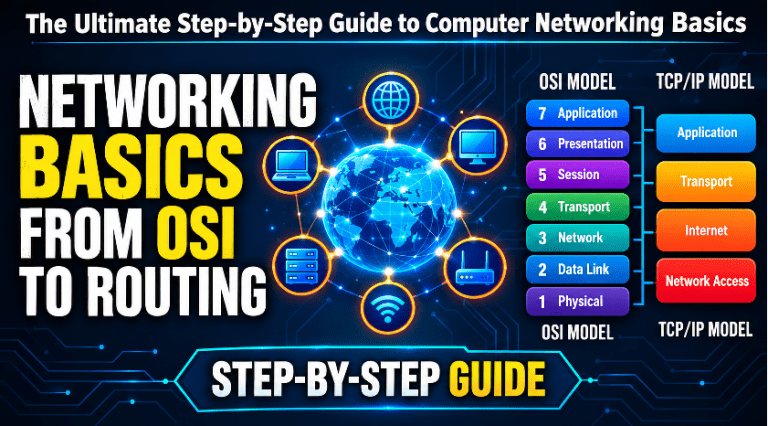
(Note: If you are wondering how the overall architecture of these communications is structured, I highly recommend reading my previous guide on The OSI vs. TCP/IP Models Explained with Real-Life Examples first).
In this deep dive, we are going to strip away the intimidating technical jargon. We will explore how devices find each other (IP Addresses), how they share spaces (Subnetting and CIDR), how they translate human language into computer code (DNS), and how they automate setup (DHCP). By the time you finish reading, you will understand the core of computer networking—not just as abstract concepts, but as logical, real-world systems.
Let’s take a journey under the hood of the internet.
1. The IP Address: Your Digital Home Address
Imagine you want to mail a birthday card to a friend. If the envelope just says “To John,” the postal service will throw it in the trash. They need a state, a city, a street name, and a house number.
An IP (Internet Protocol) address is exactly that: a digital mailing address for your devices. Whenever your phone connects to the internet, it is handed an IP address so data (like a Netflix video) knows exactly where to go.
IPv4 vs. IPv6
For decades, we used a system called IPv4. It looks like this: 192.168.1.15. It is made up of four blocks of numbers, meaning it can create about 4.3 billion unique addresses. Back in the 1980s, that sounded like an infinite amount. Today, considering most people own a phone, a laptop, a smartwatch, and a smart TV, we ran out of IPv4 addresses years ago.
To fix this, engineers created IPv6, which looks like a massive string of letters and numbers (e.g., 2001:0db8:85a3:0000:0000:8a2e:0370:7334). IPv6 provides so many addresses that we could assign one to every single grain of sand on Earth and still have plenty left over. However, IPv4 is still widely used today because of clever workarounds like NAT (Network Address Translation).
Public vs. Private IPs: The Office Building Analogy
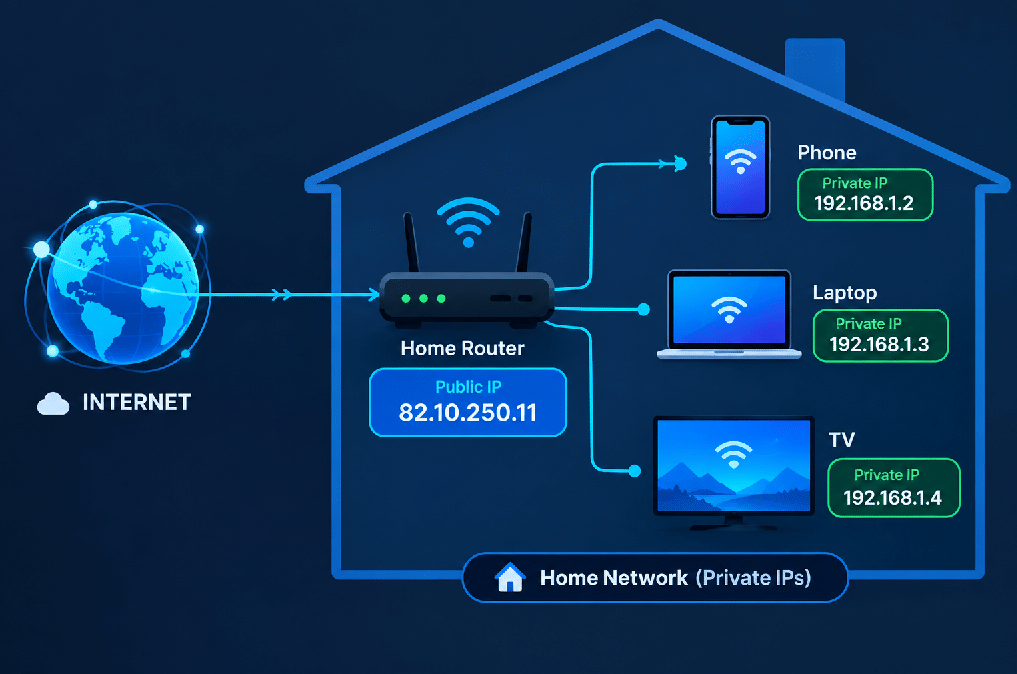
How do we still use IPv4 if we ran out of addresses? By splitting them into Public and Private spaces.
Imagine a massive corporate office building.
- The Public IP is the street address of the building (e.g., 100 Main Street). The global postal system only needs to know this address to deliver mail to the building.
- The Private IP is the desk extension number inside the building (e.g., Desk 42). The global postal system knows nothing about Desk 42.
Your home internet works the exact same way. Your Internet Service Provider (ISP) gives your home router one Public IP address. That is the face your home shows to the internet. Inside your house, your router gives every device (your phone, your laptop, your smart fridge) a Private IP address (like 192.168.1.5). When your phone asks for a website, the router takes the request, puts the Public IP on it and sends it out, gets the website data back, and then forwards it to your phone’s private internal address.
2. IP Rotation: The Digital Disguise
Sometimes, having a static (unchanging) IP address is a liability. This brings us to IP Rotation—the act of automatically changing your IP address at regular intervals or with every new connection.
Imagine you are a secret shopper reviewing retail stores. If you walk into the same store every single day wearing the exact same bright red jacket, the staff will eventually recognize you and might treat you differently. If you want genuine data, you need to change your disguise. IP Rotation is swapping the jacket.
Why Do We Use IP Rotation?
- Avoiding Rate Limits: If a computer tries to buy 500 concert tickets in one second from the same IP address, the ticketing website will block it, assuming it is a bot. By rotating IP addresses, the requests look like they are coming from 500 different people across the country.
- Web Scraping: Companies use bots to read competitor prices across the internet. If Amazon sees one IP address reading 10,000 product pages an hour, they will block it. Rotating IPs keeps the bot hidden in the crowd.
- Privacy and Security: Changing your IP address makes it incredibly difficult for advertisers or malicious hackers to track your browsing habits or target your network.
3. DNS (Domain Name System): The Internet’s Contacts App
Humans are great at remembering words; computers are great at remembering numbers.
You probably do not know your best friend’s 10-digit phone number by heart. Instead, you open your phone, tap “Alex,” and your phone translates that name into the correct number and dials it. DNS is the exact same thing, but for the internet.
When you want to search for something, you type google.com into your browser. But network routers have no idea what “google” is. They only understand IP addresses like 142.250.190.46. DNS is the system that translates the human-friendly name into the computer-friendly number.
The Step-by-Step DNS Journey
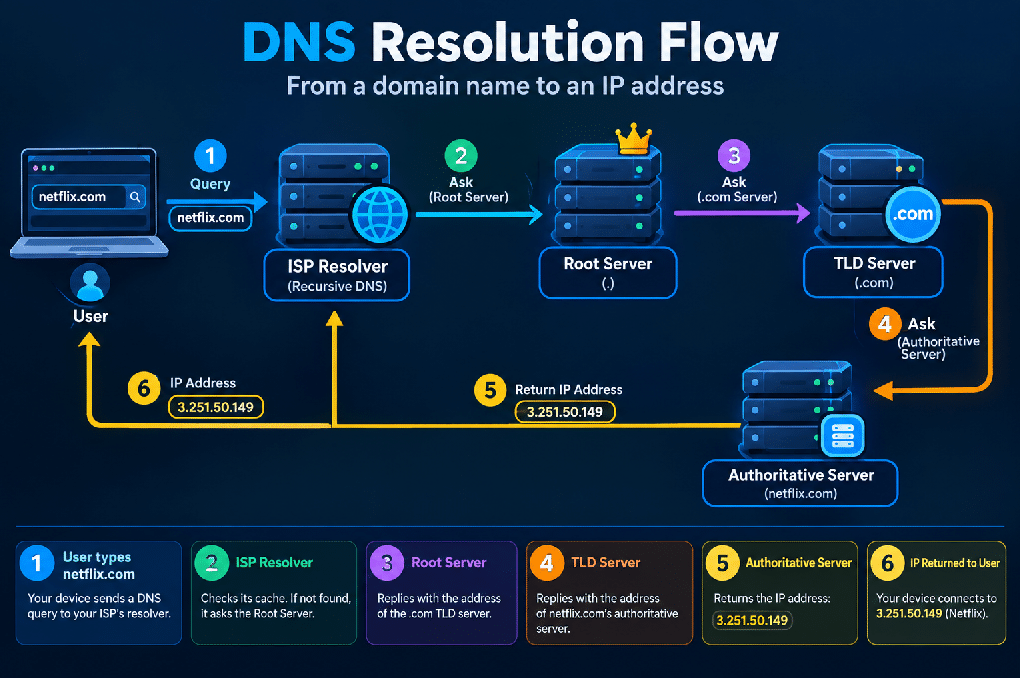
When you type netflix.com and hit enter, a frantic, lightning-fast relay race begins:
- The Memory Check (Cache): Your computer first checks its own memory. “Have I visited Netflix recently? Do I remember their number?”
- The ISP Directory (Resolver): If your computer doesn’t know, it asks your Internet Service Provider’s DNS server. “Hey Comcast, do you know the number for Netflix?”
- The Root Server (The Librarian): If the ISP doesn’t know, it asks the global Root Server. The Root Server says, “I don’t know the exact IP, but Netflix ends in .com. Go talk to the .com manager.”
- The TLD Server (The Department Head): The ISP then asks the .com Top-Level Domain server. The TLD says, “I know who manages Netflix’s records. Go talk to their specific server.”
- The Authoritative Server (The Source of Truth): Finally, the ISP asks Netflix’s own personal DNS server, which proudly replies, “Yes! netflix.com lives at 3.251.50.149!”
Your computer connects to the IP, and your movie starts playing. All of this happens in milliseconds.
4. DHCP: The Hotel Front Desk
We know that every device needs an IP address to function. But who hands them out? Do you have to manually type in an IP address every time you connect to a coffee shop Wi-Fi? Thankfully, no. That is where DHCP (Dynamic Host Configuration Protocol) steps in.
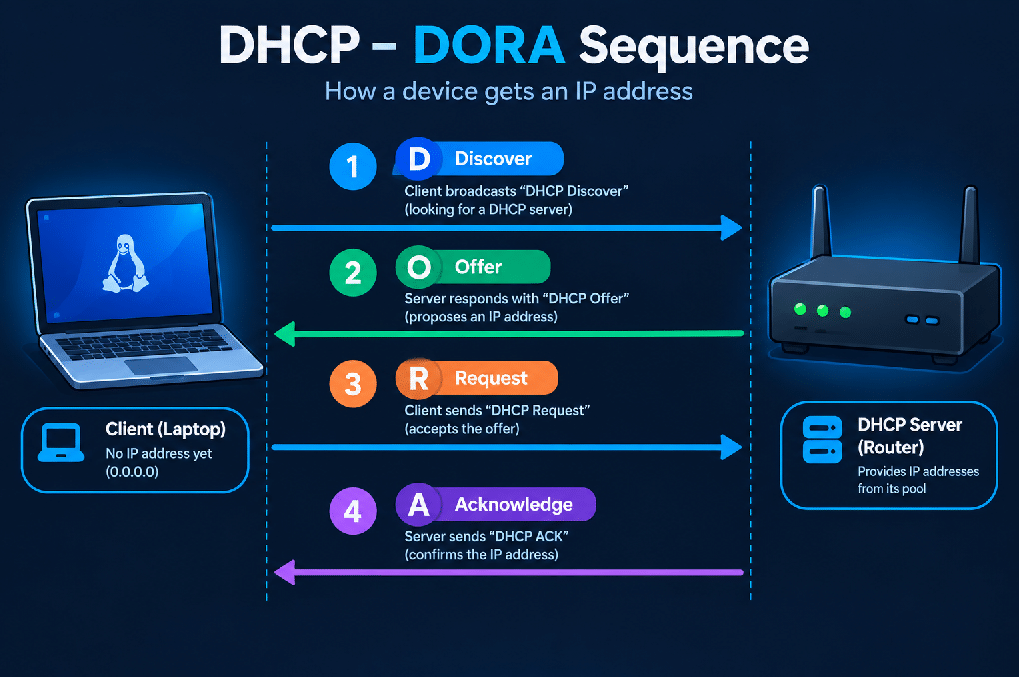
Imagine walking into a massive hotel. You cannot just pick a room at random and go to sleep; you might walk in on someone else, causing a massive conflict. Instead, you walk up to the front desk. The clerk checks the system, finds an empty room, and hands you the key.
DHCP is the hotel front desk clerk for your network. When you join a Wi-Fi network, your device automatically negotiates a space using a step-by-step conversation known as the DORA process:
- Discover: Your phone connects to the Wi-Fi and shouts, “Hello? Is there a manager here? I need a network address!”
- Offer: The DHCP server (usually your router) hears the shout and replies, “Welcome! I have an IP address 192.168.1.20 available for you.”
- Request: Your phone responds, “Perfect, I accept 192.168.1.20! Let’s lock it in.”
- Acknowledge: The router finalizes the deal. “It’s yours. You can lease it for 24 hours. Here is your Subnet Mask and your DNS server information. Have a great time on the internet!”
Because of DHCP, IP addresses are “leased,” not owned. If you leave the coffee shop, your lease eventually expires, and the router gives that IP address to the next customer who walks in.
5. Subnet Masks and CIDR Notation: Dividing the City
Now we arrive at the most notoriously difficult concept in basic networking, but we are going to make it simple.
Let’s look at how networks are segmented physically and logically.
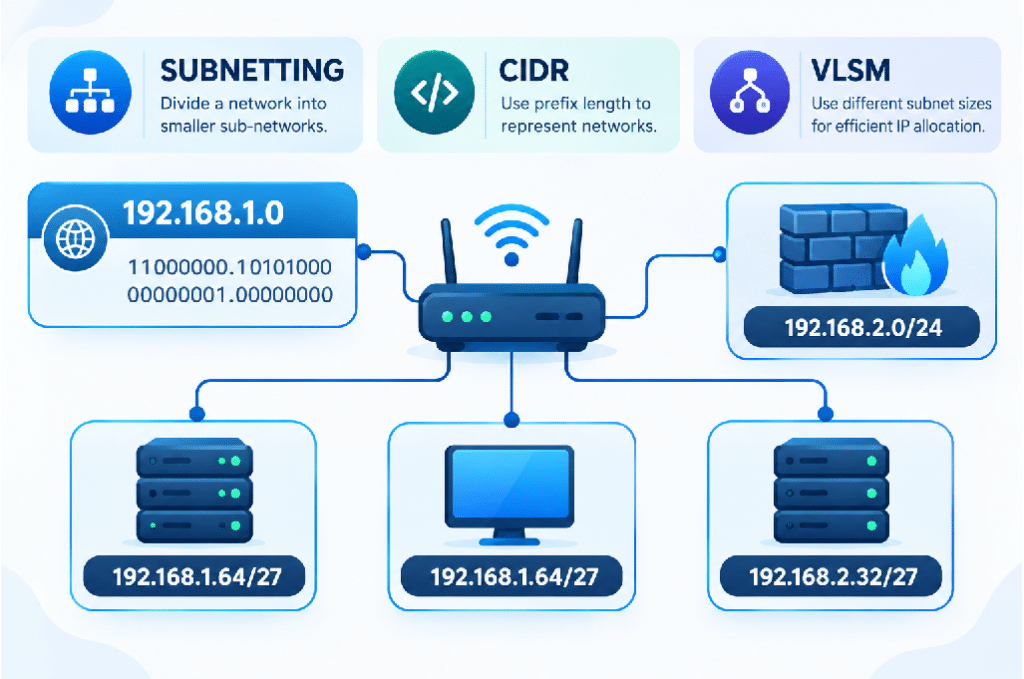
Every IP address is divided into two distinct parts:
- The Network ID: Think of this as the Street Name.
- The Host ID: Think of this as the specific House Number on that street.
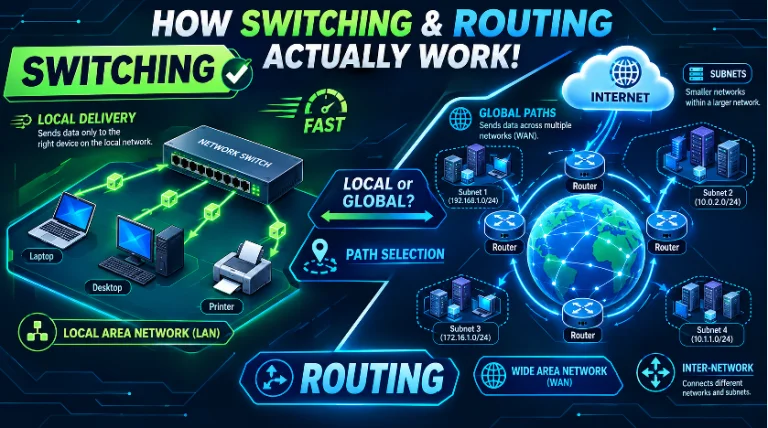
If two computers have the same Network ID (they live on the same street), they can talk to each other directly. If they have different Network IDs (they live on different streets), they have to send their traffic through a router (the post office) to reach each other.
But how does a computer know which part of 192.168.1.50 is the street name, and which part is the house number? It uses a Subnet Mask.
What is a Subnet Mask?
A Subnet Mask is a filter placed over the IP address. In older notation, a subnet mask looks like 255.255.255.0.
Where you see a 255, it means “this part is the Street Name.”
Where you see a 0, it means “this part is the House Number.”
So, for the IP 192.168.1.50 with a mask of 255.255.255.0:
- Street (Network): 192.168.1
- House (Host): 50
CIDR Notation (The Slash Format)
Writing out 255.255.255.0 is tedious. Today, we use CIDR (Classless Inter-Domain Routing) notation, which simply counts the number of bits locked down for the network. We write it as a slash at the end of the IP, like this: 192.168.1.0/24.
Why /24? Because computers do not read normal numbers; they read binary bits (1s and 0s). An IPv4 address is exactly 32 bits long (four sections of 8 bits).
The /24 means the first 24 bits are permanently locked as the Network ID. That leaves 8 bits left over for the Host IDs (the devices).
Step-by-Step Subnet Calculation (No complex math required)
How many devices can fit in a /24 network? We just use the powers of 2.
Since we have 8 bits left over ($32 – 24 = 8$), the math is $2^8 = 256$.
A /24 network holds 256 addresses. (We always subtract 2 because the very first address is reserved for the network’s name, and the very last address is reserved for broadcasting messages to everyone. So, 254 usable devices).
Let’s do a harder one: What is a /28 network?
- We have 32 total bits. The /28 means 28 bits are locked for the network.
- How many bits are left for the hosts? $32 – 28 = 4$.
- Do the math: $2^4 = 16$.
- A /28 network gives you 16 total addresses (14 usable devices).
Subnetting is simply taking a large pizza (a big network) and slicing it into smaller, secure pieces for different departments (like HR, IT, and Guest Wi-Fi).
To truly grasp how shifting the CIDR slice changes the network size in real-time, interact with this visualizer:
6. Modern Networking Commands (Welcome to 2026)
If you look at old networking tutorials, they will tell you to use commands like ifconfig, route, and netstat. While these paved the way, modern systems have replaced them with faster, more powerful tools like ip and ss.
I already shared an entire deep-dive explaining exactly how and why these tools changed. You can read the Full Guide to Replacing ifconfig and netstat with Modern Network Commands here.
For a quick cheat sheet while troubleshooting your IP, DHCP, or DNS issues from this article, here are the absolute essentials you need today:
The ip Command (Your Swiss Army Knife)
Replaces: ifconfig and route
- ip a (or ip address show): This instantly displays your IP addresses, your subnet masks (in CIDR format!), and whether your network card is active.
- ip route: This tells you where your traffic is going. It shows your “default gateway”—the router that acts as your exit door to the internet.
The ss Command (Socket Statistics)
Replaces: netstat
- ss -tulnp: This is a massive lifesaver. It shows you exactly which ports on your computer are open and listening to the internet, and which applications are using them. If a game or app refuses to connect, this command tells you if the port is jammed.
The dig and resolvectl Commands (DNS Detectives)
Replaces: nslookup (mostly on Linux/Mac)
- dig google.com: This manually bypasses your browser and directly interrogates the DNS system. It will show you exactly what IP address a website is pointing to.
- resolvectl status: Shows you exactly which DNS servers your computer is currently trusting for translations.
The Troubleshooting Workflow
If your internet breaks, follow these steps in order:
- ip a: Do I even have an IP address? (If not, your DHCP is broken).
- ping 8.8.8.8: Can I reach the outside world by numbers? (If yes, your physical internet is fine).
- ping google.com: Can I reach the outside world by name? (If step 2 worked but this fails, your DNS is broken).
7. Tips, Tricks, and Memorization Hacks
Network math can feel overwhelming during exams or stressful troubleshooting. Here are the professional shortcuts to memorize it instantly.
The “Halving” Rule for CIDR
You do not need to do complex binary math. Just memorize that /24 gives you 256 addresses. Every time the slash number goes up by one, cut the addresses in half. Every time the slash number goes down by one, double the addresses.
- /23 = 512 IPs
- /24 = 256 IPs
- /25 = 128 IPs
- /26 = 64 IPs
- /27 = 32 IPs
- /28 = 16 IPs
The “Magic Number” Trick
If someone asks you, “What are the network ranges for 10.0.0.0/26?”, you don’t need a calculator.
- Convert /26 to a standard subnet mask: 255.255.255.192.
- Take the number 256 (the absolute maximum size of an octet) and subtract the interesting part of the subnet mask (192).
- $256 – 192 = 64$.
Your Magic Number is 64! This means your subnets jump in blocks of exactly 64.
- Subnet 1: 10.0.0.0 to 10.0.0.63
- Subnet 2: 10.0.0.64 to 10.0.0.127
- Subnet 3: 10.0.0.128 to 10.0.0.191
It works perfectly every single time, without fail.
Networking doesn’t have to be a dark art of blinking lights and command lines. Whether a packet is asking DHCP for a room, checking DNS for a phone number, or hiding behind an IP Rotation, everything is just a logical system designed to connect human beings faster and more securely. Now that you know how the roads are built, you are ready to drive next in your networking journey.