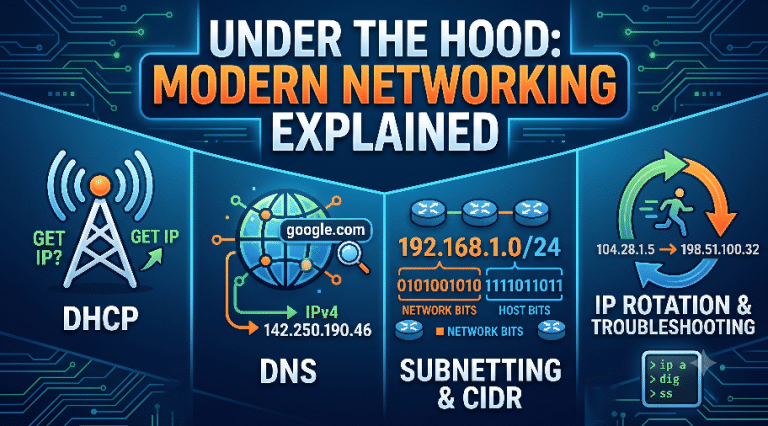
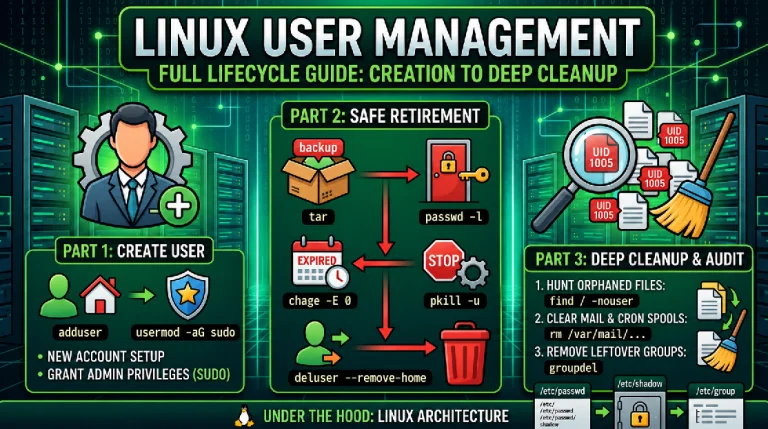
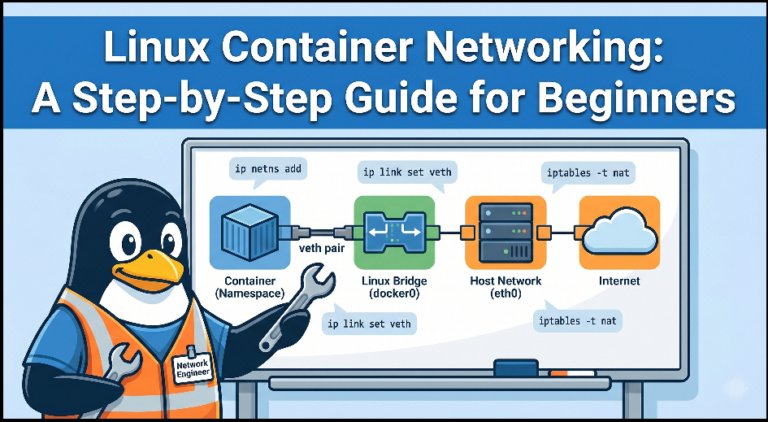
Welcome to the comprehensive, step-by-step guide to Linux networking. Whether you aspire to become a system administrator, a software developer deploying applications to the cloud, or an IT professional managing enterprise data centers, or a cybersecurity enthusiast want to make their career in cybersecurity; mastering the network stack on Linux is an absolute necessity.
Linux powers the majority of the world’s web servers, cloud infrastructure, and enterprise networking gear. When a server goes offline, a database connection drops, or a firewall blocks legitimate traffic, you need to know exactly which commands to run to diagnose and resolve the issue quickly.
In the past, administrators relied on a suite of tools collectively known as net-tools (which included commands like ifconfig, netstat, and route). However, the landscape of Linux networking has evolved. Modern distributions (like Ubuntu, RHEL, AlmaLinux, and Debian) have deprecated these legacy tools in favor of the modern, powerful iproute2 suite.
In this comprehensive guide, you will walk through everything from the fundamental concepts of how Linux handles network traffic, to a step-by-step configuration guide, advanced troubleshooting playbooks, and modern firewall management.
Section 1: The Foundations of Linux Networking
Before typing commands into a terminal, it’s essential to understand how Linux conceptualizes networks. If you understand the theory, the commands will make you more understandable.
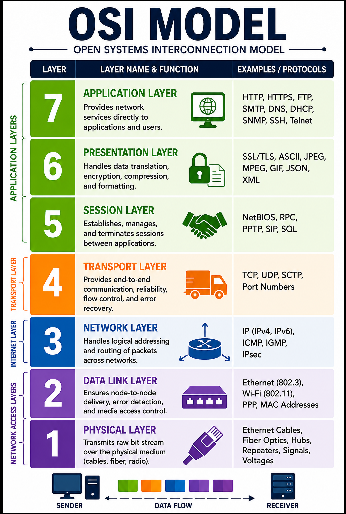
The OSI Model Context
When diagnosing a network issue on Linux, thinking in terms of the Open Systems Interconnection (OSI) model helps you isolate problems more easily:
- Layer 1 & 2 (Physical / Data Link): This involves your physical network interface cards (NICs), Ethernet cables, MAC addresses, and switches. In Linux, tools like ethtool and ip link help you view the physical state of your connections.
- Layer 3 (Network): This is where IP addresses and routing live. Commands like ip addr, ip route, ping, and traceroute operate here, ensuring packets know how to travel from one server to another.
- Layer 4 (Transport): This layer handles TCP and UDP connections and ports. If an application is failing to connect, tools like ss and nc (Netcat) will tell you if a port is open and listening.
- Layer 7 (Application): This involves HTTP, DNS, and other high-level protocols. You will use tools like curl, wget, and dig to test application-level connectivity.
Core Concepts Every Admin Must Master
- Network Interfaces: Linux treats everything as a file, and network interfaces are exposed as named devices. Older systems used names like eth0 or wlan0. Modern Linux distributions use predictable network interface names based on the physical hardware location, such as ens33, enp0s3, or wlp2s0.
- IP Addressing (IPv4 and IPv6): Every interface needs an address to communicate. You will frequently work with CIDR notation (e.g., 192.168.1.50/24), which combines the IP address and the subnet mask into a single string.
- Routing Tables: A server might have multiple network interfaces. The routing table acts as a map, telling the Linux kernel which interface to use to reach specific destinations, and identifying the “default gateway” for internet-bound traffic.
- DNS (Domain Name System): Computers use IPs, but humans use names. Linux relies on the /etc/resolv.conf file and services like systemd-resolved to translate names like google.com into IP addresses.
Section 2: The Great Migration: Legacy vs. Modern Commands
For decades, ifconfig was the king of Linux networking. However, as the Linux kernel evolved to support advanced routing, network namespaces, and complex tunneling, the old net-tools package could not keep up.
Today, the iproute2 suite is the standard. It interacts directly with the kernel’s modern Netlink API, making it faster, more accurate, and vastly more capable. Below is a comprehensive comparison of the legacy commands you should drop, and the modern equivalents you must learn.
Legacy to Modern Cheat Sheet
| Legacy Command | Modern Replacement | Primary Purpose |
| ifconfig | ip a (or ip addr) | View and configure IP addresses on interfaces. |
| ifconfig <interface> up/down | ip link set <interface> up/down | Enable or disable a physical network interface. |
| route -n | ip r (or ip route) | View and manipulate the kernel’s IP routing table. |
| netstat -tulnp | ss -tulnp | Display active, listening sockets, ports, and associated processes. |
| arp -n | ip n (or ip neigh) | View the Address Resolution Protocol (ARP) cache mapping IPs to MACs. |
| iwconfig | iw | Configure parameters for wireless network interfaces. |
| nameif | ip link set name | Rename a network interface. |
| iptunnel | ip tunnel | Create and manage IP tunnels. |
| nslookup | dig or resolvectl | Query DNS name servers for IP resolution. |
Why Make the Switch?
If you try to run ifconfig on a fresh installation of Ubuntu 24.04 or RHEL 9, you will likely receive a Command not found error. While you could install the net-tools package manually to get it back, doing so is considered bad practice. Modern tools offer JSON output for scripting (ip -j a), natively support IPv6, and are actively maintained by the open-source community.
Section 3: Step-by-Step Guide to Basic Network Configuration
Now that we understand the tools, let’s look at how to actually configure Linux networking step-by-step. We will start with temporary configurations (which wipe out upon reboot) and then move to permanent configurations.
Step 1: Identifying Your Network Interfaces
The first step on any new server is to see what hardware is available.
Command: ip link show
ip link showExplanation:
- lo is the loopback interface (127.0.0.1). It is a virtual interface your computer uses to talk to itself.
- enp3s0 is the physical Ethernet interface. The state UP means the cable is connected and the interface is active. link/ether shows the MAC address.
Step 2: Viewing IP Addresses
To see the IP addresses assigned to these interfaces, use the ip addr (or ip a for short) command.
Command: ip addr show
ip addr showExplanation: Here you can see the IPv4 address (inet 192.168.1.105/24) and the IPv6 address (inet6).
Step 3: Temporary IP Assignment
If you are troubleshooting a server and need to quickly assign an IP address without editing configuration files, you can use the ip addr add command. Note that if you reboot, this address will vanish.
Command: sudo ip addr add 10.0.0.50/24 dev enp3s0
To remove it later:
Command: sudo ip addr del 10.0.0.50/24 dev enp3s0
Step 4: Bringing an Interface Up or Down
Sometimes resetting the interface is the fastest way to resolve an issue.
Command:
sudo ip link set enp3s0 downsudo ip link set enp3s0 upSection 4: Making Configurations Permanent (Distro-Specific)
While the ip command is universal across all Linux distributions, making those changes permanent depends entirely on the distribution you are using. Enterprise environments are rarely homogeneous.
1. RHEL / CentOS / AlmaLinux / Rocky Linux (NetworkManager)
Red Hat-based distributions use NetworkManager. The command-line tool for this is nmcli.
Step-by-step to set a static IP via nmcli:
- List active connections to get the connection name:
nmcli con show - Modify the connection to use a static IP, gateway, and DNS:
- commands:
sudo nmcli con mod "enp3s0" ipv4.method manual
sudo nmcli con mod "enp3s0" ipv4.addresses 192.168.1.150/24
sudo nmcli con mod "enp3s0" ipv4.gateway 192.168.1.1
sudo nmcli con mod "enp3s0" ipv4.dns "8.8.8.8 1.1.1.1"- Bring the connection up to apply changes:
sudo nmcli con up "enp3s0"
2. Ubuntu Server (Netplan)
Modern Ubuntu uses Netplan, which relies on YAML configuration files to manage network settings.
Step-by-step to set a static IP via Netplan:
- Locate your Netplan configuration file (usually in /etc/netplan/).
ls /etc/netplan/ (e.g., 00-installer-config.yaml) - Edit the file using a text editor like nano or vim:
sudo nano /etc/netplan/00-installer-config.yaml - Configure the file with strict YAML indentation (spaces, not tabs):
- YAML
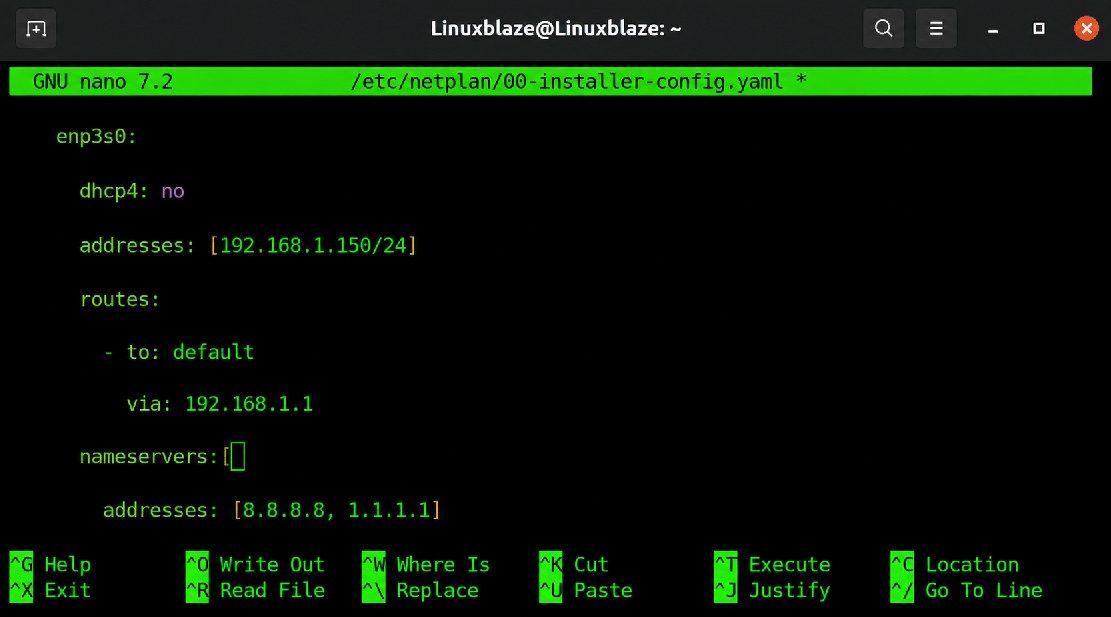
- Test and apply the configuration:
sudo netplan try(Reverts if you lose connection)sudo netplan apply(Applies permanently)
Section 5: Routing and Gateway Management
Routing determines how packets exit your Linux machine and traverse the broader network to reach their destination. If your server can ping other servers on the local network, but cannot ping the internet, you likely have a routing issue.
Viewing the Routing Table
The legacy command was route -n. The modern replacement is ip route (or ip r).
Command: ip route show
ip route show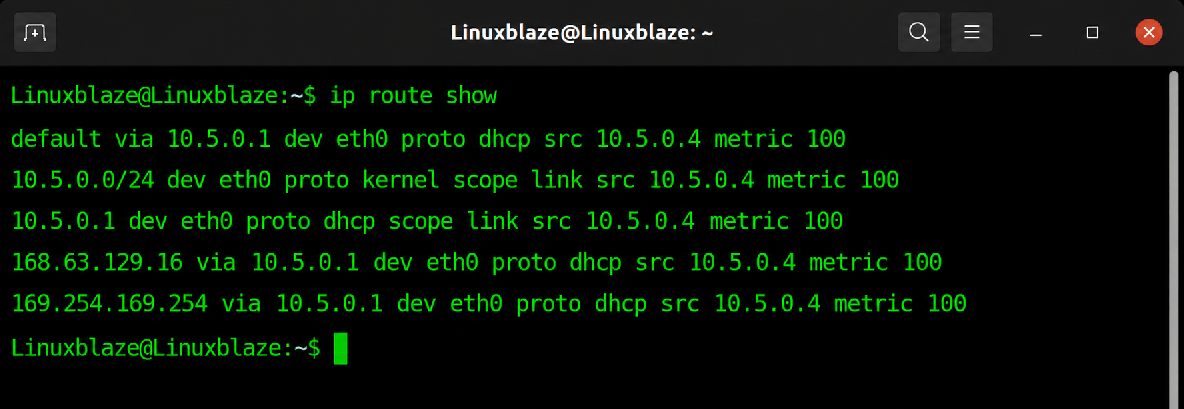
Explanation:
- The default via 192.168.1.1 line is critical. It tells Linux: “If you don’t know where to send a packet, send it to the router at 192.168.1.1 via the enp3s0 interface.”
- The 192.168.1.0/24 line tells Linux that any traffic destined for the local subnet should be sent directly out of enp3s0 without going through a gateway.
Modifying Routes
To manually add a route to a specific subnet (for instance, a VPN or a secondary office network):
Command: sudo ip route add 10.50.0.0/16 via 192.168.1.254 dev enp3s0
To add a temporary default gateway:
Command: sudo ip route add default via 192.168.1.1
Section 6: Socket Statistics and Port Investigation
When an application (like a web server or a database) starts, it binds to a “port” to listen for incoming connections. If a web server fails to load, your first step in Linux networking diagnostics should be to check if the port is actually listening.
The legacy tool netstat has been completely superseded by ss (Socket Statistics), which is drastically faster because it queries kernel Netlink directly rather than parsing text files in /proc.
The Magic Command: ss -tulnp
This is arguably the most important command for a system administrator to memorize.
- -t: Show TCP sockets.
- -u: Show UDP sockets.
- -l: Show only listening sockets.
- -n: Show numeric IPs and ports (bypasses slow DNS resolution).
- -p: Show the process ID (PID) using the socket (requires sudo).
Command: sudo ss -tulnp
sudo ss -tulnp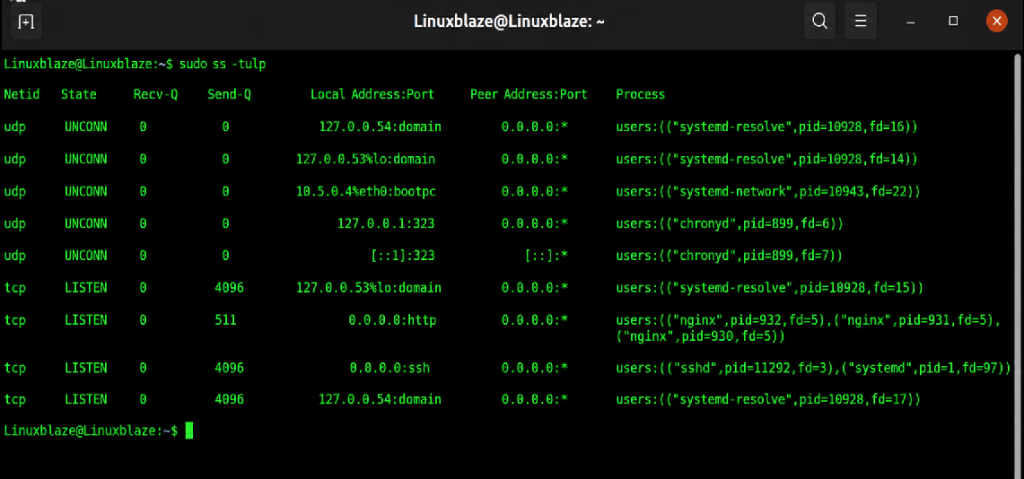
Explanation:
- Port 22 (SSH) is listening on 0.0.0.0, meaning it accepts connections from any IP.
- Port 80 (HTTP/Nginx) is also listening publicly.
- Port 3306 (MySQL) is listening strictly on 127.0.0.1. This means the database is only accessible from the local server itself, which is a massive security best practice.
Section 7: DNS Troubleshooting on Linux
DNS failures account for a disproportionate number of enterprise outages. They are frequently misdiagnosed as application crashes or firewall drops.
When your Linux system needs to translate a URL to an IP, it follows a specific chain:
- Local /etc/hosts file: Checked first. Used for static overrides.
- System Resolver: systemd-resolved or /etc/resolv.conf.
Modern DNS Investigation
While nslookup is still widely used, dig is the best tool for providing detailed authoritative DNS outputs.
Command: dig +short google.com
(Returns just the IPs for a quick check)
Command: dig @8.8.8.8 yourcompany.com A
(Bypasses local DNS caching and asks Google’s 8.8.8.8 server directly. Great for proving your local DNS server is broken.)
If you are using modern Linux with systemd, you can check your active DNS resolvers directly:
Command: resolvectl status
Section 8: The Enterprise Troubleshooting Playbook
When something is broken, guessing wastes time. Professional IT teams use a systematic troubleshooting flow based on the OSI model. When you get a ticket stating “The server is offline,” run through this exact playbook:
Step 1: Check Physical/Link Status (Layer 1/2)
- Is the interface actually up?
- Run:
ip link show - Action: If it says DOWN, bring it up with ip link set dev <interface> up.
Step 2: Check IP Addressing (Layer 3)
- Does the interface have the correct IP?
- Run:
ip addr show - Action: If missing, fix your Netplan/NetworkManager config or check your DHCP server.
Step 3: Check Local Routing (Layer 3)
- Can the server reach its local gateway?
- Run:
ping -c 4<gateway_ip> - Action: If this fails, the issue is on your local subnet (VLAN mismatch, bad switch port).
Step 4: Check External Routing (Layer 3)
- Can the server reach the internet?
- Run:
ping -c 4 8.8.8.8 - Action: If Step 3 works but Step 4 fails, your router is dropping the packet, or the default route is missing (ip route).
Step 5: Check DNS (Layer 7)
- Can the server resolve names?
- Run:
ping -c 4 google.com - Action: If Step 4 works but Step 5 fails, it is 100% a DNS issue. Check /etc/resolv.conf.
Step 6: Check Service Ports (Layer 4)
- If the network and DNS are fine, is the application actually listening?
- Run: sudo ss -tulnp | grep <port>
- Action: If it is not listed, the application crashed. Check journalctl -u <service_name>.
Step 7: Check the Firewall
- If the application is listening, but external users can’t reach it, a firewall is dropping the packets. Use nc (netcat) from a remote machine to test the port:
- Run (from remote): nc -zv <server_ip> <port>
Section 9: Advanced Diagnostics with Packet Capture
If the basic playbook doesn’t solve the issue, it is time to look at the raw network traffic. tcpdump is the premier command-line packet sniffer. It intercepts and displays packets flowing across your network interfaces in real-time.
Warning: tcpdump output can be overwhelming on a busy server. Always filter your captures.
Capture all traffic on port 80 (HTTP) on a specific interface:
sudo tcpdump -i enp3s0 'tcp port 80' -nn(The -nn flag is crucial; it prevents tcpdump from attempting to perform slow DNS lookups on every IP it sees, which can freeze your terminal).
Capture traffic from a specific IP and write to a file for Wireshark analysis:
sudo tcpdump -i any host 10.0.1.50 -w /tmp/capture.pcapSection 10: Firewalls and Security Hardening
No guide on Linux networking is complete without discussing security. Linux firewalls filter traffic at the kernel level. Historically, iptables was the undisputed standard. However, iptables is now considered legacy. The modern Linux kernel utilizes nftables (Netfilter Tables).
Depending on your distribution, you might interface with nftables directly, or through a user-friendly frontend.
1. UFW (Uncomplicated Firewall) – Standard on Ubuntu
UFW is a frontend designed to make firewall management incredibly easy for beginners.
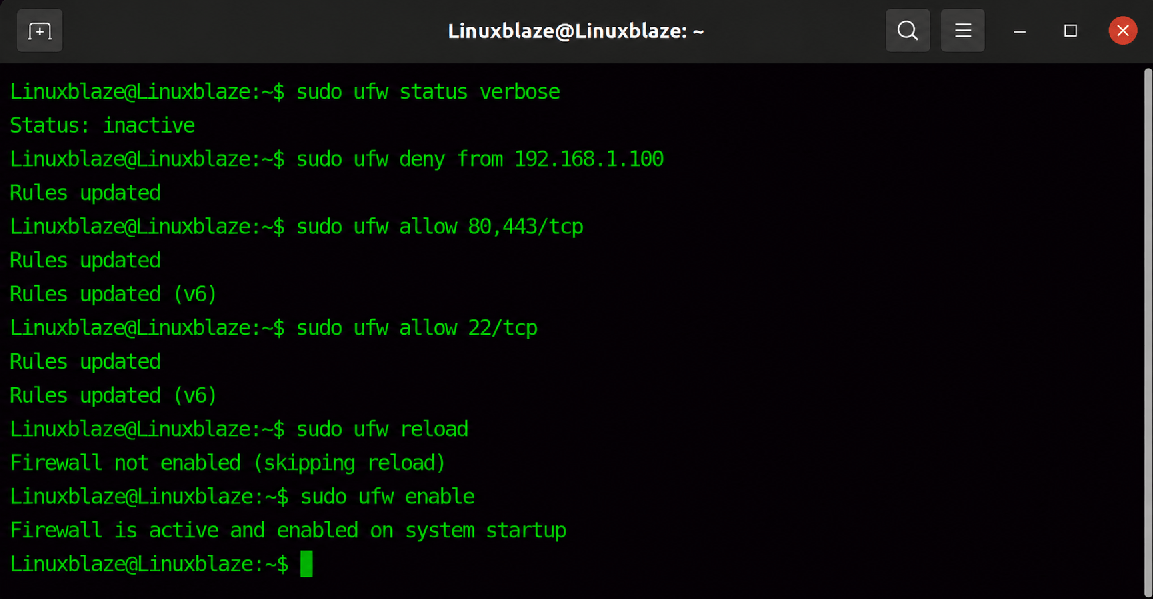
- Enable the firewall:
sudo ufw enable - Reload the firewall:
sudo ufw reload - Check status and rules:
sudo ufw status verbose - Allow SSH:
sudo ufw allow 22/tcp - Allow HTTP/HTTPS:
sudo ufw allow 80,443/tcp - Block an IP address:
sudo ufw deny from 192.168.1.100
2. Firewalld – Standard on RHEL / CentOS
Enterprise Linux uses firewalld, which manages rules dynamically using “zones” (e.g., public, trusted, internal) without dropping active connections when reloading.
- See active zones:
sudo firewall-cmd --get-active-zones - List all rules in public zone:
sudo firewall-cmd --zone=public --list-all - Permanently open port 8080:
sudo firewall-cmd --zone=public --add-port=8080/tcp --permanent - Reload to apply changes:
sudo firewall-cmd --reload
3. Nftables – The Modern Standard
If you are writing raw firewall scripts on modern Linux, you should use nftables rather than iptables. nftables consolidates IPv4, IPv6, and ARP filtering into a single unified syntax.
To view your entire ruleset:
sudo nft list rulesetA basic example to drop all incoming traffic except SSH, HTTP, and HTTPS:
sudo nft add table inet filter
sudo nft add chain inet filter input { type filter hook input priority 0 \; policy drop \; }
sudo nft add rule inet filter input ct state established,related accept
sudo nft add rule inet filter input iif "lo" accept
sudo nft add rule inet filter input tcp dport { 22, 80, 443 } acceptSection 11: Modern Network Observability and Logging
Reactive troubleshooting is fine, but proactive monitoring is how professionals operate. You must be able to observe network state over time and parse system logs efficiently.
Using journalctl for Network Logs
With the adoption of systemd, traditional log files like /var/log/messages have been largely replaced by the systemd journal. journalctl is incredibly powerful for tracking down network service failures.
- View logs specifically for the NetworkManager service:
journalctl -u NetworkManager --since "1 hour ago" - Follow logs in real-time (like tail -f):
journalctl -f - View kernel network driver messages:
journalctl -k | grep -i eth
Performance Monitoring Tools
- iftop: Similar to the top command, but for network bandwidth. It shows you exactly which connections are consuming the most data in real-time.
- nethogs: Breaks down bandwidth usage by process ID. If your server is maxing out its connection, nethogs will tell you if it’s Nginx, a backup script, or a rogue malware process.
- vnstat: Keeps a persistent log of total network traffic over days, weeks, and months. Excellent for capacity planning.
Conclusion
Mastering Linux networking is not an overnight task, but the transition from a beginner to a highly capable administrator is incredibly rewarding. The ecosystem has improved with the modern legacy tools like ifconfig and netstat in the favor of the robust iproute2 suite (ip, ss).
To succeed in a modern IT landscape:
- Embrace the modern toolkit: Force yourself to type ip a instead of ifconfig, and ss -tulnp instead of netstat.
- Think in OSI Layers: Always troubleshoot systematically from the physical link up to the DNS and application levels.
- Document everything: Whether you use Netplan YAML files or nmcli scripts, keeping your network configurations version-controlled and documented is the hallmark of a true professional.
By practicing the commands and workflows outlined in this step-by-step guide, you will be fully equipped to configure, diagnose, and secure the network stack on any modern Linux distribution.
Time to practice
Enter your email to save your progress and receive your results.