If you have been following our journey through the Linux command line, you have already conquered the basics of navigation, mastered the art of Bash scripting, and learned how to schedule recurring tasks using cron. You know how to make your server back up its database every night at 2:00 AM. You know how to clear out temporary files every Sunday.
But as you transition from a Linux user into a System Administrator, Developer, or DevOps engineer, you will inevitably hit a wall where cron is no longer the right tool for the job.
- What if you write a custom Python Discord bot that needs to run continuously, 24/7?
- What if you deploy a Node.js web application that needs to start automatically the moment the server boots up?
- What happens if that application crashes due to an out-of-memory error at 3:15 AM?
(Spoiler: cron will not restart it for you).
To manage long-running background processes—known in the Linux world as daemons—you need a true initialization and service manager. In modern Linux systems, that manager is Systemd.
This comprehensive, step-by-step guide will demystify Systemd. We will explore how it controls your operating system, how to use it to manage existing software like web servers, how to read its centralized logs, and finally, how to write your own custom service files to turn your scripts into bulletproof, auto-restarting background daemons.
Phase 1: What is Systemd? (Understanding PID 1)
Before you can command the system, you must understand how the system wakes up.
When you press the power button on your computer or boot up a cloud server, the hardware loads the Linux kernel. But the kernel itself is just the core engine; it doesn’t know how to start your network interfaces, mount your hard drives, or launch your web server. The kernel needs a manager.
The kernel starts a single, master process to bring the rest of the operating system to life. Because it is the very first process started, it is assigned Process ID 1 (PID 1).
For decades, Linux used an initialization system called SysVinit (or init.d). It was simple but slow, relying on sequentially running Bash scripts. If a service took 30 seconds to start, the entire boot process paused for 30 seconds.
Enter Systemd.
Adopted by almost every major modern Linux distribution (Ubuntu, Debian, Fedora, CentOS, RHEL, Arch), Systemd is a massive, parallel-processing initialization suite. It does not just start services; it manages them throughout their entire lifecycle. It handles:
- Parallel Booting: Starting multiple independent services at the exact same time, drastically reducing boot times.
- Dependency Management: It knows that your web server cannot start until the network interface is up, so it waits and automatically starts them in the correct order.
- Process Tracking: Unlike older systems that easily lost track of processes, Systemd uses Linux Control Groups (cgroups) to track every single child process spawned by a service. If you tell Systemd to kill a service, it kills the main process *and* every rogue child process it spawned.
- Standardized Logging: It captures standard output (stdout) and standard error (stderr) from all services and funnels them into a secure, searchable binary log called the Journal.
The Anatomy of a Systemd “Unit”
Systemd manages different types of resources, which it calls **Units**. While we will focus heavily on **Service Units** (.service), which manage background programs, it is helpful to know the others exist:
- “.service”: A system service or daemon (e.g., nginx.service, ssh.service).
- “.target”: A group of units that should be grouped together. (e.g., multi-user.target represents a system that has booted successfully and is ready for network logins without a graphical interface).
- “.timer” : A systemd timer, which is the modern, more precise replacement for cron.
- “.mount” : Controls mounting of filesystems and external drives.
Phase 2: The systemctl Command (Mastering Service Control)
The primary tool you will use to interact with Systemd is the systemctl command. This is the command-line interface that allows you to start, stop, monitor, and configure the boot behavior of your background daemons.
To demonstrate, let’s assume you have installed the Nginx web server (sudo apt install nginx). Here is how you manage it like a pro.
1. Checking the Status of a Service
Before changing anything, you should always check what the service is currently doing.
sudo systemctl status nginxThis command provides a wealth of information. A typical output looks like this:
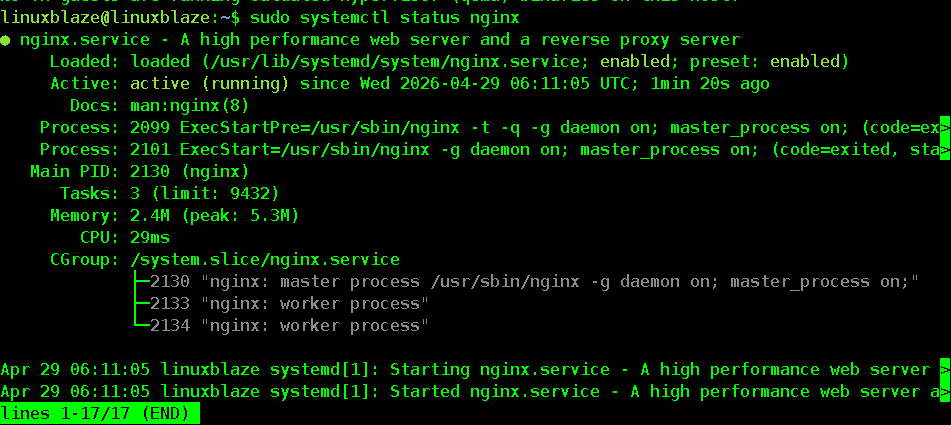
How to read this output:
- Loaded: Shows the absolute path to the unit file on your disk. It also tells you if the service is currently enabled (set to start at boot) or disabled.
- Active: The most crucial line. It will tell you if the service is active (running), inactive (dead), or failed (crashed with an error).
- Main PID: The application’s primary Process ID.
- CGroup: Shows the main process and all the child “worker” processes Systemd is actively tracking.
2. Starting and Stopping Services
If a service is inactive, you can start it. (Note: These commands usually run silently and do not output text unless there is an error. Always run a status check afterward to verify).
sudo systemctl start nginxTo gracefully stop the service:
sudo systemctl stop nginx3. Restarting vs. Reloading
This is an important distinction many beginners miss.
- Restarting completely kills the application process and starts a fresh one. If you are running a web server, any users currently downloading a file or browsing your site will have their connections instantly dropped.
sudo systemctl restart nginx- Reloading, on the other hand, asks the application to elegantly reload its configuration files *without* dropping active connections. Whenever you change a setting in an app’s config file (like adding a new website block to Nginx), you should always attempt a reload first.
sudo systemctl reload nginx(Note: Not all applications support reloading. If an app doesn’t support it, Systemd will usually throw a warning, and you will have to use restart).
4. Enabling and Disabling (Boot Behavior)
Starting a service only runs it for your current session. If you reboot the server, the service will not come back online. To ensure a service automatically starts every time the server boots, you must enable it.
sudo systemctl enable nginxOutput snippet:

To prevent a service from starting at boot:
sudo systemctl disable nginx5. Masking (The Nuclear Option)
Sometimes, disabling a service isn’t enough. If another service depends on it, Systemd might automatically start the disabled service anyway to fulfill the dependency. If you want to absolutely guarantee that a service never starts under any circumstances—even if manually triggered by the root user—you mask it.
sudo systemctl mask apache2
This links the service file to /dev/null (the Linux black hole). To undo this, use sudo systemctl unmask apache2.
Phase 3: Reading Logs with journalctl (The Forensic Toolkit)
Historically, Linux applications dumped their logs into hundreds of different plain-text files scattered across the /var/log/ directory. If a complex issue spanned multiple services, you had to manually open five different files and try to line up the timestamps by eye.
Systemd solved this by introducing journald, a component that captures logging data from the kernel, system services, and boot processes, and stores them in a highly compressed, indexed, centralized binary format.
Because it is a binary file, you cannot read it with standard tools like cat or less. You must use the journalctl command.
Basic Journal Navigation
Typing journalctl by itself will dump the entire log history of your server since the dawn of time. This is useless. You must filter it.
1. Filter by Service (-u)
If Nginx crashes, you don’t care what the firewall or the SSH daemon is doing. You only want the logs for the specific nginx.service **u**nit.
sudo journalctl -u nginx
2. Follow the Logs Live (-f)
Similar to tail -f, this allows you to watch the logs generated in real-time. This is invaluable when you are testing a script or trying to trigger an error.
sudo journalctl -u nginx -f
3. Filter by Time (–since and –until)
Because the Journal is indexed, you can ask for logs using natural language timeframes. If a user reported a website crash an hour ago, you can zero in on that exact window:
sudo journalctl -u nginx --since "1 hour ago"
sudo journalctl -u nginx --since "2026-04-26 10:00:00" --until "2026-04-26 11:00:00"
sudo journalctl -u nginx --since "today"
4. View Kernel and Boot Logs (-k and -b)
If your entire server crashed or rebooted unexpectedly, the issue might not be an application; it might be the hardware or the kernel running out of memory.
To see messages straight from the Linux Kernel:
sudo journalctl -kTo see the logs exclusively from the current boot session (ignoring all previous days):
sudo journalctl -bManaging Journal Disk Space:
Because journald collects everything, it can grow quite large. You can check how much disk space your logs are consuming:
journalctl --disk-usage
If it is taking up gigabytes of space, you can quickly vacuum the logs, forcing the system to delete anything older than a specific timeframe:
sudo journalctl --vacuum-time=14d*(This deletes all logs older than 14 days).*
Phase 4: Writing Your Own Service (From Script to Daemon)
This is where you graduate to true System Administration.
Let’s assume you have written a simple but critical Bash script. Its job is to monitor a specific folder and automatically process any files uploaded there. It runs in a while loop continuously.
If you just run ./monitor_script.sh in your terminal, it works. But the moment you close your SSH connection, the script dies. If the server reboots, the script does not start.
We need to turn your script into a Systemd Service.
Step 1: Prepare the Script
First, ensure your script is sitting in a logical, permanent location (not your Downloads folder) and is executable.
# Move the script to a global binary directory
sudo mv monitor_script.sh /usr/local/bin/monitor_script# Ensure it is executable
sudo chmod +x /usr/local/bin/monitor_scriptStep 2: Create the .service File
Systemd stores administrator-created unit files in the /etc/systemd/system/ directory. We will create a new file here using the nano text editor. We will name our service folder-monitor.
sudo nano /etc/systemd/system/folder-monitor.serviceA standard service file is divided into three sections: [Unit], [Service], and [Install]. Paste the following configuration into your file:
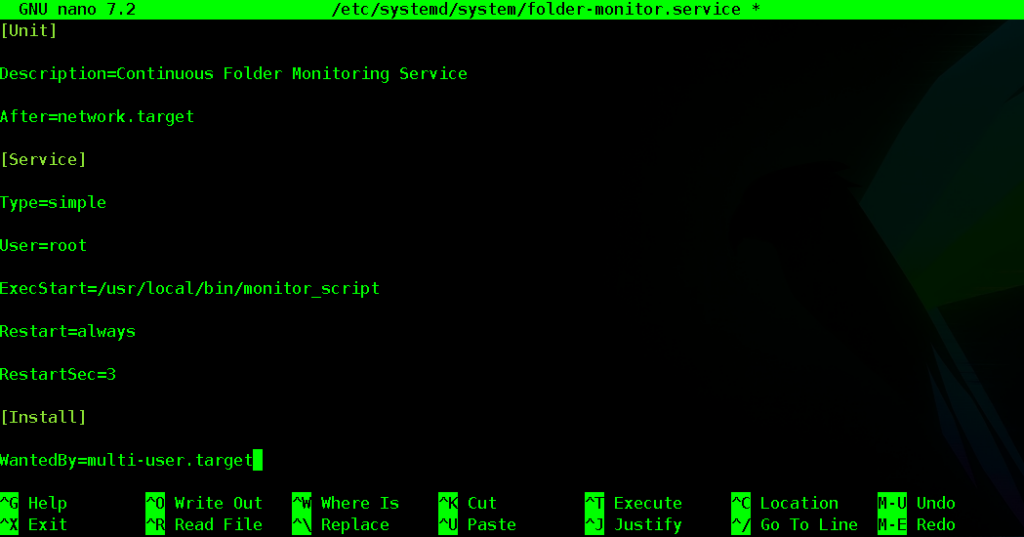
Breaking Down the Configuration:
The [Unit] Section: This defines metadata and dependencies.
- Description=: A human-readable name that appears when you run systemctl status.
- After=network.target: This tells Systemd not to start this script until the networking interfaces are fully online. If your script interacts with the internet (like a Discord bot), this prevents it from failing immediately on boot.
The [Service] Section: This defines how the program runs.
- Type=simple: The default type. It tells Systemd that the process configured in ExecStart is the main process of the service.
- User=root: Specifies which user account runs the script. For security reasons, if your script doesn’t need root access, you should change this to a standard user account (e.g., User=john).
- ExecStart=: The absolute, full path to your executable script or program. Systemd does not use your regular $PATH variables, so always use absolute paths (e.g., /usr/bin/python3 /home/user/bot.py).
- Restart=always: The magic setting. If your script crashes, exits unexpectedly, or is killed by the system, Systemd will automatically start it back up.
- RestartSec=3: Wait 3 seconds before attempting to restart the service to prevent infinite, rapid-fire crash loops.
The [Install] Section: This defines boot behavior.
- WantedBy=multi-user.target: This dictates what happens when you run systemctl enable. It essentially means “Start this service when the system reaches the standard, multi-user operational state.”
Save and exit the file (Ctrl+O, Enter, Ctrl+X).
Step 3: Reload the Systemd Daemon
Systemd loads all its unit files into memory when it boots. Because we just created a brand new file on the hard drive, Systemd has no idea it exists yet.
Whenever you create a new .service file or edit an existing one, you must command Systemd to rescan the /etc/systemd/system/ directory and reload its internal daemon.
sudo systemctl daemon-reloadStep 4: Start and Enable Your Custom Service
Now, you can treat your custom bash script exactly like you would treat Nginx, MySQL, or Docker.
Start the service immediately:
sudo systemctl start folder-monitorCheck its status to ensure it is running without errors:
sudo systemctl status folder-monitor
If it looks good, enable it so it survives server reboots:
sudo systemctl enable folder-monitorTo see the standard output (echo statements) from your script, check the journal:
sudo journalctl -u folder-monitor -f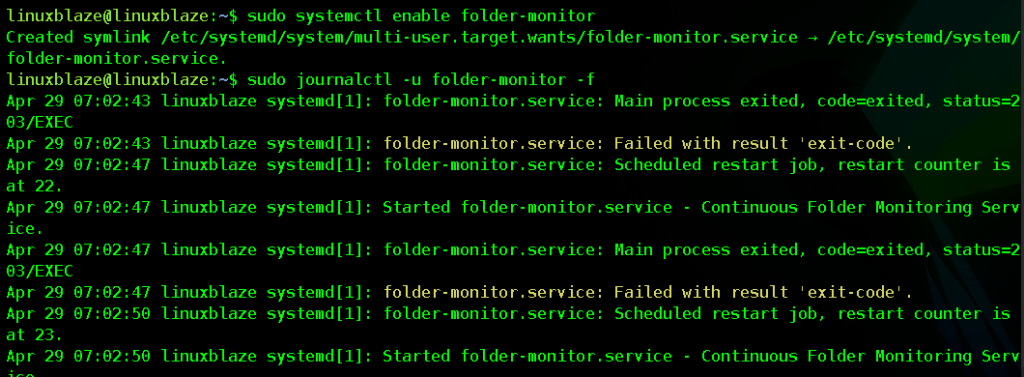
Congratulations. You have successfully taken a raw Bash script and elevated it into a persistent, auto-healing, deeply integrated system daemon.
Conclusion: The Foundation of Reliability
Transitioning from running manual scripts to utilizing Systemd is a massive leap forward in your Linux journey. Understanding how to interact with systemctl and journalctl means you are no longer just interacting with the terminal; you are commanding the underlying operating system itself.
By wrapping your tools, web scrapers, bots, and APIs in .service files, you guarantee high availability. You protect your applications against random crashes and server reboots, ensuring that when things go wrong in the middle of the night, Systemd is awake to restart them for you.