Welcome to the world of Linux automation. If you are sitting in front of a terminal window and thinking how to utilise its full power, then pause your mind, you’re already in the right place! Entering commands one by one is fine for quick tasks, but what if you have to perform the same twenty commands every single day or every single time?
This is where shell scripting becomes your ultimate solution.
This comprehensive guide will take you from absolute beginner to writing your own automated tools. We will cover everything from the core theory definitions to variables, conditionals, loops, functions, and scheduling. By the end of this guide, you will have a power foundation in Bash scripting, a skill highly sought after in system administration, software development, and everyday Linux usage.
1. Demystifying the Shell, Bash, and Scripting
Before writing any code, it is important to understand the environment we are working in.
- The Shell: The shell is a macro processor that enables interactive or non-interactive command execution. It is the core interface between you and the Linux kernel. When you open a terminal, you are interacting with a shell.
- Bash: Bash means “Bourne Again Shell.” It is a specific command language interpreter and the default shell on most GNU/Linux systems (and macOS, traditionally). It is an evolution of the older Bourne shell (sh).
- Scripting: Scripting is the process of writing a sequence of commands into a text file so they can be executed automatically, from top to bottom, as a single program.
Why Learn Bash Scripting?
- Efficiency: Automate repetitive, boring, and time-consuming tasks.
- Consistency: A script performs the same task exactly the same way every time, eliminating human error.
- Productivity: Combine multiple small command-line tools into powerful, custom workflows.
2. Writing Your First Bash Script
A Bash script is simply a text file containing commands. Let’s create a classic “Hello, World!” script.
Step 1: Create the File
Open your terminal and create a new file using a text editor like nano or vi.
nano hello_world.shNote: In Linux, file extensions like .share mostly for human readability. The system does not rely on them to determine file execution, but using .sh is a widely accepted best practice.
Step 2: The Shebang
The first line of your script must be the shebang (#!). This tells the operating system which interpreter to use to parse the rest of the file. To find where your Bash interpreter is, you can run which bash in your terminal (usually it is /bin/bash or /usr/bin/bash).
Type the following into your file:
#!/bin/bash

echo "Hello, World!"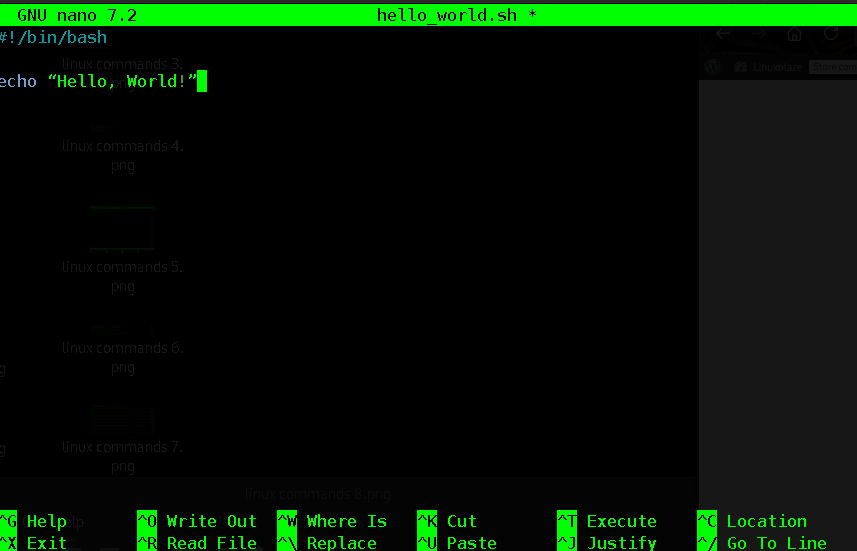
Step 3: Save and Set Permissions
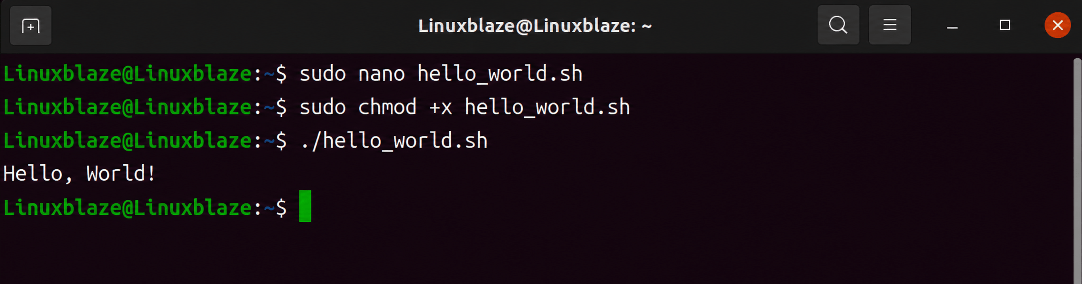
Save the file and exit the editor ( like in nano, press CTRL+O, Enter, then CTRL+X). By default, newly created files do not have execution rights. You must explicitly give the file permission to run using the chmod (change mode) command.
chmod +x hello_world.shStep 4: Execute the Script
To run the script, use a relative path. The ./ tells the system to look in the current directory for the script.
./hello_world.shor bash hello_world.sh
If you did everything correctly, the terminal will print: Hello, World!
3. Working with Variables and User Input
Variables are the essence of programming. They allow you to store, manipulate, and reuse data throughout your entire script.
Defining Variables
In Bash, you define a variable without any spaces around the equals sign (=). To access the variable’s value, you prefix its name with a dollar sign ($).
#!/bin/bash

greeting="Welcome"

user="Linuxblaze"

echo "$greeting back, $user!"Command Substitution
You can also assign the output of a Linux command directly to a variable using command substitution $().
#!/bin/bash

current_user=$(whoami)

today=$(date +%A)

echo "Hello $current_user! Today is $today."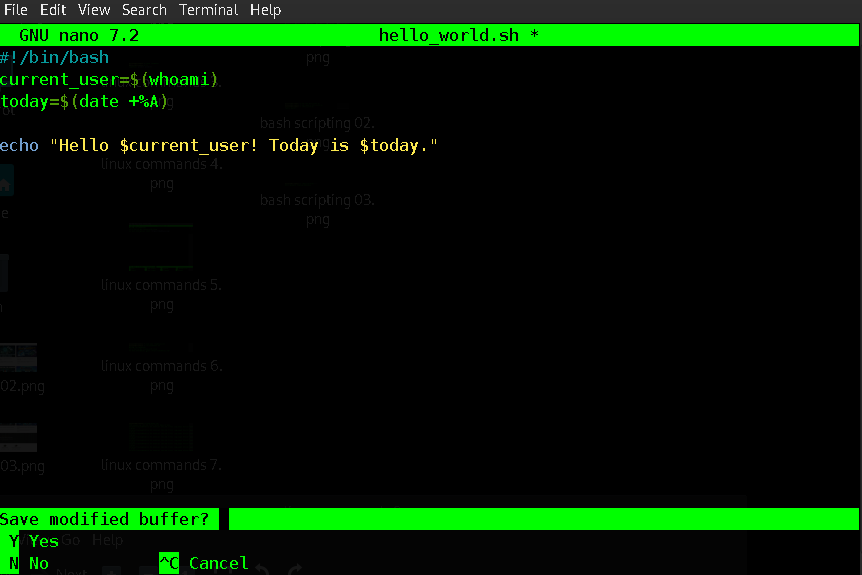

Global vs. Local Variables
By default, variables in Bash are global and can be accessed anywhere in the script after they are defined. However, inside functions, you can declare local variables using the local keyword so they do not interfere with global variables sharing the same name.
Taking User Input
To make your scripts interactive, use the read command to pause execution and wait for the user to type something. The -p flag allows you to provide a prompt.
#!/bin/bash

read -p "Please enter your name: " name

read -p "Please enter your age: " age

echo "Nice to meet you, $name. You are $age years old."
Command Line Arguments (Positional Parameters)
Scripts can accept arguments directly from the command line upon execution. These are called positional parameters.
- $0 : The name of the script itself.
- $1, $2… $N : The 1st, 2nd, and Nth arguments passed to the script.
- $# : The total number of arguments supplied.
- $@ : All arguments supplied.
If you run ./backup.sh /home/user /var/www, then $1 is /home/user and $2 is /var/www.
4. Bash Arithmetics
Performing mathematical calculations is crucial for logic and looping. Bash provides several ways to do this;
Arithmetic Expansion
The most common and modern way to perform basic integer math is using double parentheses $(( )).
#!/bin/bash

a=10

b=5

sum=$((a + b))

difference=$((a - b))

product=$((a * b))

echo "Sum: $sum, Difference: $difference, Product: $product"
The let and expr Commands
You can also use let to evaluate expressions or expr for older-style scripting:
let "result = 10 * 5"

echo $result

# Incrementing a counter

let count+=1Decimal Calculations with bc
Bash arithmetic only handles integers. If you try to divide 10 by 3, Bash will return 3. To handle decimals (floating-point numbers), you must pipe the equation into bc (Bash Calculator).
# scale=2 tells bc to output to two decimal places
echo “scale=2; 22/7” | bc
5. Decision Making: Conditional Statements
Conditionals give your script logic, allowing it to make decisions based on specific events or data. The foundation of conditional logic is the if-then-else statement.
Numeric and String Comparisons
Bash uses different operators for comparing numbers versus comparing strings.
| Operation | Numeric Operator | String Operator |
| Equal to | -eq | == (or =) |
| Not equal to | -ne | != |
| Greater than | -gt | > |
| Greater than or equal | -ge | N/A |
| Less than | -lt | < |
| Less than or equal | -le | N/A |
| Is empty (null) | N/A | -z |
| Is NOT empty | N/A | -n |
The if-elif-else Structure
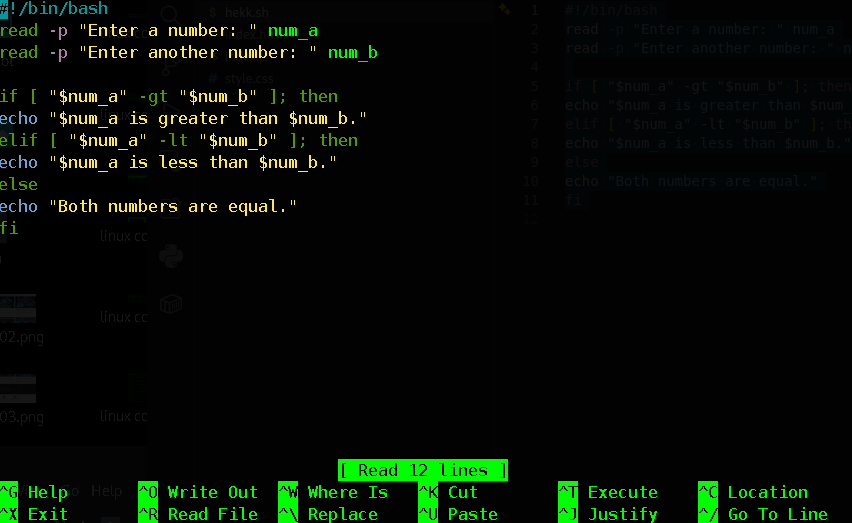
#!/bin/bash

read -p "Enter a number: " num_a

read -p "Enter another number: " num_b

if [ "$num_a" -gt "$num_b" ]; then

echo "$num_a is greater than $num_b."

elif [ "$num_a" -lt "$num_b" ]; then

echo "$num_a is less than $num_b."

else

echo "Both numbers are equal."

fiImportant Syntax Note: You must leave a space between the square brackets []and your variables.

The case Statement
When you have multiple potential values to check, a case statement is much cleaner than a massive chain of if-elif blocks.
!/bin/bash

read -p "Enter your favorite primary color (red/blue/yellow): " color

case "$color" in
"red")
echo "Red is the color of fire!"
;;
"blue")
echo "Blue is the color of the ocean!"
;;
"yellow")
echo "Yellow is the color of the sun!"
;;
*)
echo "That's not the primary color we asked for."
;;
esac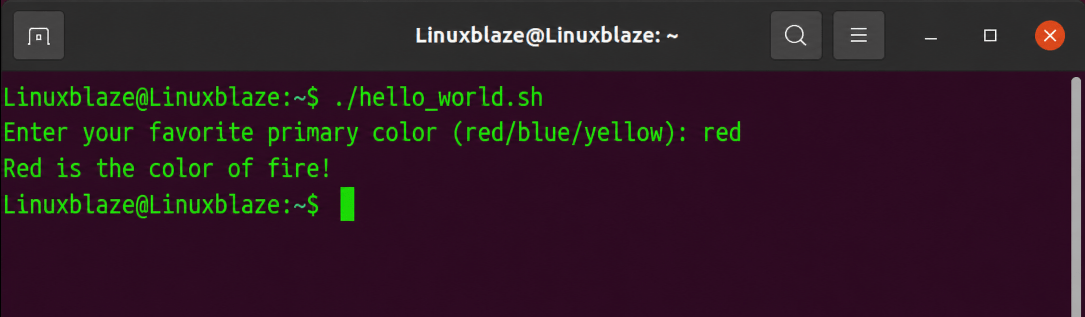
6. The Power of Loops
Loops iterate through a block of code multiple times. This is how you automate tasks across multiple files or users.
The for Loop
A for loop iterates over a list of items, such as numbers, strings, or files in a directory.
#!/bin/bash

# Looping through a range of numbers

for i in {1..5}; do

  echo "Iteration number: $i"

done

# Looping through strings

for user in "Alice" "jeom" "Charlie"; do

  echo "Creating backup for $user..."

done

# Looping through files

for file in *.txt; do

  echo "Processing text file: $file"

done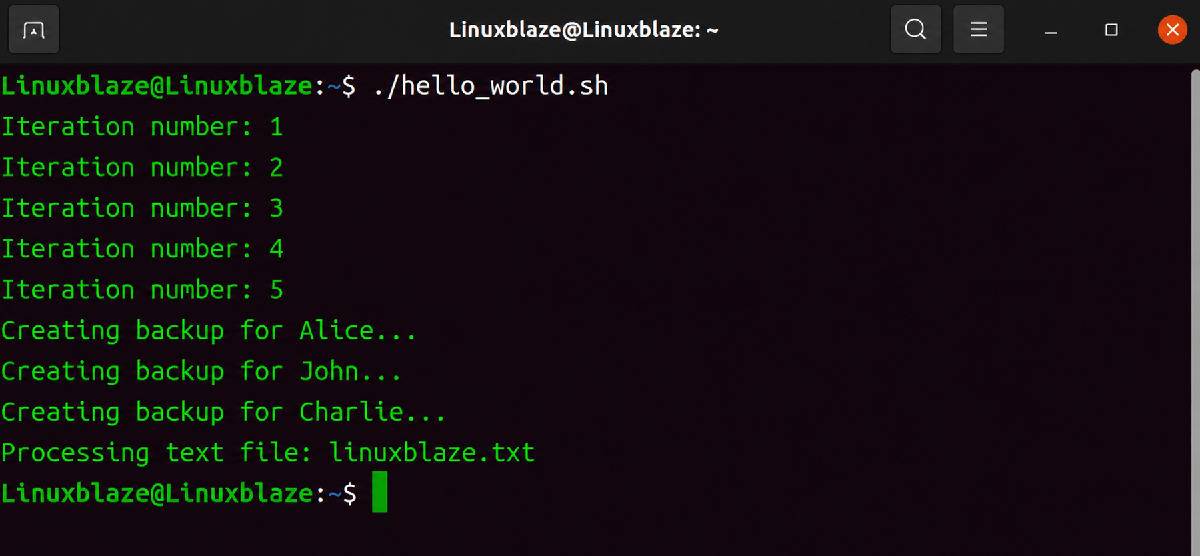
The while Loop
A while loop continues to execute as long as a specified condition remains true. It requires a counter that changes, or otherwise you will create an infinite loop.
#!/bin/bash

counter=1

while [ $counter -le 5 ]; do

    echo "Counter is at $counter"

    let counter+=1

doneReading Files Line by Line
A highly practical use of a while loop is reading a file.
#!/bin/bash

line_num=1

while read -r line; do

    echo "Line $line_num: $line"

    ((line_num++))

done < "sample.txt"The until Loop
The until loop is the exact opposite of the while loop. It executes code until a condition becomes true. it means that it runs while the condition is false.
#!/bin/bash

counter=5

until [ $counter -lt 1 ]; do

    echo "Countdown: $counter"

    let counter-=1

done7. Organizing Code with Functions
As your scripts grow, writing the same logic repeatedly becomes inefficient. Functions allow you to group commands together under a single name, which you can “call” whenever needed.
Defining and Calling Functions
#!/bin/bash

# Define the function

system_status() {

    echo "--- System Status ---"

    echo "Date: $(date)"

    echo "Disk Space: $(df -h / | tail -1 | awk '{print $5}') used"

    echo "---------------------"

}

# Call the function

system_statusPassing Arguments to Functions
Functions can also take positional parameters, independently of the main script’s parameters. Within a function, $1 refers to the first argument passed to the function, not the script.
#!/bin/bash

calculate_files() {

    local dir_path=$1

    local file_count=$(find "$dir_path" -type f | wc -l)

    echo "There are $file_count files in $dir_path"

}

calculate_files "/etc"

calculate_files "/var/log"8. Input, Output, and Redirection
A crucial concept in Linux is understanding where data comes from and where it goes. Commands generally deal with three data streams:
- Standard Input (stdin): It usually comes from the keyboard.
- Standard Output (stdout): The expected output, displayed on the terminal.
- Standard Error (stderr): Error messages, also displayed on the terminal by default.
Redirection Operators
You can redirect output away from the terminal and into files.
- > : Redirects stdout to a file. Overwrites the file if it exists.
- >> : Redirects stdout to a file. Add to the end of the file.
- 2> : Redirects stderr (errors only).
- &> : Redirects both stdout and stderr.
# Overwrite file with directory contents
ls -l > directory_list.txt
# Append current date to a log file
date >> system.log
# Discard error messages by sending them to the “black hole”
find / -name “secret.txt” 2> /dev/null
Piping (|)
Piping takes the stdout of one command and feeds it directly as stdin to the next command. This is where Linux command-line magic truly happens.
# Find all running processes, search for ‘nginx’, and count the lines
ps aux | grep "nginx" | wc -l9. Automating Scripts with Cron Jobs
Still writing a script is only half the battle. To truly automate tasks (like system backups or log rotations), you need to schedule them. Linux uses a time-based job scheduler called cron.(we already discussed about cron here)
To edit your user’s scheduled jobs, type:
crontab -eCron syntax consists of five time-and-date fields followed by the command to execute:
* * * * * /path/to/command
| Position | Meaning | Allowed Values |
| 1st * | Minute | 0-59 |
| 2nd * | Hour | 0-23 |
| 3rd * | Day of Month | 1-31 |
| 4th * | Month | 1-12 |
| 5th * | Day of Week | 0-7 (0 and 7 are Sunday) |
Examples:
- 5 0 * 8 * /scripts/backup.sh : Runs at 00:05 AM every day in August.
- 0 2 * * 1-5 /scripts/clean.sh : Runs at 2:00 AM, Monday through Friday.
- 0 * * * * /scripts/monitor.sh : Runs at the top of every hour.
10. Best Practices for Bash Scripting
To write clean, effective, and professional scripts, keep these expert best practices in mind:
- Always Quote Your Variables: Use “$variable” instead of $variable. If your variable contains spaces (e.g., a file named my report.txt), failing to quote it will cause Bash to treat it as two separate arguments and breaking your script.
- Use Comments: Use the # symbol liberally to explain why you are doing something. The code explains the how, but comments explain the why. Your future self will thank you.
- Use Strict Mode: Add set -e at the top of your script (right below the shebang). This tells Bash to stop executing immediately if any command fails. It prevents a “domino effect” where a failed directory creation leads to files being deleted in the wrong place.
- Use Meaningful Names: Avoid variables like x or a. Use descriptive names like backup_dir or current_user.
- Test Before Automating: Never put an untested script into a Cron job. Run it manually multiple times to ensure it behaves exactly as expected. Tools like ShellCheck can be run on your scripts to automatically identify syntax errors and bad practices.
Conclusion
Bash scripting bridges the gap between manual repetition and seamless automation. By understanding variables, conditionals, loops, and functions, you understand the building blocks required to interact with your operating system dynamically.
At first start with small. Try to write a script to automate your system updates, or create a script that backs up your most important configuration files. Experiment, read the error messages when things break, and have fun building your own command-line tools. And if something stuck in your mind about the code, then just share your problem here. The power of the Linux terminal is now entirely in your hands.