Welcome to the next phase of your Linux journey. If you have spent any amount of time in the Linux terminal, you have likely experienced the initial learning journey of memorizing commands like ls, cd, cp, and grep. You probably know how to navigate your file system, edit text files, and perhaps even manage user permissions.
But there comes a moment in every Linux user’s life when typing the same sequence of commands every single day transitions from an educational exercise into a tedious or difficult task. You might find yourself asking, “Aren’t computers supposed to do this for me?”
The answer is a resounding yes. Validate that frustration—it is the exact catalyst that turns everyday users into power users and system administrators.
This step-by-step guide is designed to take the foundational Linux commands you already know and add them together into Bash scripts. We are moving past theory and diving straight into practice. By the end of this article, you will have five fully functional, real-world scripts that you can deploy on your system today to automate maintenance, backups, monitoring, file organization, and archiving.
Grab your favorite text editor and comment down below which text editor you’re using or your favourite one. Okay, now open your terminal, and let’s start building your automation toolkit.
The Pre-Flight Checklist: Setting Up for Scripting
Before we dive into the scripts themselves, we need to establish a solid workflow for creating, storing, and executing our automation tools. As we covered in our beginner’s guide to Bash automation, skipping these foundational steps often leads to “command not found” errors and unnecessary frustration.
1. Create a Dedicated Script Directory
While you can run a script from anywhere, it is best practice to keep all your custom scripts organized in one place. A common standard is to create a bin (binary) directory inside your home folder.
mkdir -p ~/bincd ~/bin2. Understanding the Shebang (#!/bin/bash)
Every script we write will start with a specific first line: #!/bin/bash.
- The #! is called a “shebang” or “hashbang.”
- /bin/bash is the absolute path to the Bash interpreter.
This line explicitly tells the Linux operating system that, “Do not try to run this file with whatever default program you think is best; use the Bash shell to interpret the commands within.”
3. Making Your Scripts Executable
When you create a new text file in Linux, it only has read and write permissions by default. It cannot be executed as a program. To grant a file execution rights, you must use the chmod (change mode) command.
chmod +x your_script_name.sh4. Running the Script
To run a script in your current directory, you cannot simply type its name. You must specify the path. The ./ tells the system to look in the current directory.
./your_script_name.shWith the based rules established, let us build our first automation tool.
Script 1: The Automated System Updater & Cleaner
The Problem: Keeping your system packages up to date is critical for security and performance. However, on Debian/Ubuntu-based systems, this requires running apt update, apt upgrade, and then cleaning up leftover dependencies manually. It is a multi-step process that is easy to forget mostly.
The Solution: A single script that updates the repository lists, installs the upgrades, removes orphaned packages, and cleans the local cache, all without requiring you to babysit the terminal.
The Code
Open your editor and create a file named update_system.sh:
#!/usr/bin/env bash
set -euo pipefail

if [[ "$EUID" -ne 0 ]]; then
  echo "Error: Please run this script with sudo or as root." >&2
  exit 1
fi

echo "========================================"
echo " Starting System Update Process..."
echo "========================================"

echo "[1/4] Updating package lists..."
apt-get update

echo "[2/4] Upgrading installed packages..."
DEBIAN_FRONTEND=noninteractive apt-get upgrade -y

echo "[3/4] Removing orphaned packages..."
apt-get autoremove -y

echo "[4/4] Cleaning up package cache..."
apt-get clean

echo "========================================"
echo " System Update Completed Successfully!"
echo "========================================"
Line-by-Line Breakdown
set -euo pipefail: This creates a strict execution environment. The script will safely and instantly crash if any command fails (-e), if you try to use an unassigned variable (-u), or if a command within a pipeline fails (-o pipefail).if [[ "$EUID" -ne 0 ]]; then:$EUIDis a built-in variable that checks your Effective User ID. Theroot(admin) user is always ID0. This statement acts as a gatekeeper: “If the user running this is NOT (-ne) root, print a clear error message and exit immediately before attempting any package commands.”echo "...": We use theechocommand to print clear, formatted text to the screen. This provides visual feedback so you know exactly which phase the script is executing.apt-get update: This command fetches the latest version lists from your software repositories. We useapt-getinstead ofaptbecause it is specifically designed to be highly stable for background scripts. Notice there is no-yflag here, because simply downloading the lists never prompts the user for confirmation anyway!DEBIAN_FRONTEND=noninteractive apt-get upgrade -y: This actually downloads and installs the newer versions of your software. The-yflag is the magic ingredient for automation—it automatically answers “yes” to standard prompts. Prefixing it withDEBIAN_FRONTEND=noninteractiveguarantees that the system won’t throw up any annoying text-based configuration menus (like asking you to restart services), which would otherwise freeze a background script indefinitely.apt-get autoremove -y: When you install software, it often pulls in dependencies. When you later remove that software, the dependencies are left behind.autoremovecleans out these useless files, saving your valuable disk space.apt-get clean: This clears out the local repository of retrieved package files (the raw.debfiles), further freeing up disk drive space.
Execution, Customization, and Automation
Because package management modifies core system files, this script intrinsically requires administrative privileges (root access).
Step 1: Make it Executable
Before you can run the script for the first time, you must grant it execution permissions. Open your terminal and run:
chmod +x update_system.sh
Step 2: Run it Manually
To execute the script, you must use sudo so it passes the $EUID check we built into the code.
sudo ./update_system.sh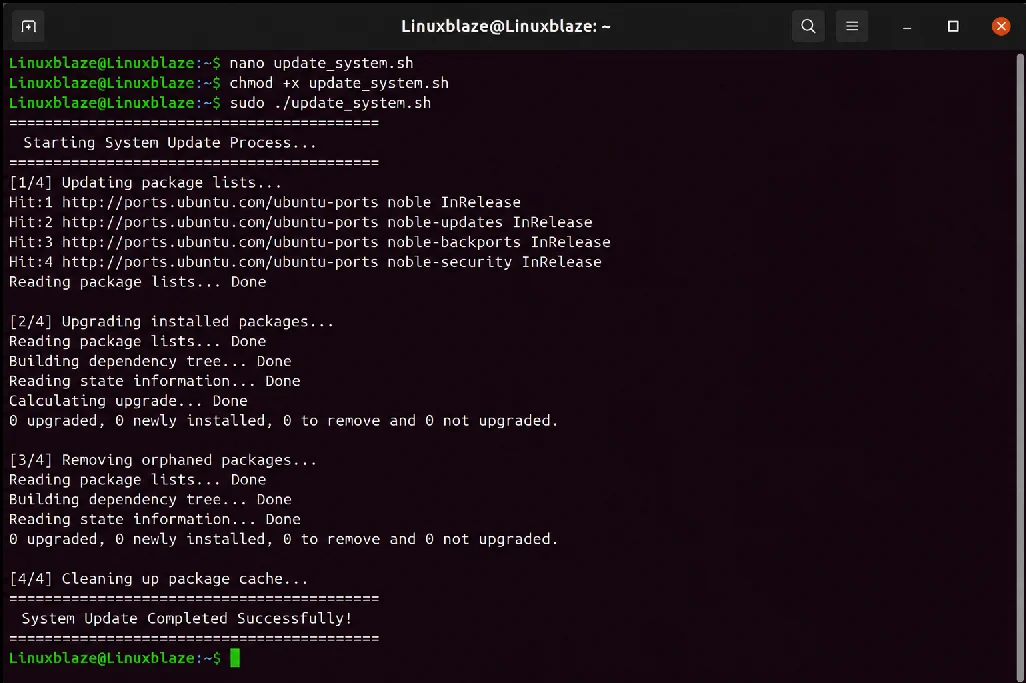
Step 3: Automate it with Cron (Optional)
To never think about system updates again, you can set this script to run silently in the background using the root user’s crontab.
- Open the root crontab:
sudo crontab -e- Add a schedule to the bottom of the file. For example, to run it every Sunday at 3:00 AM, using the absolute path to where you saved the script:
0 3 * * 0 /path/to/your/update_system.sh > /dev/null 2>&1A Note for Red Hat / Fedora Users:
This script is designed for Debian/Ubuntu-based systems. If you use a Red Hat derivative, you will need to change the package manager commands from apt-get to dnf (e.g., dnf check-update, dnf upgrade -y, dnf autoremove -y, dnf clean all). You will also drop the DEBIAN_FRONTEND variable, as it is specific to Debian environments.
Script 2: The Robust File Backup Utility
The Problem: “I will back that up later.” These are the famous last words of every computer user right before a hard drive or ssd failure or accidental file deletion occurs. Manual backups are inherently flawed because human memory is flawed.
The Solution: Create a script that automatically compresses a designated target directory into a single archive file, stamps it with the current date and time, and moves it to a secure backup location.
The Code
Create a file named file_backup.sh:
#!/bin/bash
set -euo pipefail

TIMESTAMP="$(date +"%Y-%m-%d_%H-%M-%S")"

USER_HOME="${HOME}"

# Defaults destination directory for backups if user does not specify one
DEFAULT_BACKUP_DIR="$USER_HOME/FILE_BACKUPS"

read -r -p "Enter source directory to backup (e.g. $USER_HOME/Documents): " SOURCE_DIR
SOURCE_DIR="${SOURCE_DIR/#\~/$USER_HOME}"
SOURCE_DIR="${SOURCE_DIR:-}"

if [[ -z "$SOURCE_DIR" ]]; then
  echo "ERROR: Source directory cannot be empty."
  exit 1
fi
if [ ! -d "$SOURCE_DIR" ]; then
  echo "ERROR: Source directory not found: $SOURCE_DIR"
  exit 1
fi

read -r -p "Enter backup storage directory (leave empty for $DEFAULT_BACKUP_DIR): " BACKUP_STORAGE_DIR
BACKUP_STORAGE_DIR="${BACKUP_STORAGE_DIR:-$DEFAULT_BACKUP_DIR}"
BACKUP_STORAGE_DIR="${BACKUP_STORAGE_DIR/#\~/$USER_HOME}"

mkdir -p "$BACKUP_STORAGE_DIR"

BACKUP_FILE="${BACKUP_STORAGE_DIR}/backup_docs_${TIMESTAMP}.tar.gz"

# Logs
LOG_DIR="$DEFAULT_BACKUP_DIR"
mkdir -p "$LOG_DIR"
LOG_FILE="$LOG_DIR/backup_log.txt"

echo "Starting backup of: $SOURCE_DIR"

# Create tar from parent dir so the archive contains the folder name
SRC_PARENT="$(dirname "$SOURCE_DIR")"
SRC_BASENAME="$(basename "$SOURCE_DIR")"

if tar -czf "$BACKUP_FILE" -C "$SRC_PARENT" "$SRC_BASENAME" >>"$LOG_FILE" 2>&1; then
  echo "Backup completed successfully!"
  echo "Archive saved as: $BACKUP_FILE"
  echo "[$TIMESTAMP] SUCCESS: Backup created." >> "$LOG_FILE"
else
  echo "ERROR: Backup failed! Check $LOG_FILE for details."
  echo "[$TIMESTAMP] ERROR: Backup failed." >> "$LOG_FILE"
  exit 1
fi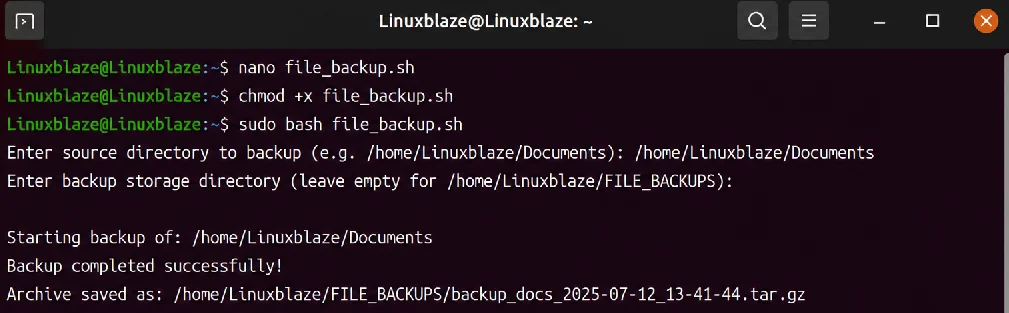
Line-by-Line Breakdown
set -euo pipefail: This is Bash “strict mode.” It makes your script significantly safer by telling it to exit immediately if any command fails (-e), if you try to use an undeclared variable (-u), or if a hidden error occurs within a pipeline (-o pipefail).- Variables (
SOURCE_DIR,BACKUP_DIR): Hardcoding paths directly into commands is a bad practice. By declaring variables at the top, you can easily change what you want to back up later without digging through the code. TIMESTAMP="$(date +"%Y-%m-%d_%H-%M-%S")": This uses command substitution$(). It runs thedatecommand and formats the output (Year-Month-Day_Hour-Minute-Second). We append this to the filename so old backups are not overwritten by new ones.mkdir -p "$BACKUP_STORAGE_DIR": The-pflag safely creates the backup directory and any necessary parent directories. If the directory already exists, it does nothing and moves on without throwing an error.tar -czf: This is the tape archive utility.c= create a new archive.z= compress it using gzip (making the file much smaller).f= allows you to specify the filename of the archive. (Note: We removed thev(verbose) flag so our log file doesn’t get cluttered with thousands of individual file names).
tar -czf "$BACKUP_FILE" -C "$SRC_PARENT" "$SRC_BASENAME":-C "$SRC_PARENT"changes tar’s working directory to the folder containing your source directory, and"$SRC_BASENAME"tells tar to archive the source folder by name. This makes the archive include the folder itself (e.g.,Documents/...) rather than dumping everything with an absolute/full path.>> "$LOG_FILE" 2>&1: This is output redirection.>>appends the standard output of the tar command to a log file.2>&1tells the shell to redirect standard error (stderr) to the exact same place, ensuring all success and error messages are safely recorded.if tar ...; then: By placing thetarcommand directly inside theifstatement, we can safely check if the backup succeeded or failed. This specifically overrides theset -estrict mode, allowing ourelseblock to run and log the failure instead of the script instantly crashing in silence.
Customization and Usage
Change the SOURCE_DIR to whatever folder is most vital to you (e.g., /var/www/html for a web developer, or ~/Pictures for a photographer). You can schedule this to run automatically every night using cron (more on that at the end of the article).
Script 3: System Resource Monitor and Alerter
The Problem: Servers and desktop machines crash when they run completely out of disk space. Usually, there is no warning until it is entirely too late and services start failing and it’s too frustrating! Here the solution;
The Solution: A script that checks your primary hard drive’s capacity. If the usage exceeds a dangerous threshold (e.g., 90%), it triggers a warning.
The Code
Create a file named disk_monitor.sh:
#!/usr/bin/env bash
set -euo pipefail

THRESHOLD=90
LOG_FILE="$HOME/disk_alerts.log"
MOUNT="/"

# Ensure threshold is an integer
[[ "$THRESHOLD" =~ ^[0-9]+$ ]] || { echo "Error: THRESHOLD must be an integer."; exit 1; }

# Read usage percent for the mount point
CURRENT_USAGE="$(df -P "$MOUNT" | awk 'NR==2 {gsub(/%/, "", $5); print $5}')"

# Validate parsed value
[[ "$CURRENT_USAGE" =~ ^[0-9]+$ ]] || { echo "Error: Unable to parse current disk usage."; exit 1; }

echo "Checking filesystem ($MOUNT) disk space..."
echo "Current Usage: ${CURRENT_USAGE}%"
echo "Warning Threshold: ${THRESHOLD}%"

if (( CURRENT_USAGE >= THRESHOLD )); then
  echo "======================================================"
  echo " WARNING: CRITICAL DISK SPACE LEVEL REACHED!"
  echo " Your ${MOUNT} partition is at ${CURRENT_USAGE}% capacity."
  echo " Please free up space immediately."
  echo "======================================================"
  echo "$(date): DISK ALERT - Capacity at ${CURRENT_USAGE}% (${MOUNT})" >> "$LOG_FILE"
  exit 1
fi

echo "Disk space is within normal parameters. No action required."
Line-by-Line Breakdown
set -euo pipefail: This enforces Bash “strict mode.” It makes your script significantly safer by telling it to exit immediately if any command fails (-e), if you try to use an undeclared variable (-u), or if a hidden error occurs within a pipeline (-o pipefail).- Variables (
THRESHOLD,LOG_FILE,MOUNT): Hardcoding values deep inside the script is a bad practice. By declaring these variables at the top, you can easily change the target to monitor a different drive (like/homeor an external backup drive) without touching the core logic. [[ "$THRESHOLD" =~ ^[0-9]+$ ]] || { ... }: This is defensive programming. The=~operator checks the variable against a Regular Expression (^[0-9]+$), ensuring it contains only numbers. The||(OR) acts as a shorthand: if the check fails, it runs the code inside the{ }brackets, printing an error and exiting safely.df -P "$MOUNT":dfstands for “Disk Free”. The-Pflag forces POSIX output format, which guarantees the output won’t break into multiple lines even if your drive has a very long name.- Piping (
|): This takes the output of thedfcommand on the left and feeds it directly as the input to theawkcommand on the right. awk 'NR==2 {gsub(/%/, "", $5); print $5}':awkis a powerful text-processing tool.NR==2: Tellsawkto only look at the second row of the output (skipping the header row).gsub(/%/, "", $5): Looks at the 5th column (where the percentage lives) and deletes the%symbol. We do this because Bash can only perform mathematics on raw integers.print $5: Outputs only that cleaned-up number.
if (( CURRENT_USAGE >= THRESHOLD )); then: The double parentheses(( ))create an arithmetic evaluation context in Bash. This is the cleanest, most modern way to compare numbers in a script. Notice we don’t even need to use the$sign in front of the variables inside(( )).exit 1: If the critical threshold is reached, the script logs the warning and exits with an error code (1). Because of this clean exit, we don’t need a bulkyelseblock—if the script survives past theifstatement, we inherently know the disk space is within normal parameters.
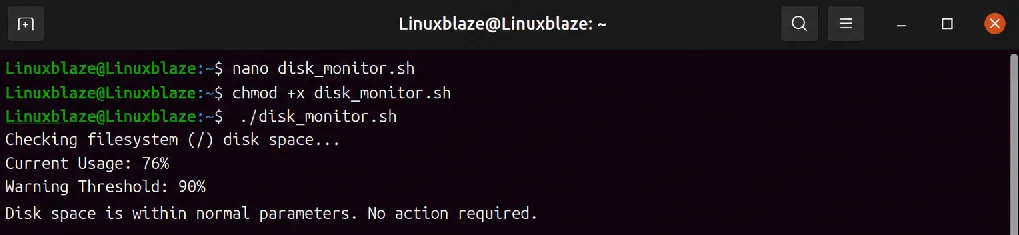
Customization and Usage
Because this script uses the MOUNT variable, you can easily deploy copies of it to monitor different drives. For example, change MOUNT="/" to MOUNT="/var" to specifically monitor a web server’s data partition.
If you manage a server, you can modify the warning section to actually send you an email. By installing mailutils on your system, you could add this line inside your if block:
echo "Server disk ${MOUNT} is at ${CURRENT_USAGE}%" | mail -s "Critical Disk Alert" [email protected]Script 4: The Batch File Organizer
The Problem: Your Downloads folder is an absolute disaster. It is a graveyard of PDFs, JPEGs, MP4s, and ZIP files. Manually dragging and dropping these into appropriate folders takes way too much time.
The Solution: A script that scans a specific directory and automatically moves files into sub-directories based on their file extensions. Is that not awesome? Let’s look into it:
The Code
Create a file named file_organizer.sh:
#!/usr/bin/env bash
set -euo pipefail

DEFAULT_TARGET_DIR="$HOME/Downloads"
read -r -p "Enter folder to organize (leave empty for $DEFAULT_TARGET_DIR): " TARGET_DIR
TARGET_DIR="${TARGET_DIR:-$DEFAULT_TARGET_DIR}"
TARGET_DIR="${TARGET_DIR/#\~/$HOME}"

if [[ ! -d "$TARGET_DIR" ]]; then
  echo "Error: Target directory not found: $TARGET_DIR"
  exit 1
fi

echo "Organizing files in $TARGET_DIR..."
cd "$TARGET_DIR"

mkdir -p Images Documents Videos Archives Code Others Audio

# Include hidden files too (matches your original intent)
shopt -s nullglob dotglob

for file in *; do
  [[ "$file" == "." || "$file" == ".." ]] && continue
  [[ -d "$file" ]] && continue
  [[ "$file" == ".DS_Store" ]] && continue

  case "$file" in
    Images|Documents|Videos|Archives|Code|Others|Audio) continue ;;
  esac

  if [[ "$file" != *.* ]]; then
    mv -- "$file" Others/
    echo "Moved $file to Others/"
    continue
  fi

  extension="${file##*.}"
  extension="${extension,,}"

  case "$extension" in
    jpg|jpeg|png|gif|svg|webp) mv -- "$file" Images/; echo "Moved $file to Images/" ;;
    pdf|doc|docx|txt|xls|xlsx|ppt|pptx|odt) mv -- "$file" Documents/; echo "Moved $file to Documents/" ;;
    mp4|mkv|avi|mov|webm) mv -- "$file" Videos/; echo "Moved $file to Videos/" ;;
    mp3|wav|flac|aac) mv -- "$file" Audio/; echo "Moved $file to Audio/" ;;
    zip|tar|gz|bz2|xz|rar|7z|tgz) mv -- "$file" Archives/; echo "Moved $file to Archives/" ;;
    sh|py|js|ts|html|css|json|xml|java|c|cpp|go|rs) mv -- "$file" Code/; echo "Moved $file to Code/" ;;
    *) mv -- "$file" Others/; echo "Moved $file to Others/" ;;
  esac
done

echo "Organization complete."Line-by-Line Breakdown
set -euo pipefail: Safety settings for the script.-
-e: exit immediately if a command fails -u: treat unset variables as an error-o pipefail: if you use pipelines later, the whole pipeline is considered failed if any part fails
This helps prevent silent errors while the script moves files.
-
cd "$TARGET_DIR": Moves into the folder the user chose (or the default~/Downloads) so*andmvoperate on the correct directory contents.
for file in *; do: Loops over every entry in the current directory (files and folders). Each entry name is stored infilefor that iteration.
[[ "$file" == "." || "$file" == ".." ]] && continue: Skips.and..if they appear (extra safety).
[[ -d "$file" ]] && continue: Skips directories, so you don’t try to move folders into other folders during the run.
shopt -s nullglob dotglob:nullglob: if there are no matches for*, the pattern expands to nothing instead of staying as a literal*dotglob: includes hidden files (like.config.txt) in*, which matches your original intent
case "$file" in Images|Documents|Videos|Archives|Code|Others|Audio) continue ;; esac: Skips the category folders you created (so the script doesn’t move files into them repeatedly if they show up as loop items).
if [[ "$file" != *.* ]]; then ... fi: Detects files with no dot in the name (no extension) and moves them toOthers/.
extension="${file##*.}": Extracts the extension by taking the substring after the last dot. Example:report.draft.pdf→pdf
extension="${extension,,}": Converts the extracted extension to lowercase (PHOTO.JPG→jpg) so thecasematches regardless of original capitalization.
case "$extension" in ... esac: Chooses the destination folder based on the file extension list (e.g.,jpg|jpeg|png...→Images/,pdf|doc|docx...→Documents/, etc.). The|means “OR” in the pattern matching.
Customization, Execution, and Automation
You can easily add new categories to the case statement. Just remember to add the new folder name to your mkdir -p line and the “skip” list at the top of the loop!
Step 1: Make the Script Executable
Before you can run the script, you must grant it permission to execute on your system. Open your terminal and run:
chmod +x ~/path/to/your/file_organizer.sh
Step 2: Run it Manually
To test it out and instantly clean your Downloads folder, simply execute it from the terminal:
~/path/to/your/file_organizer.sh
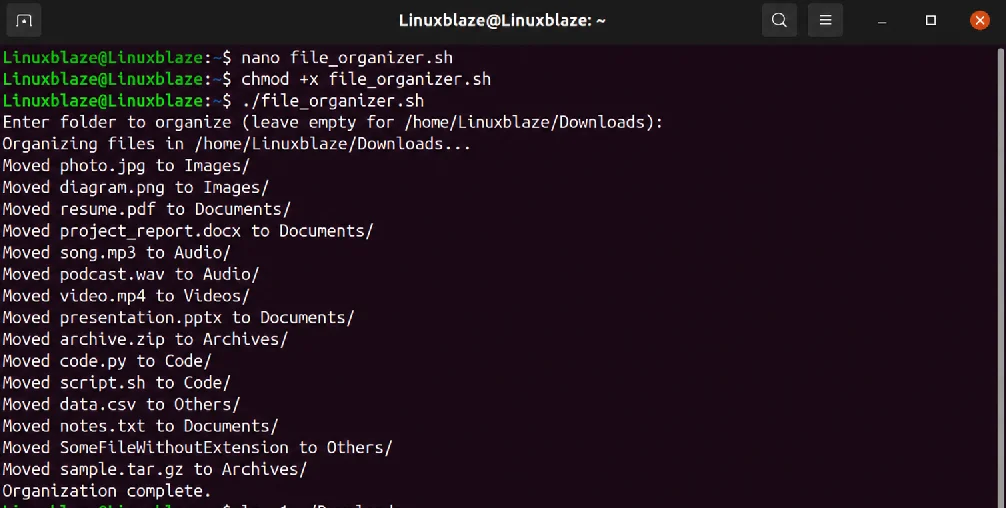
Step 3: Automate it with Cron (Set It and Forget It):
You can set this script to run automatically in the background using your system’s built-in task scheduler, cron.
Save and exit the editor (if using Nano: press Ctrl+O, Enter, then Ctrl+X). Your computer will now keep your Downloads folder meticulously organized behind the scenes!
- Open your crontab file by typing:
crontab -e- Scroll to the bottom of the file and add a schedule. You must use the absolute path to your script.
To run it at the top of every hour, add:
0 * * * * /Users/yourusername/path/to/file_organizer.shOr, to run it once a day at 6:00 PM, add:
0 18 * * * /Users/yourusername/path/to/file_organizer.sh- Save and exit the editor (if using Nano: press
Ctrl+O,Enter, thenCtrl+X). Your computer will now keep your Downloads folder meticulously organized behind the scenes!
Script 5: The “Extract Anything” Swiss Army Knife
The Problem: Linux has a dozen different archiving tools. Remembering the exact command flags to unzip a .zip, extract a .tar.gz, untar a .bz2, and unrar a .rar file requires constant Googling.
The Solution: An “Extractor” script. You simply pass the compressed file to the script, and the script uses its internal logic to find out which command to run based on the file extension.
The Code
Create a file named extract.sh:
#!/usr/bin/env bash
set -eu -o pipefail

DELETE_AFTER=0

# Check if the first argument is the -d flag
if [[ "${1:-}" == "-d" ]]; then
    DELETE_AFTER=1
    shift # Removes the '-d' so the rest of the script only sees the filename
fi

need_cmd() {
    if ! command -v "$1" >/dev/null 2>&1; then
        echo "Error: Required command not found: $1" >&2
        return 127
    fi
}

# The argument count check now naturally expects 1 argument (the file)
# because 'shift' consumed the -d flag if it was present.
if [ "$#" -ne 1 ]; then
    echo "Usage: ${0##*/} [-d] <file>" >&2
    echo "  -d : Delete the original archive after successful extraction." >&2
    exit 1
fi

FILE="$1"

if [ ! -f "$FILE" ]; then
    echo "Error: File '$FILE' not found!" >&2
    exit 1
fi

echo "Attempting to extract '$FILE'..."

case "$FILE" in
    *.tar.bz2|*.tbz2) need_cmd tar; tar -xjf "$FILE" ;;
    *.tar.gz|*.tgz)   need_cmd tar; tar -xzf "$FILE" ;;
    *.tar)            need_cmd tar; tar -xf  "$FILE" ;;
    *.bz2)            need_cmd bunzip2; bunzip2 "$FILE" ;;
    *.gz)             need_cmd gunzip;  gunzip  "$FILE" ;;
    *.zip)            need_cmd unzip;   unzip   "$FILE" ;;
    *.rar)            need_cmd unrar;    unrar x "$FILE" ;;
    *.7z)             need_cmd 7z;      7z x   "$FILE" ;;
    *.Z)              need_cmd uncompress; uncompress "$FILE" ;;
    *)
        echo "Error: '$FILE' cannot be extracted via this script. Unknown format." >&2
        exit 2
        ;;
esac

echo "Extraction finished successfully."

# If the -d flag was used, delete the original file
if [[ "$DELETE_AFTER" -eq 1 ]]; then
    echo "Cleaning up: Deleting '$FILE'..."
    rm -- "$FILE"
fiLine-by-Line Breakdown
set -eu -o pipefail: This creates a strict environment. The script will safely crash if any command fails (-e), if you use an unassigned variable (-u), or if a command within a pipeline fails (-o pipefail).if [[ "${1:-}" == "-d" ]]; then: This checks if the very first thing you typed after the script name is exactly-d. The:-is a clever safety feature that prevents an “unbound variable” error if you run the script with zero arguments.shift: This is the secret weapon for parsing flags in Bash. If you runextract -d archive.zip,$1is-dand$2isarchive.zip. Whenshiftruns, it completely deletes$1and shifts everything else down one spot. Now,$1becomesarchive.zip. This means the rest of your script doesn’t have to be rewritten; it still functions exactly as it did before!if [ "$#" -ne 1 ]; then: This checks the number of arguments passed to the script ($#). Thanks toshift, whether you used the-dflag or not, the script should now only see exactly one argument (the filename). If you didn’t provide a file, or provided too many, it prints a helpful “Usage” message and exits gracefully.if [ ! -f "$FILE" ]; then: The-fflag checks if the item is a regular file that exists. If you type the filename wrong, the script stops rather than throwing confusing system errors.case "$FILE" in: Notice that here we are evaluating the entire filename, not just the isolated extension.*.tar.gz|*.tgz): The*acts as a wildcard. This line reads: “If the filename ends in.tar.gzOR.tgz, check iftaris installed, and if so, executetar -xzfon the file.”*): This is the default catch-all at the end of acasestatement. If the file does not match any of the formats above, it prints an error letting you know it doesn’t recognize the format.if [[ "$DELETE_AFTER" -eq 1 ]]; then: Because ofset -eat the top of the script, the code only reaches this point if the extraction was 100% successful. If you passed the-dflag, it will now safely delete the original compressed file to save disk space.
Customization and Usage
To make this script truly feel like a native Linux command, you can move it to a directory that is in your system’s PATH (such as /usr/local/bin or ~/.local/bin), and drop the .sh extension.
Step 1: Make it executable and move it
chmod +x extract.sh
sudo cp extract.sh /usr/local/bin/extract
Step 2: How to use it Now, no matter where you are in your terminal, you can easily unpack any archive using one of two methods:
- Standard Extraction (Keep the original archive): Simply pass the file to the script. The script will handle the rest.
extract download.tar.gz
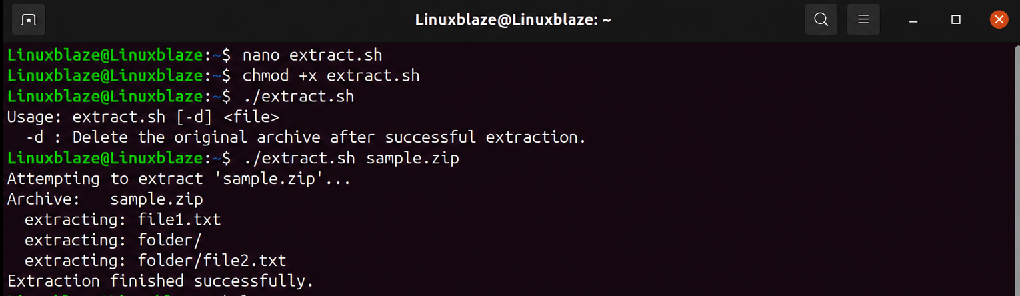
- Clean Extraction (Delete the original archive afterwards): Pass the
-dflag before the filename. If the extraction succeeds without any errors, the script will automatically clean up the leftover.zipor.tar.gzfile.
extract -d download.tar.gzTaking Automation Further: Scheduling with Cron
Scripts are incredibly powerful, but manually running your backup_manager.sh or update_system.sh still relies on human memory. To achieve true “set it and forget it” automation, Linux and macOS users rely on Cron, a built-in, time-based job scheduler.
To automate your scripts, you need to edit your user’s crontab (cron table) file. Open your terminal and run:
crontab -e
(Note: If this is your first time running this command, it may ask you to choose a text editor. Select nano for the easiest experience).
Understanding Cron Syntax
Cron uses a specific format of five numbers/asterisks followed by the command you want to run: [Minute] [Hour] [Day of Month] [Month] [Day of Week] /path/to/script (An asterisk * simply means “every”.)
Example 1: Weekly System Updates If you wanted to run your System Updater script every Sunday at 3:00 AM, you would scroll to the bottom of the crontab file and add this line:
0 3 * * 0 /home/yourusername/bin/update_system.sh > /dev/null 2>&1
0 3 * * 0: Runs at minute 0, hour 3 (3:00 AM), every day of the month, every month, on day 0 (Sunday).> /dev/null 2>&1: This is a common best practice. It takes any text output or errors generated by the script and throws them into the system’s “black hole” (/dev/null). This prevents cron from trying to send you an internal piece of mail every time the script runs.
Example 2: Daily Nightly Backups If you wanted to run your Backup script every single night at 11:30 PM, you would add:
30 23 * * * /home/yourusername/bin/backup_manager.sh
30 23 * * *: Runs at minute 30, hour 23 (11:00 PM on a 24-hour clock), every day, every month, every day of the week.
Conclusion
You have now successfully transitioned from typing isolated Linux commands to writing smart and more practical Bash scripts. You have built a system updater, a secure backup manager, a resource monitor, an intelligent file sorter, and a universal archive extractor.
The most important step you can take now is to break these scripts. Tweak the variables, change the awk parameters, add new case options, and see what happens. The terminal is a sandbox, and Bash scripting is the shovel. If you stuck in between then just drop your problems here. Now unlock the errors, read the logs, and start looking at every repetitive task you perform as an opportunity to write your next great script.