Working with containers can often feel like dealing with pure magic. You spin up a Docker container, it instantly gets an IP address, it can securely talk to other containers, and it can reach the internet—all without interfering with your host machine’s network configuration. But if you look under the hood, there is no magic involved. Container networking is simply the clever application of standard, decades-old Linux networking primitives.
In modern IT environments, understanding these underlying mechanics is a non-negotiable skill. As enterprise infrastructure moves almost entirely toward Kubernetes and micro-services, knowing how a packet gets from an isolated container to the outside world is what separates a novice from a senior engineer.
In this comprehensive step-by-step guide on Container Networking, we will strip away the magic of tools like Docker and Kubernetes. We will build a container network entirely from scratch using the Linux command line. By the end of this journey, you will understand exactly how Linux creates virtual networks, connects them, and routes their traffic.
Part 1: Introduction to Network Namespaces
The fundamental building block of container isolation in Linux is the Network Namespace (netns).
To understand namespaces, think of your Linux host machine as a large apartment building. By default, everything on the host machine lives in the “main lobby” (the root network namespace). Every application running here shares the same network interfaces (eth0, wlan0), the same IP addresses, and the same routing tables.
A network namespace is like building a completely private, isolated apartment inside that building. When you place a process (like a web server) inside a network namespace, it gets its own private set of network interfaces, its own routing table, and its own firewall rules. It has absolutely no awareness of the host machine’s network or any other container’s network.
Creating Your First Network Namespace
Let us create an isolated network environment from scratch using the ip command.
First, view your host machine’s normal network interfaces:
ip link showYou will see your standard interfaces, such as the loopback (lo) and your primary physical ethernet connection (eth0 or enp3s0).
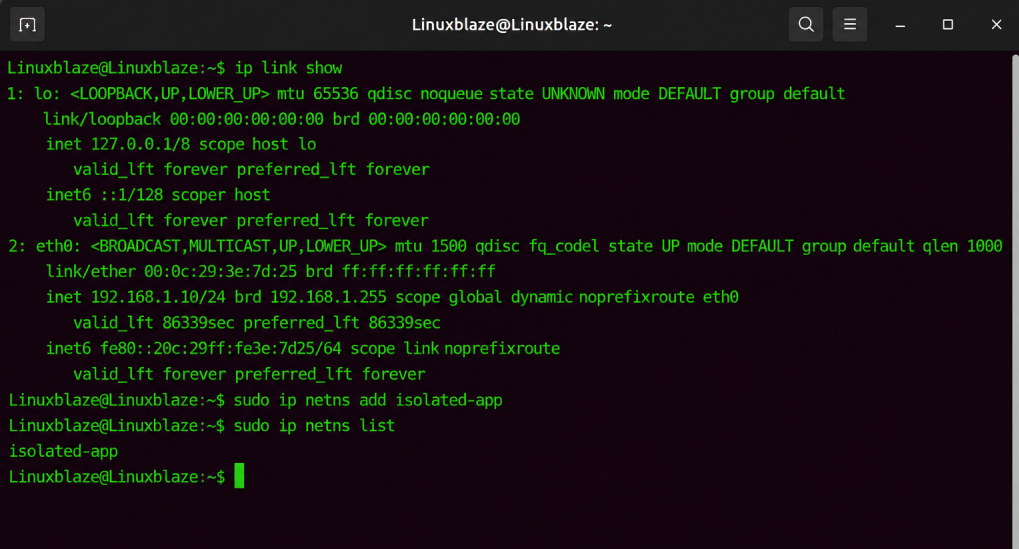
Now, create a new network namespace named isolated-app:
sudo ip netns add isolated-appTo verify that the namespace was successfully created, list all network namespaces on the system:
sudo ip netns listLooking Inside the Namespace
To run a command inside this new namespace, we use the ip netns exec command. Let us check the network interfaces inside our newly created isolated-app environment:
sudo ip netns exec isolated-app ip link showThe output will look completely different from your host machine. You will only see a single interface:
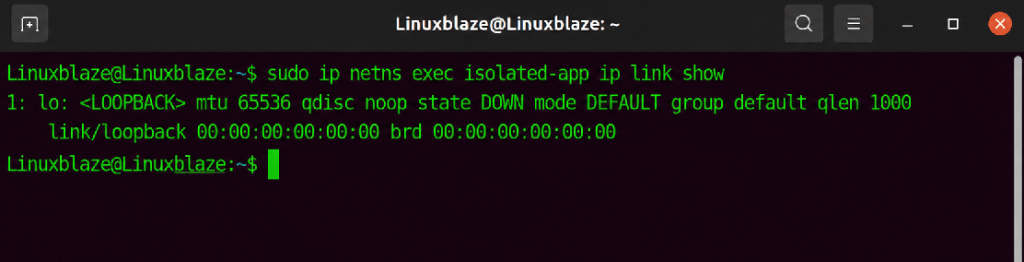
Notice two things: First, your physical eth0 interface is missing. Second, the loopback interface (lo) is in a DOWN state. This environment is completely isolated from the outside world. It cannot reach the internet, and the internet cannot reach it.
To at least allow the container to talk to itself (which many applications require), we must bring the loopback interface up:
sudo ip netns exec isolated-app ip link set lo upPart 2: The Veth Pair (Connecting the Container to the Host)
Isolation is great for security, but an application that cannot communicate with the outside world is useless. We need a way to connect our isolated apartment back to the main lobby of the building.
In Linux, we do this using a Virtual Ethernet Pair (veth).
Think of a veth pair as a virtual Ethernet cable. It always comes with exactly two ends. Whatever data enters one end of the cable instantly comes out the other end. To connect our container to the host, we will leave one end of the virtual cable on the host machine and push the other end through the walls into the network namespace.
Creating and Connecting the Virtual Cable
First, create the virtual ethernet cable with its two ends. We will name the host end veth-host and the container end veth-guest:
sudo ip link add veth-host type veth peer name veth-guestIf you run ip link show on your host machine now, you will see both ends of the cable sitting in the root namespace.
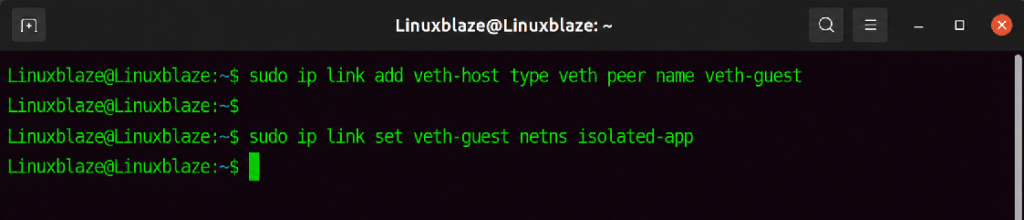
Now, let us move the veth-guest end into our isolated namespace:
sudo ip link set veth-guest netns isolated-appIf you check the host’s interfaces again, veth-guest will have vanished. It now lives exclusively inside the isolated-app namespace.
Configuring IP Addresses
We now have a physical connection, but computers communicate using IP addresses. We need to assign an IP address to both ends of the virtual cable and turn them on.
Configure the host’s end of the cable:
sudo ip addr add 10.0.1.1/24 dev veth-hostsudo ip link set veth-host up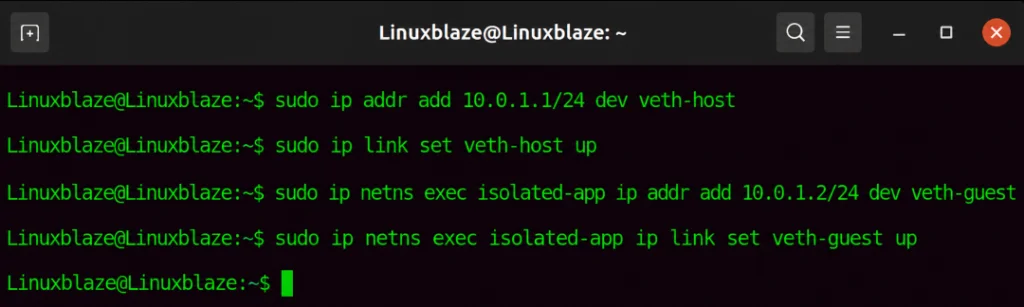
Configure the container’s end of the cable:
sudo ip netns exec isolated-app ip addr add 10.0.1.2/24 dev veth-guestsudo ip netns exec isolated-app ip link set veth-guest upTesting the Connection
We have successfully built a point-to-point network between the host and the container. Let us test it by pinging the host’s IP address from inside the container:
sudo ip netns exec isolated-app ping -c 3 10.0.1.1You will receive successful ping replies. The container is now capable of talking to the host machine.
Part 3: Scaling with Linux Bridges (Docker’s Default Networking)
The point-to-point veth method works perfectly for a single container. But what if you want to run 50 microservices on a single server? Creating 50 individual virtual cables directly to the host would result in a chaotic, unmanageable routing table.
To solve this, we introduce the Linux Bridge.
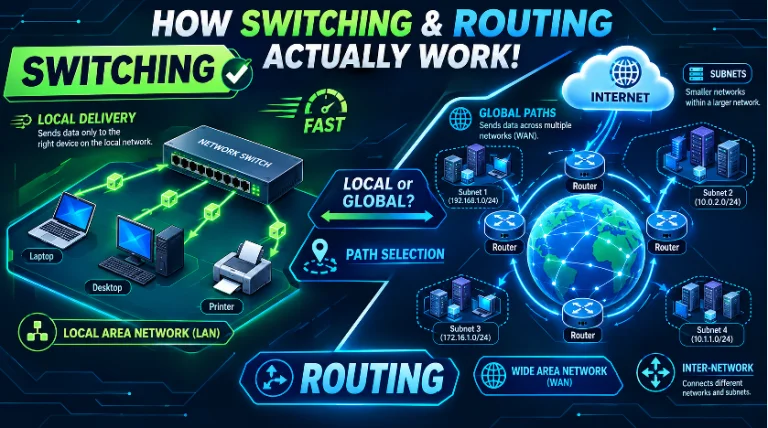
A Linux Bridge acts exactly like a physical hardware network switch. Instead of connecting every container directly to the host’s main routing table, we plug all the container veth cables into a central virtual switch. The host machine then connects to that switch via a single interface.
Understanding the docker0 Bridge
If you have ever installed Docker on a Linux machine, you may have noticed a new network interface pop up called docker0. This is precisely what docker0 is: a Linux Bridge that Docker automatically configures to act as a virtual switch for all your containers.
When you start a new container using Docker’s default settings, Docker automatically executes the following steps in the background:
- Creates a new network namespace.
- Creates a veth pair.
- Pushes one end of the veth pair into the container.
- Plugs the other end of the veth pair into the docker0 bridge.
- Assigns an IP address to the container.
Because all containers are plugged into the same virtual switch, they can communicate with each other freely across the bridge network using their assigned IP addresses.
Docker Network Drivers Explained
While the Bridge is the most common setup, container engines like Docker offer different “network drivers” to handle various use cases. Understanding these drivers is essential for configuring application architecture:
- bridge (default): Creates a private, internal network. Containers can talk to each other, but they are hidden from the physical network outside the host machine.
- host: Disables network namespace isolation entirely. The container shares the host machine’s network stack. If a container runs a web server on port 80 in host mode, it occupies port 80 on the host machine itself. This offers maximum performance but zero isolation.
- none: Creates the network namespace but does not create a veth pair. The container is completely isolated from all networks, useful for highly secure, offline data processing tasks.
- macvlan: Assigns a unique, physical-looking MAC address to the container, making it appear as a completely separate physical device on your company’s actual hardware network switch.
Part 4: Reaching the Outside World (IP Forwarding and NAT)
At this stage in our manual setup, our container is plugged into the host via a veth pair. It can ping the host. However, if we try to ping Google’s public DNS from inside the container, it will fail:
sudo ip netns exec isolated-app ping -c 3 8.8.8.8(Result: Network is unreachable)
There are two major reasons for this failure.
1. Enabling IP Forwarding
By default, a Linux operating system assumes it is a final destination endpoint (like a desktop computer), not a router. If a packet arrives on a network interface that is destined for somewhere else, the Linux kernel drops it for security reasons.
To allow our container to reach the internet, we must tell the host’s Linux kernel that it is allowed to forward packets from the container’s virtual network out to the physical eth0 network. We do this by enabling IP forwarding:
sudo sysctl -w net.ipv4.ip_forward=1Add a default gateway inside the namespace so it knows where to send internet traffic
sudo ip netns exec isolated-app ip route add default via 10.0.1.12. Network Address Translation (NAT)
Even with IP forwarding enabled, the container still cannot reach the internet. Why? Because the container has a private IP address (e.g., 10.0.1.2).
Private IP addresses are non-routable on the public internet. If the container sends a packet to 8.8.8.8, the packet will successfully reach Google’s servers. However, when Google attempts to reply to 10.0.1.2, the internet backbone routers will drop the packet, because millions of people use 10.0.1.2 in their private homes and offices.
To fix this, we must configure Network Address Translation (NAT), specifically a technique called IP Masquerading.
When the packet leaves the container and hits the host machine, the host must rewrite the packet’s source IP address. It erases the container’s private IP and replaces it with the host’s own public IP address. When Google replies to the host, the host remembers the translation, rewrites the destination IP back to 10.0.1.2, and forwards the reply back to the container.
In Linux, we configure NAT using iptables (the kernel’s firewall and packet filtering framework). We add a rule to the POST ROUTING chain:
sudo iptables -t nat -A POSTROUTING -s 10.0.1.0/24 -j MASQUERADEThis command tells the kernel: “For any packet originating from the 10.0.1.0 subnet, masquerade its source IP address before sending it out to the world.”
If you run the ping command inside the container now, it will successfully reach the internet. Docker performs this exact iptables configuration automatically when the Docker daemon starts.
Part 5: Exposing Services (Port Publishing)
We have solved outbound traffic. The container can browse the internet. But what about inbound traffic?
Suppose you are running an Nginx web server inside your container on port 80. Your host machine has a public IP address of 203.0.113.50. Because the container is hidden behind NAT, a user on the internet cannot reach the container’s private IP. If they type [http://203.0.113.50](http://203.0.113.50) into their browser, the connection will be refused, because the host machine itself is not running a web server.
To solve this, we must configure Port Forwarding (also known as Port Publishing).
When you run a Docker command like docker run -p 8080:80 nginx, you are instructing Docker to capture traffic hitting the host machine on port 8080 and invisibly forward it to the container’s port 80.
Under the hood, Docker achieves this by writing Destination NAT (DNAT) rules into the iptables firewall. To do this manually for our isolated-app namespace, we write a rule in the PRE-ROUTING chain:
sudo iptables -t nat -A PREROUTING -p tcp --dport 8080 -j DNAT --to-destination 10.0.1.2:80Optional: Add this rule if you want to test the port forwarding from the host machine itself via localhost
sudo iptables -t nat -A OUTPUT -p tcp -o lo --dport 8080 -j DNAT --to-destination 10.0.1.2:80This rule tells the Linux kernel: “Before you make any routing decisions (PREROUTING), if you see a TCP packet destined for port 8080 on this machine, rewrite its destination address to 10.0.1.2:80 and forward it into the virtual network.”
This is how containerized databases, web servers, and APIs are exposed to the public internet while remaining safely isolated inside their network namespaces.
Part 6: Troubleshooting Containers with nsenter
One of the most frustrating experiences for beginners learning container networking is troubleshooting.
Imagine your web application container suddenly loses database connectivity. Your instinct is to drop into the container’s shell and run tools like ping, ip addr, or ss to check the socket connections.
However, modern container images (like Alpine Linux or Google’s “Distroless” images) are heavily stripped down for security and performance. If you execute a command inside the container using docker exec -it my-container sh, you will likely find that ping, curl, and ip are simply not installed. You are flying blind.
To bypass this limitation, Linux administrators use a brilliant command called nsenter (Namespace Enter).
Instead of entering the container’s filesystem environment, nsenter allows you to take a program that is installed on your host machine and execute it inside the container’s network namespace.
First, you must find the Process ID (PID) of your running container on the host machine. If you are using Docker, you can inspect the container to find it:
docker inspect --format '{{.State.Pid}}' my-containerLet us assume the PID is 4567. You can now use the nsenter command to run the host’s ss command inside the container’s network stack:
sudo nsenter --target 4567 --net ss -tulnpBy using the –net flag, we tell nsenter to enter only the target process’s network namespace. This allows you to use all your powerful host-level diagnostic tools without having to bloat your production container images with unnecessary troubleshooting software.
Part 7: Beyond a Single Node: Kubernetes and the CNI
Everything we have discussed so far solves the networking problem on a single Linux host. The host acts as a router, uses a virtual bridge switch, and utilizes NAT to allow containers to talk to the internet.
However, modern enterprise environments do not run on a single server. They run on massive clusters of hundreds of virtual machines managed by Kubernetes.
If Container A on Server 1 needs to talk to Container B on Server 2, our simple Linux Bridge and NAT setup falls apart. Server 1’s bridge network does not know how to route packets to Server 2’s bridge network. If both servers independently assign the private IP 10.0.1.2 to a local container, you will experience a IP address conflict across the cluster.
To solve multi-host networking, the industry created the Container Network Interface (CNI).
The CNI is a standardized specification that defines how network plugins should configure network interfaces in Linux containers. Kubernetes does not actually handle networking itself; it delegates the task to a CNI plugin, such as Calico, Flannel, or Cilium.
When a CNI plugin is installed in a cluster, it completely changes the networking architecture:
- Unique IP Addresses: The CNI ensures that every single container (or “Pod” in Kubernetes terminology) across the entire cluster is assigned a mathematically unique IP address. There are no IP conflicts.
- The Overlay Network: The CNI creates an “Overlay Network” (often using technologies like VXLAN or eBPF). An overlay network is a virtual network built on top of the physical network.
- Encapsulation: When a Pod on Server 1 wants to talk to a Pod on Server 2, the CNI intercepts the packet. It wraps the container’s packet inside a new physical packet (encapsulation), sends it across the physical network to Server 2, unwraps it, and delivers it to the destination container.
- No NAT Required: Because the CNI manages routing intelligently across the cluster, containers can communicate with each other directly using their private IP addresses without needing to pass through NAT.
While the architecture scales massively, the core principles remain identical. The CNI is still creating Network Namespaces, it is still attaching veth pairs, and it is still manipulating the Linux kernel routing tables. It is simply automating these commands across thousands of machines simultaneously.
Conclusion
Container networking is not magic; it is an elegant combination of Linux kernel features that have existed for decades.
By understanding how Network Namespaces provide isolation, how Veth pairs provide physical-like connectivity, how Linux Bridges act as virtual switches, and how iptables handle NAT and Port Forwarding, you pull back the curtain on modern infrastructure.
When you type docker run or deploy a Kubernetes Pod, you no longer have to guess what the system is doing. You know that somewhere in the background, the system is executing the exact ip link, ip addr, and ip route commands you have learned in this guide. Armed with this knowledge and the power of tools like nsenter, you are fully equipped to architect, debug, and secure complex containerized environments.
Time to Practice
Enter your email to save your progress and receive your results.