You have reached a critical milestone in your Linux journey. You are no longer just navigating the terminal; you are writing Bash scripts, automating system tasks, and maybe even deploying background daemons with Systemd. You are officially writing code.
But with great power comes a very specific, universal developer headache.
Look at your project folder. Does it look something like this?
- backup_script.sh
- backup_script_v2.sh
- backup_script_v2_WORKING.sh
- backup_script_final.sh
- backup_script_FINAL_actually_working_dont_touch.sh
We have all been there. Relying on copy-pasting files to save your progress is a recipe for disaster. What happens when you accidentally delete a critical line of code and hit “Save”? What if your hard drive crashes? How do you safely test a wild new feature without breaking the script that currently works perfectly?
The answer is Version Control.
If you want to transition from a hobbyist to a professional, learning “git and github for beginners” is the mandatory next step. This comprehensive guide will teach you how to track every change you make, safely experiment with your code, and back up your projects to the cloud.
Phase 1: What is Version Control?
A Version Control System (VCS) is essentially a highly sophisticated “Save” button mixed with a time machine.
Instead of saving a new copy of a file every time you make a change, a VCS tracks the differences (the lines added, modified, or deleted) over time. It allows you to:
1. View a complete history of every change ever made to a project.
2. Instantly revert a single file—or an entire project—back to a working state from three weeks ago.
3. See exactly “who” made a specific change and “why”.
Git vs. GitHub: They Are Not the Same
The biggest confusion for newcomers is the difference between Git and GitHub. They are closely related but serve entirely different purposes.
- Git is the engine. It is a command-line software tool created in 2005 by Linus Torvalds (the creator of Linux). It runs locally on your computer. You do not need the internet to use Git. It tracks the files and history strictly on your local hard drive.
- GitHub is the cloud. It is a web-based hosting platform (owned by Microsoft) that stores Git repositories on the internet. It provides a beautiful visual interface and allows you to back up your code, share it with the world, and collaborate with other developers.
Think of it like photography: “Git” is the camera you use to take the photos. “GitHub” is Instagram, the platform where you upload, organize, and share those photos.
Phase 2: Git Basics (Tracking Your Local Code)
Before we touch the cloud, we must learn how to use the camera. Let’s install Git and configure it.
Depending on your Linux distribution, install Git via your package manager:
# Ubuntu / Debian
sudo apt update && sudo apt install git# Fedora / Red Hat
sudo dnf install gitOnce installed, you need to introduce yourself to Git. Every change you record will be permanently stamped with your name and email. Run these two commands:
git config --global user.name "Your Name"git config --global user.email "[email protected]"The Three States of Git
To understand how Git works, you must understand its architecture. Git moves files through three different phases.
1.The Working Directory: This is your actual project folder on your computer. It is where you type your code, break things, and experiment.
2.The Staging Area (Index): This is the “waiting room.” When you are happy with a change, you move the file here to prepare it for saving.
3.The Local Repository: This is the permanent database (stored in a hidden .git folder). When you finally “commit,” Git takes everything in the Staging Area and permanently saves it here as a snapshot in time.
Let’s walk through this process step-by-step.
Step 1: Initialize the Repository (git init)
Navigate into the folder where your Bash scripts live. Right now, it is just a normal folder. To tell Git to start watching this folder, you initialize it:
cd ~/my_scriptsgit initOutput: Initialized empty Git repository in /home/user/my_scripts/.git/
Git has now created a hidden .git folder. This folder is your repository. If you delete it, you lose your version history, but your code files remain intact.
Step 2: Check the Status (git status)
This is the command you will use more than any other. It tells you exactly what is happening in your project.
git statusGit sees your files, but marks them as “Untracked.” This means they are in the Working Directory, but Git isn’t officially recording their changes yet.
Step 3: Stage the Files (git add)
Let’s tell Git to track our server_backup.sh script and move it to the Staging Area (the waiting room).
git add server_backup.shIf you want to add *every* changed file in the folder at once, you can use a period:
git add .Crucial Note on Secrets: Before you blindly run git add. , ensure you are not tracking files with plain-text passwords or API keys! You can prevent Git from ever seeing specific files by creating a plain text file named .gitignore and typing the names of the secret files inside it.
Step 4: Take the Snapshot (git commit)
The files are staged. Now we take the photograph and save it permanently to the Local Repository. Every commit requires a message explaining *what* was changed.
git commit -m "Initial commit: added server backup script"How to Write Good Commit Messages:
Do not write git commit -m “fixed stuff”. Your future self will hate you when you are trying to find a bug six months from now. Use the imperative mood, as if you are giving a command to the codebase:
- Good: “Add error handling for missing directories”
- Good: “Refactor cron schedule to run at midnight”
- Bad: “updated the file again lol”
Step 5: View the History (git log)
You have successfully backed up your code locally. To prove it, look at the log:
git logYou now have a permanent, timestamped snapshot of your code.
Phase 3: Branching (Safe Experimentation)
Imagine your server_backup.sh script works perfectly. It runs every night via cron. However, you want to add a massive new feature: sending an alert to a Discord channel when the backup finishes.
If you start editing the main script, it might be broken for days while you figure out the Discord API. If a real backup fails tonight, you are in trouble.
This is where ”Branches” come in.
A branch is a parallel universe. It creates a completely isolated copy of your code. You can break things, test new ideas, and go wild in this alternate timeline without ever affecting the stable, working version of your script.
Creating and Switching Branches
By default, your main timeline is a branch called main (or historically, master). Let’s create a new branch for our Discord feature and switch to it immediately.
Historically, developers used git checkout -b new_branch, but modern Git introduced a much clearer command for beginners: git switch.
git switch -c add-discord-alertsOutput: Switched to a new branch ‘add-discord-alerts’
Now, open your script, write the Discord API code, and save the file. Stage and commit your new changes:
git add server_backup.shgit commit -m "Add Discord webhook integration"The Magic of Switching Timelines
Here is where Git feels like magic. Let’s return to our stable main timeline.
git switch mainIf you open server_backup.sh in your text editor right now, **the Discord code you just wrote will be gone.** Do not panic! It is safely stored in the add-discord-alerts branch. Because you switched back to main, Git instantly reverted your project folder to look exactly like the stable timeline.
Merging (Bringing It All Together)
Once you have tested the Discord feature in your alternate timeline and you know it works perfectly, you can bring those changes into your stable main timeline. This is called a “Merge”.
Ensure you are currently on the main branch (check with git status), and then run:
git merge add-discord-alertsGit will automatically combine the code. Your main branch now includes the Discord feature. You can safely delete the old experimental branch:
git branch -d add-discord-alertsPhase 4: Pushing to GitHub (Entering the Cloud)
Up to this point, your code is version-controlled, but it still only exists on your physical hard drive. If you drop your laptop in a lake, your scripts are gone. It is time to push them to GitHub.
Step 1: Create a Repository on GitHub
1. Go to GitHub.com and create a free account.
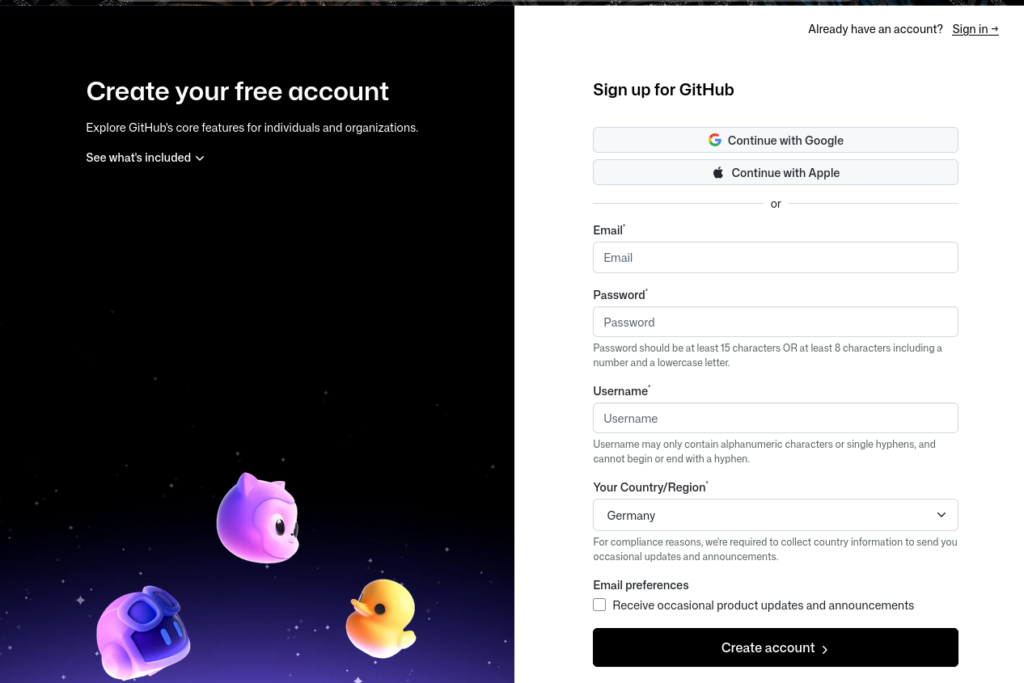
2. In the top right corner, click the “+” icon and select “New repository”.
3. Name it my-bash-scripts.
4. Choose whether you want it to be ‘Public’ (anyone can see it) or ‘Private’ (only you can see it).
5. Leave all check boxes (like “Add a README”) ‘blank’ for now, because we already have local files we want to upload.
6. Click “Create repository”.
Step 2: Connect Local to Remote
GitHub will show you a page of terminal commands. Since we already initialized our local repository (Phase 2), we only need to link our local folder to this new cloud database. Git calls cloud databases “Remotes.”
Copy the command GitHub provides to add the remote. It looks like this:
git remote add origin https://github.com/YourUsername/my-bash-scripts.git(We name the primary cloud server “origin” by convention).
Step 3: Push Your Code (git push)
Now, upload (push) your main branch to the origin server.
git push -u origin mainNote: The -u flag tells Git to remember this connection. For all future updates, you can just type git push without typing origin main.
A Note on Authentication (2026):
GitHub no longer accepts account passwords in the terminal for security reasons. When you attempt to push, you will be prompted to authenticate. You must use either a “Personal Access Token (PAT)” generated from your GitHub developer settings, use “SSH Keys”, or use the cross-platform “Git Credential Manager” which opens a browser window for you to log in securely.
Refresh your GitHub repository page in your browser. Your Bash scripts are now safely backed up in the cloud!
Working From Another Computer (git clone & git pull)
If you buy a new laptop or log into a remote server, getting your scripts is incredibly easy. You do not need a USB drive. You “clone” the repository:
git clone https://github.com/YourUsername/my-bash-scripts.gitThis downloads the entire repository, including the full .git history folder, to your new machine.
If you make a change on your laptop and push it to GitHub, your remote server will not automatically get the new code. You must log into the server and “pull” the changes down:
cd my-bash-scriptsgit pullConclusion: The Ultimate Quick Reference Cheat Sheet
Learning Git feels overwhelming because it introduces a completely new mental model for saving files. The best way to learn is by doing. Force yourself to stop copy-pasting your scripts. Make a dummy project, initialize Git, make branches, and push it to GitHub.
Keep this workflow cheat sheet handy:
Daily Workflow:
1. Check current status: git status
2. Add changed files to staging: git add .
3. Commit with a message: git commit -m “Describe what you did”
4. Upload to GitHub: git push
Safe Feature Development Workflow:
1. Create a safe space: git switch -c new-feature-name
2. Code, test, add, and commit.
3. Return to main timeline: git switch main
4. Integrate the new code: git merge new-feature-name
By mastering these fundamental commands, you have officially adopted the industry standard for software development. Your code is safe, your history is documented, and you are ready to collaborate with the millions of developers hosting their projects on GitHub.
Time to practice
Enter your email to save your progress and receive your results.